There are various types of product you can add. Click the links below to find out more:
- How to add a variable product (a product with different options eg. colour, size)
- How to add a downloadable product (eg. an e-book)
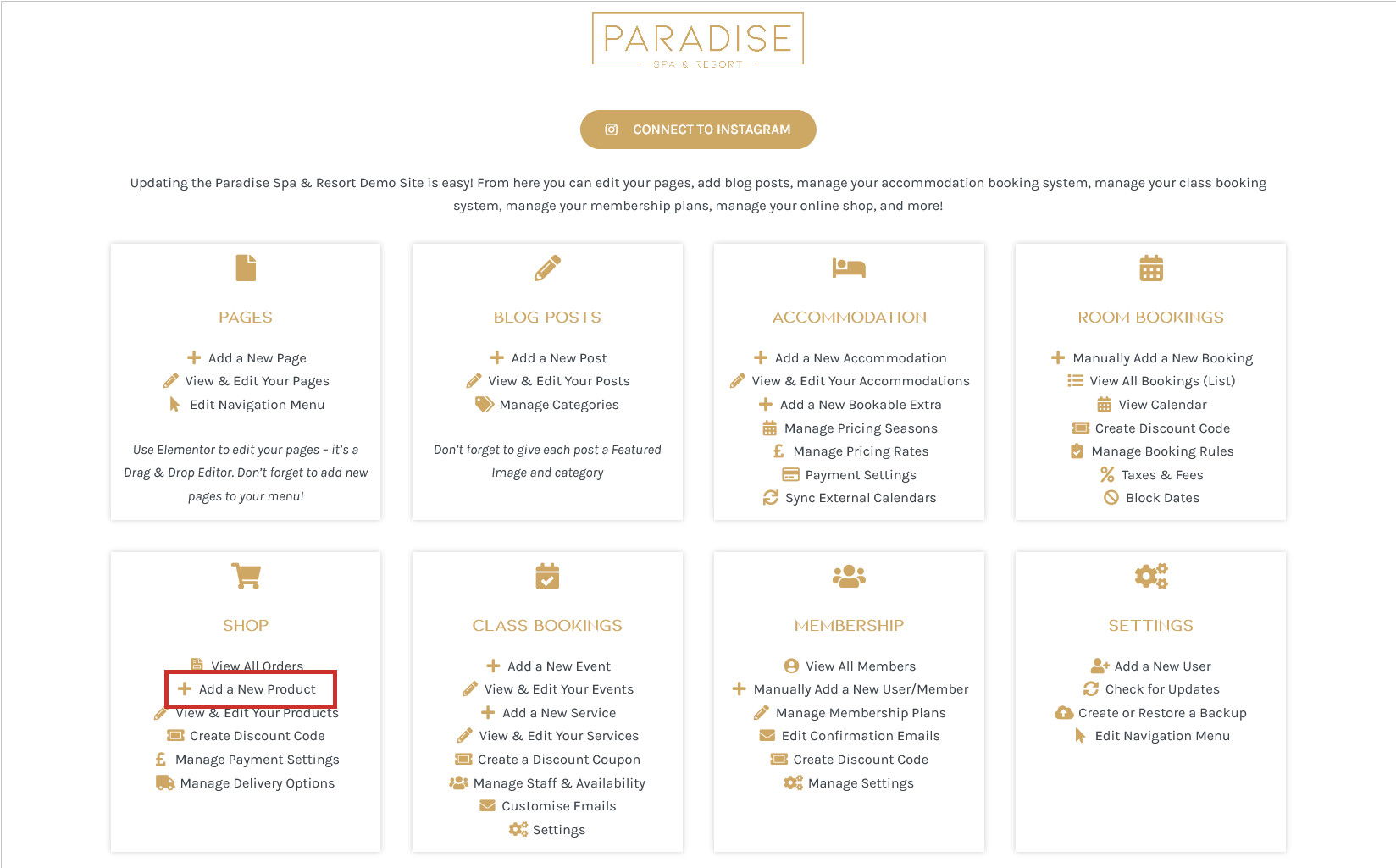
This article is for standard products. To add a new product to your online shop, use the Add a New Product link in your dashboard under the ‘Shop’ (or similar heading):
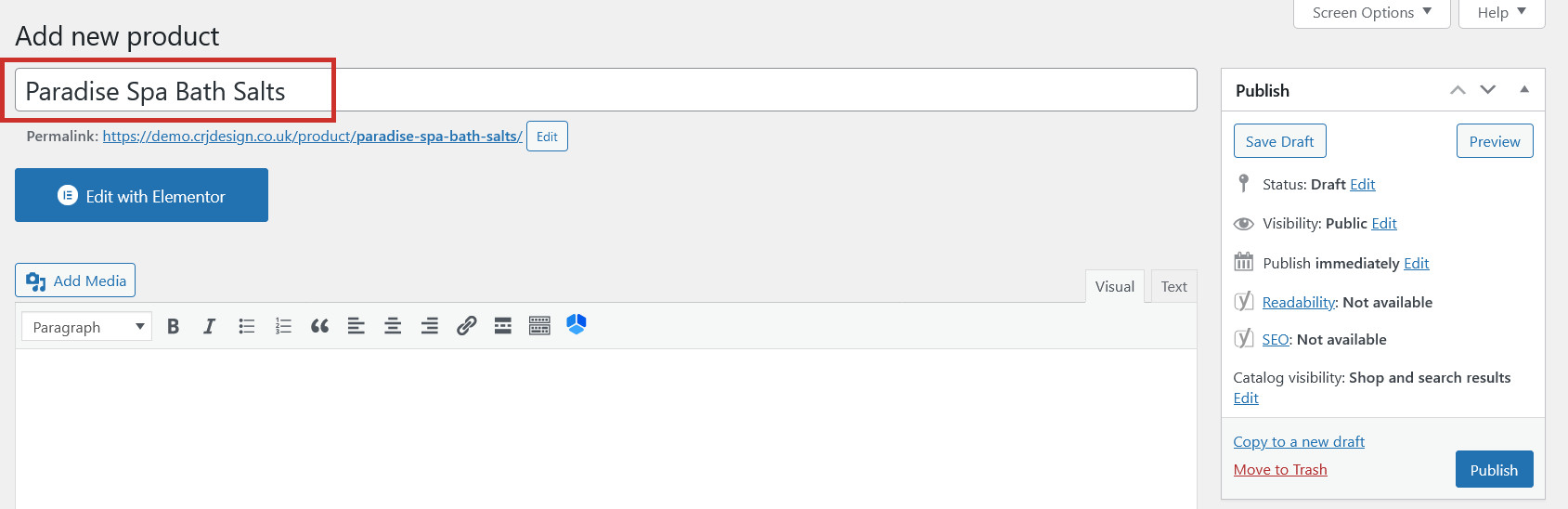
Give your product a relevant Name:
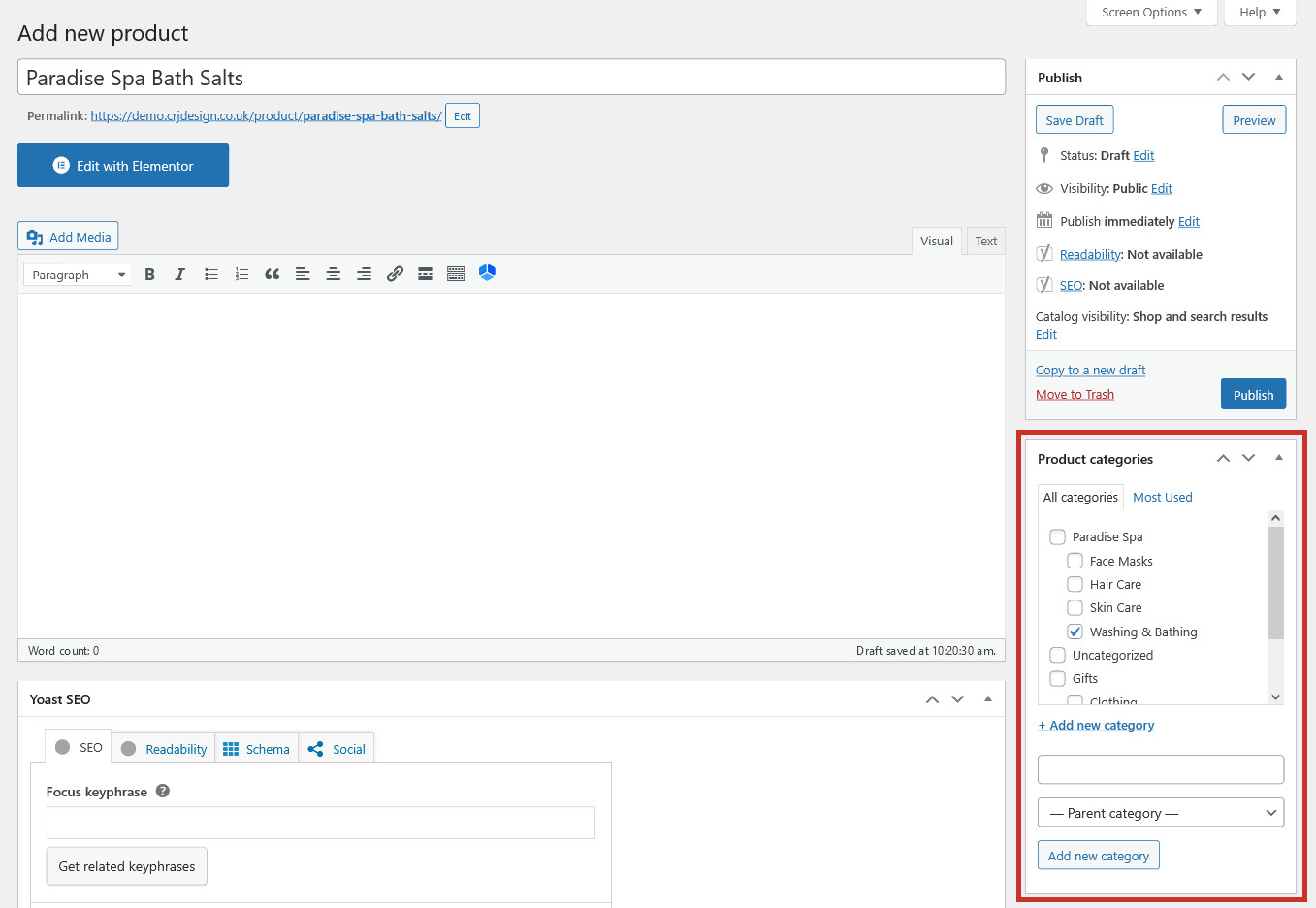
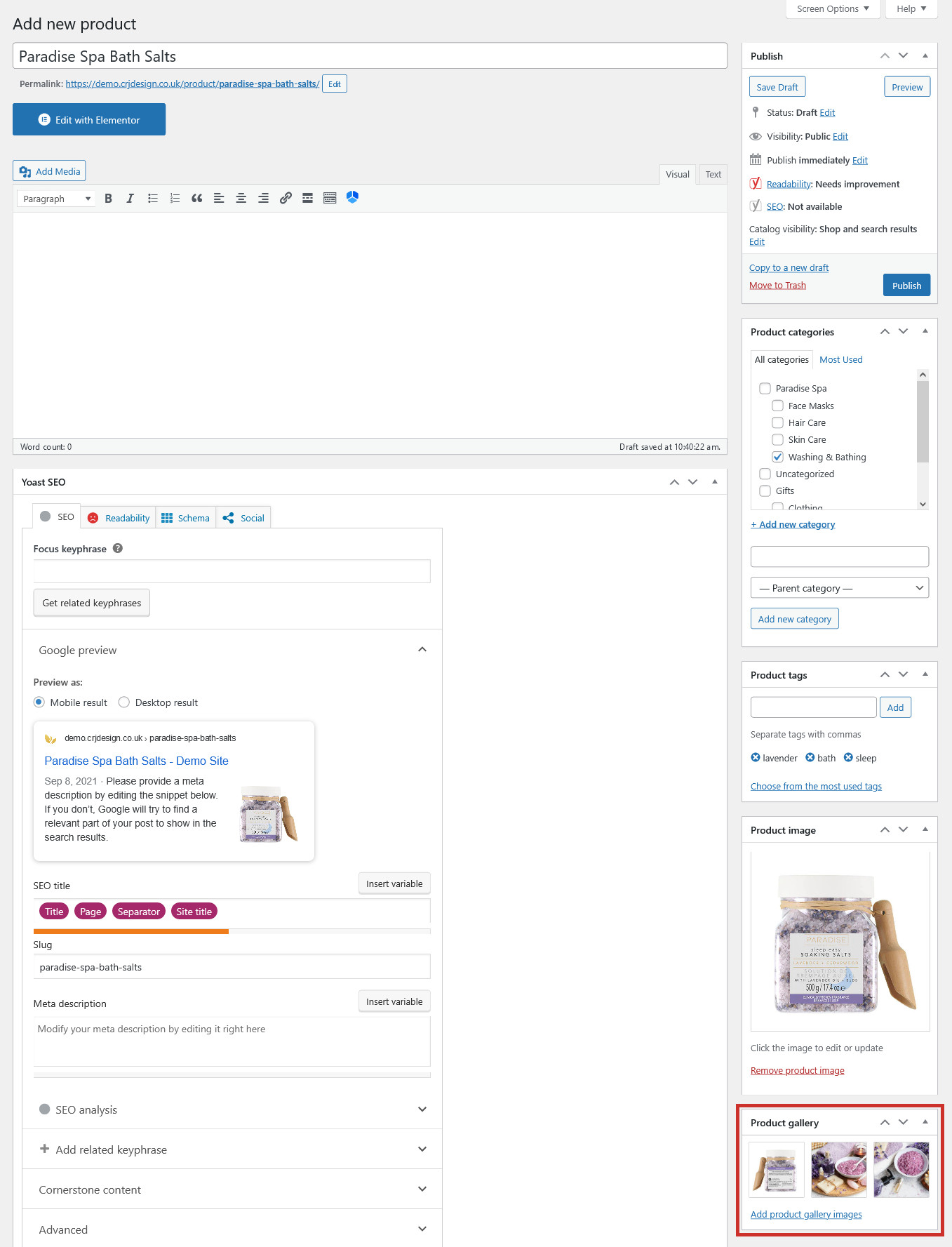
Select a relevant Category for your product, or add a new one using the ‘Add new category’ button. Categories allow you to group similar products together and make it easier for customers to find what they’re looking for. Categories can also be nested into main (‘parent’) categories with sub-categories (‘child’):
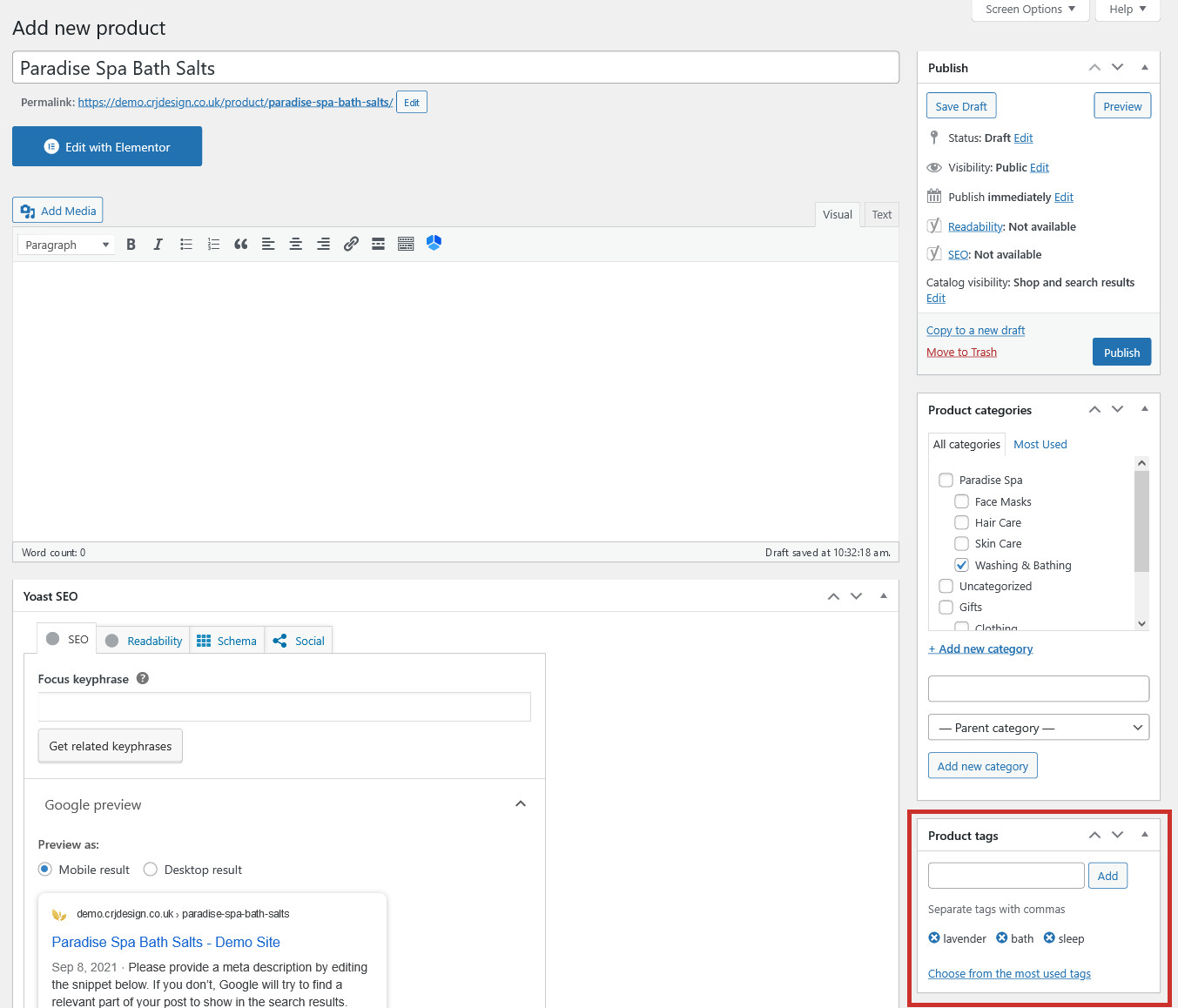
You can also choose to add relevant Tags to your product to label your product with themes and ideas which your product is about. Tags can help people find the product when searching for relevant terms on your site:
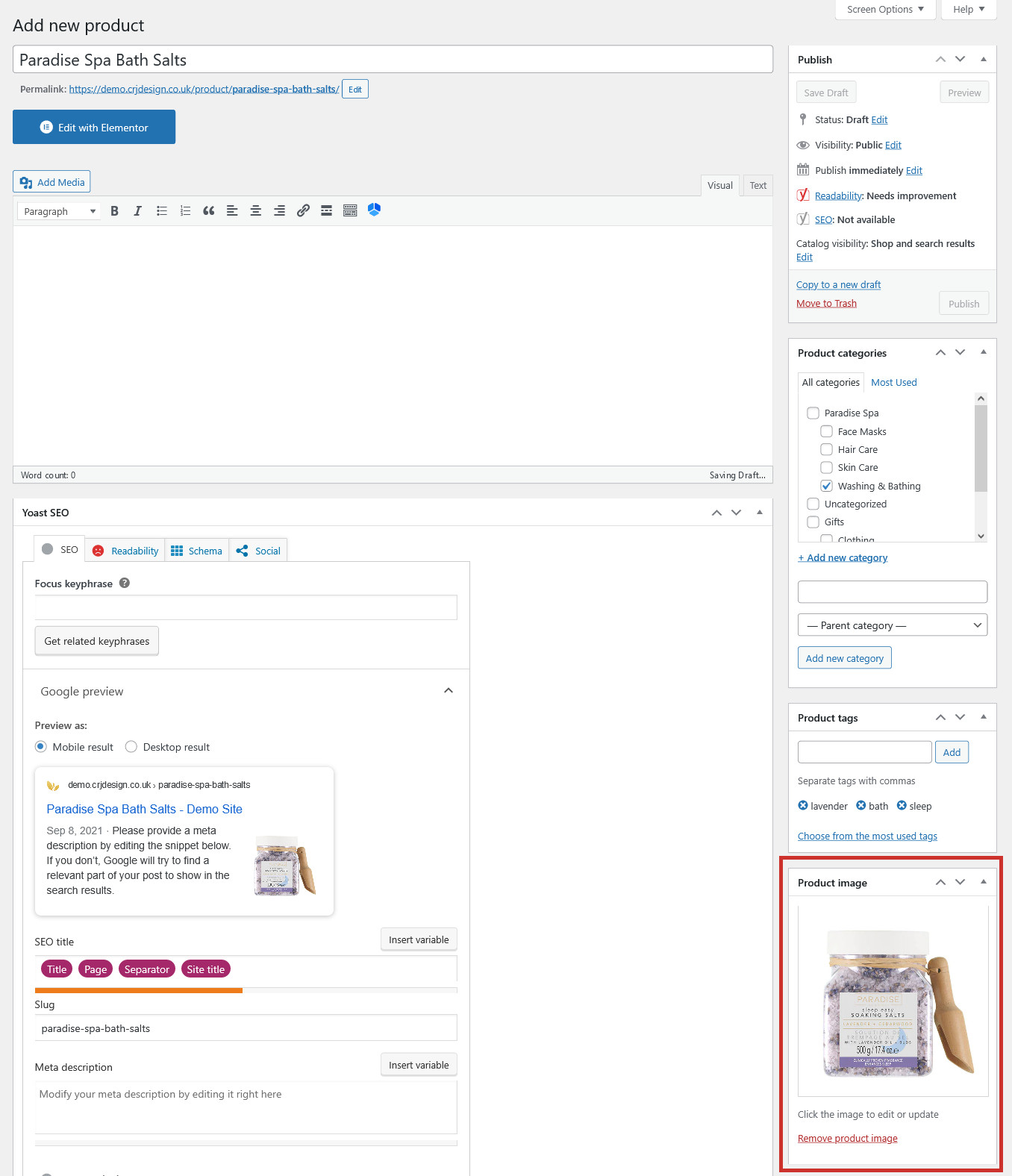
Give your product a Product Image (the main image used for the product):
Tip
Try to make sure all your images are square before you upload them.
If you have any other images of the product you’d like to display, you can add them to the Product Gallery (optional):
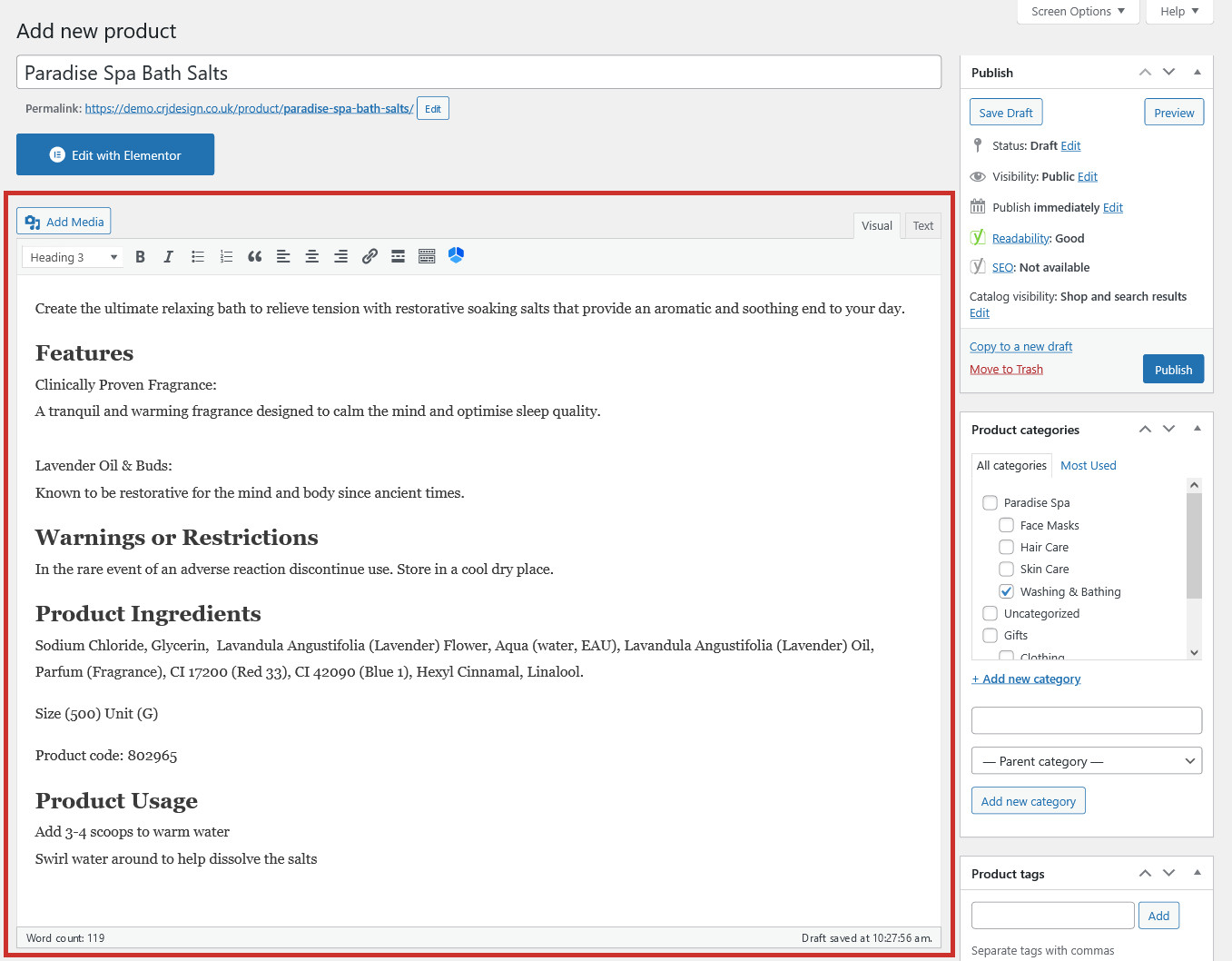
Enter a Long Description for your product in the text area. This is displayed underneath the product and is a great place to include all relevant information about your product, such as speficiations, warnings, and ingredients. This can be formatted using the toolbar so you can add headings, bold and italic text, lists, and links:
In the Product data tab, enter the product’s Price (enter a sale price too if you want this product to be on offer – find out more here):
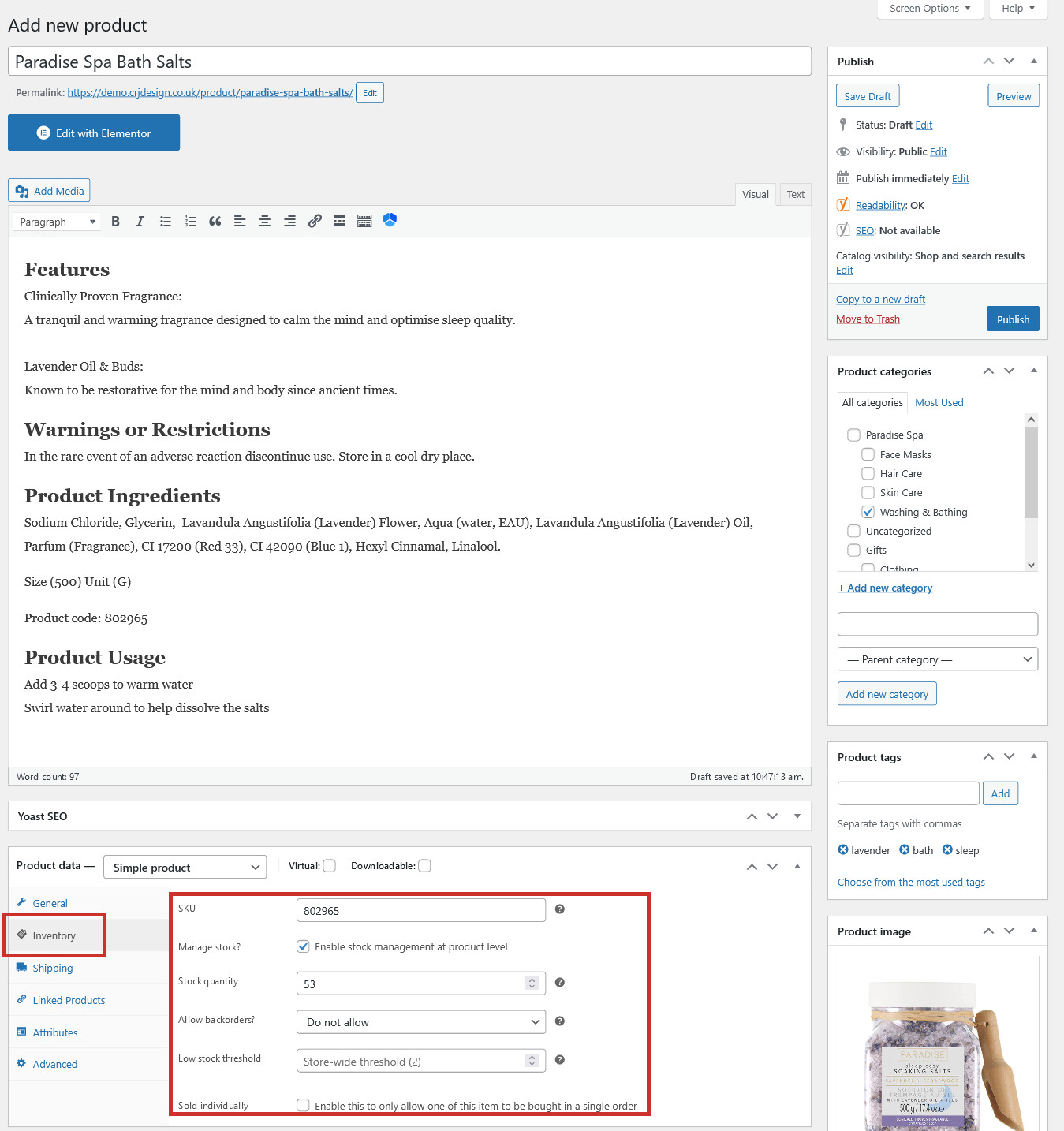
(optional) In the Inventory tab, you can manage the product’s Stock levels (find out more here) and enter a SKU:
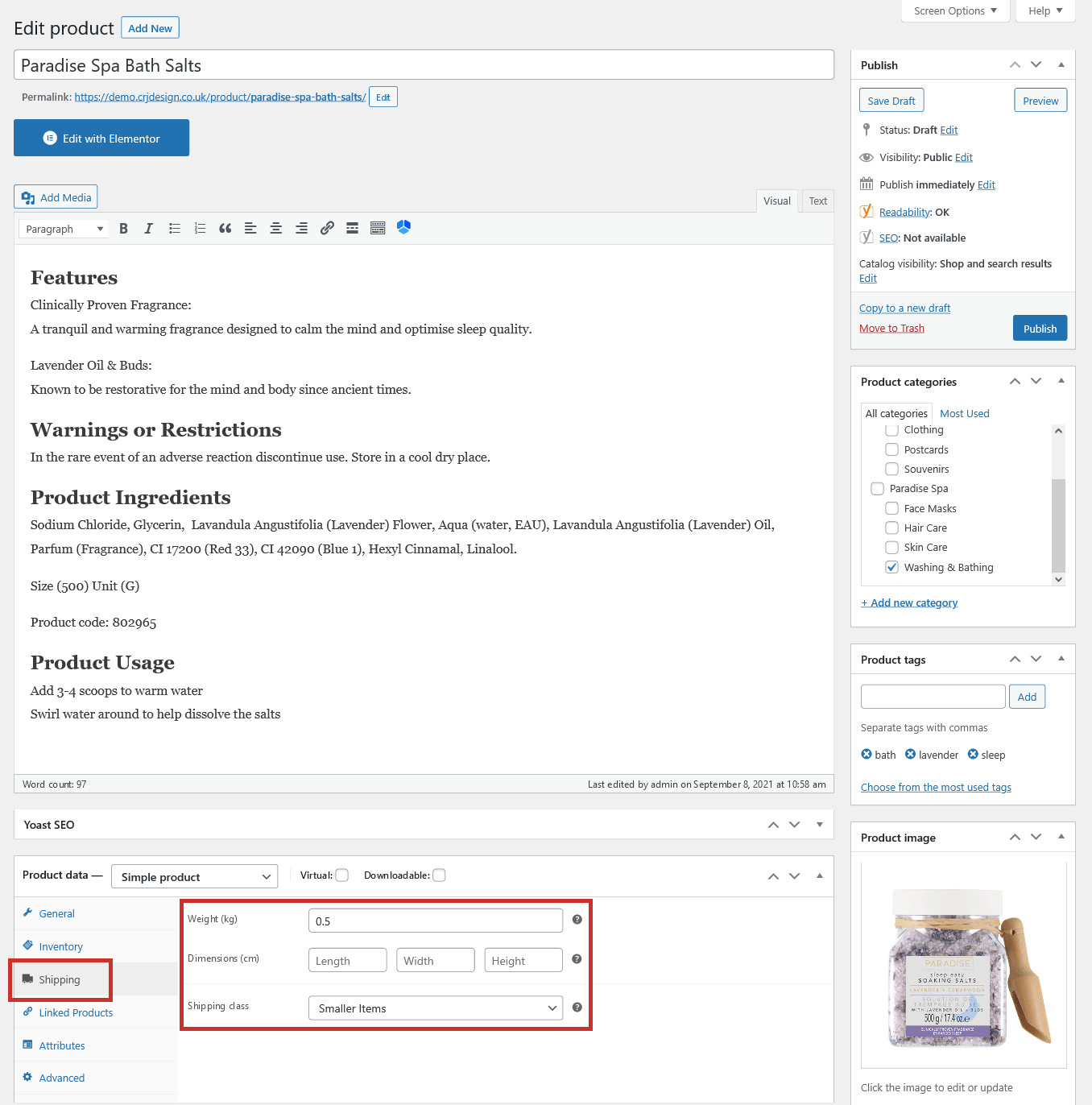
(optional) In the Shipping tab, you can enter the product’s Weight (if your store uses weight-based shipping, this is essential) and Dimensions, and select a Shipping Class for the product if needed (find out more about Shipping Classes here):
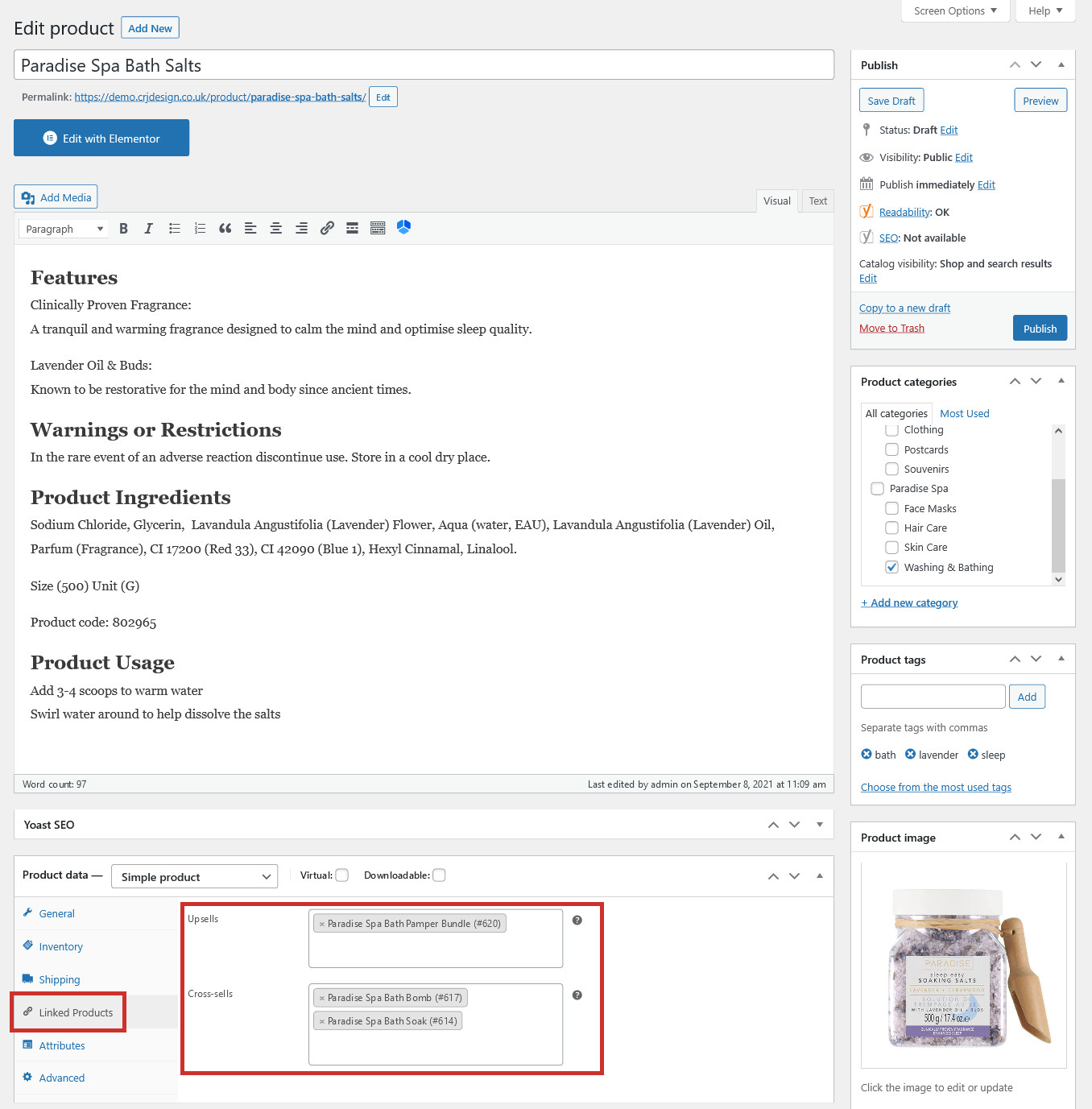
(optional) In the Linked Products tab, you can add Upsells (other products you recommend instead of the current one, because they’re more profitable or better value for money or better quality) and Cross-sells (other products you recommend as well as the current one, because they’re similar or go well with the current product):
Linked Products
In the example above, we've added the Pamper Kit as an upsell, because it's more expensive and we want people to buy that instead. We've added similar bath products as cross-sells, in the hopes they'll be bought together.
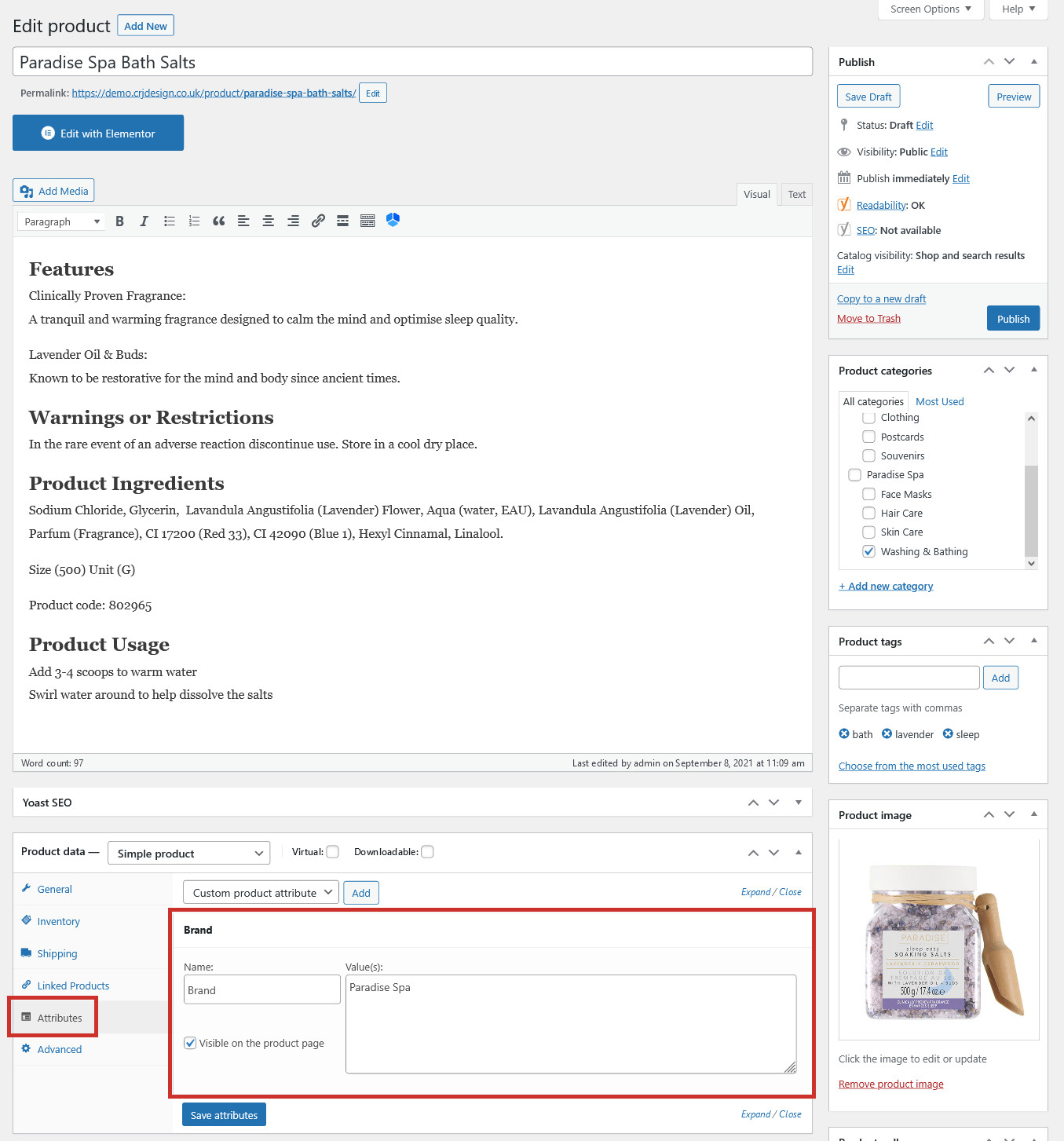
(optional) If your store uses Attributes to filter products, you can add attributes from the Attributes tab (find out more here):
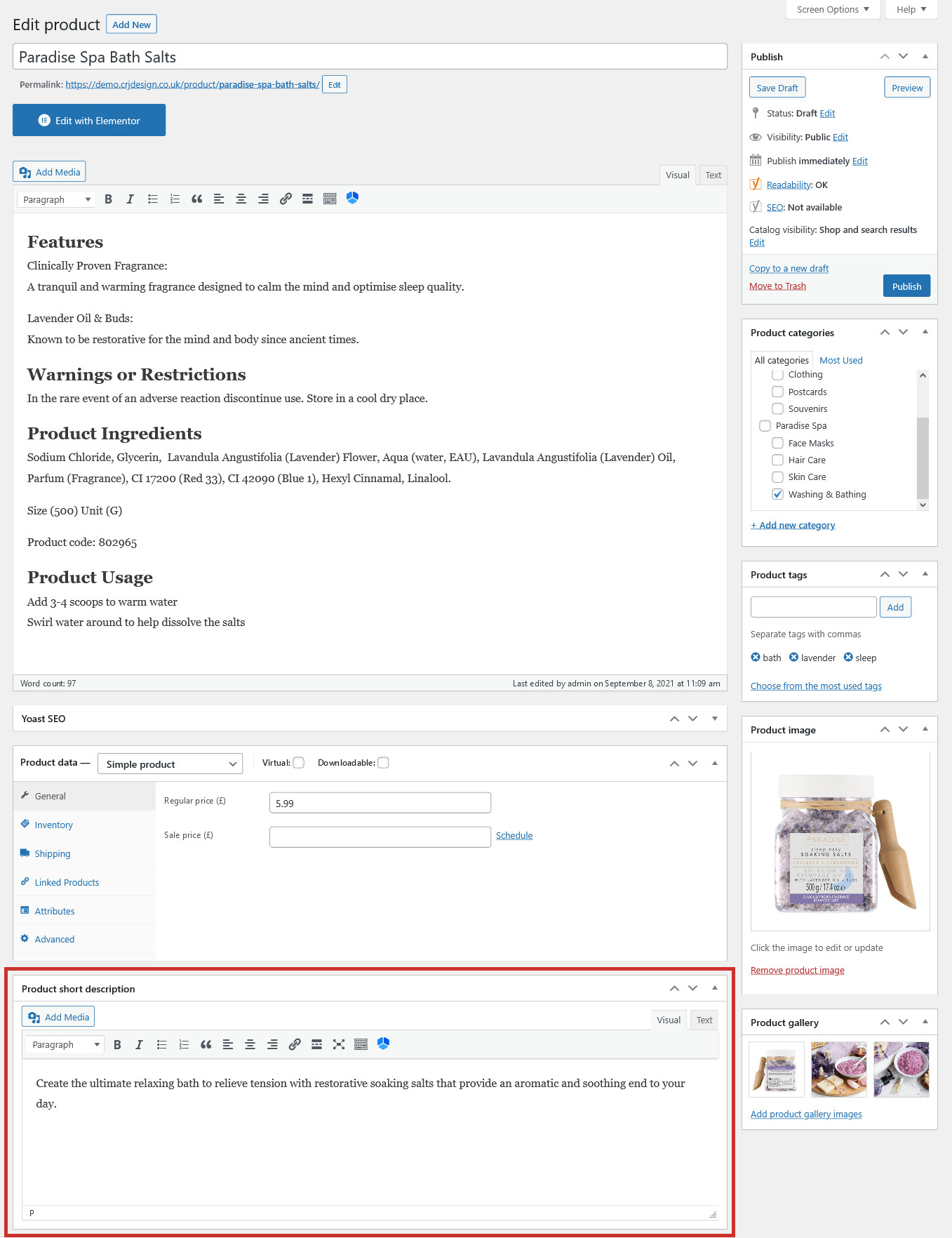
Add a Short Description for your product. This is a brief overview of your product, displayed prominently on the product page (this can also be formatted with bold & italic text, links etc.):
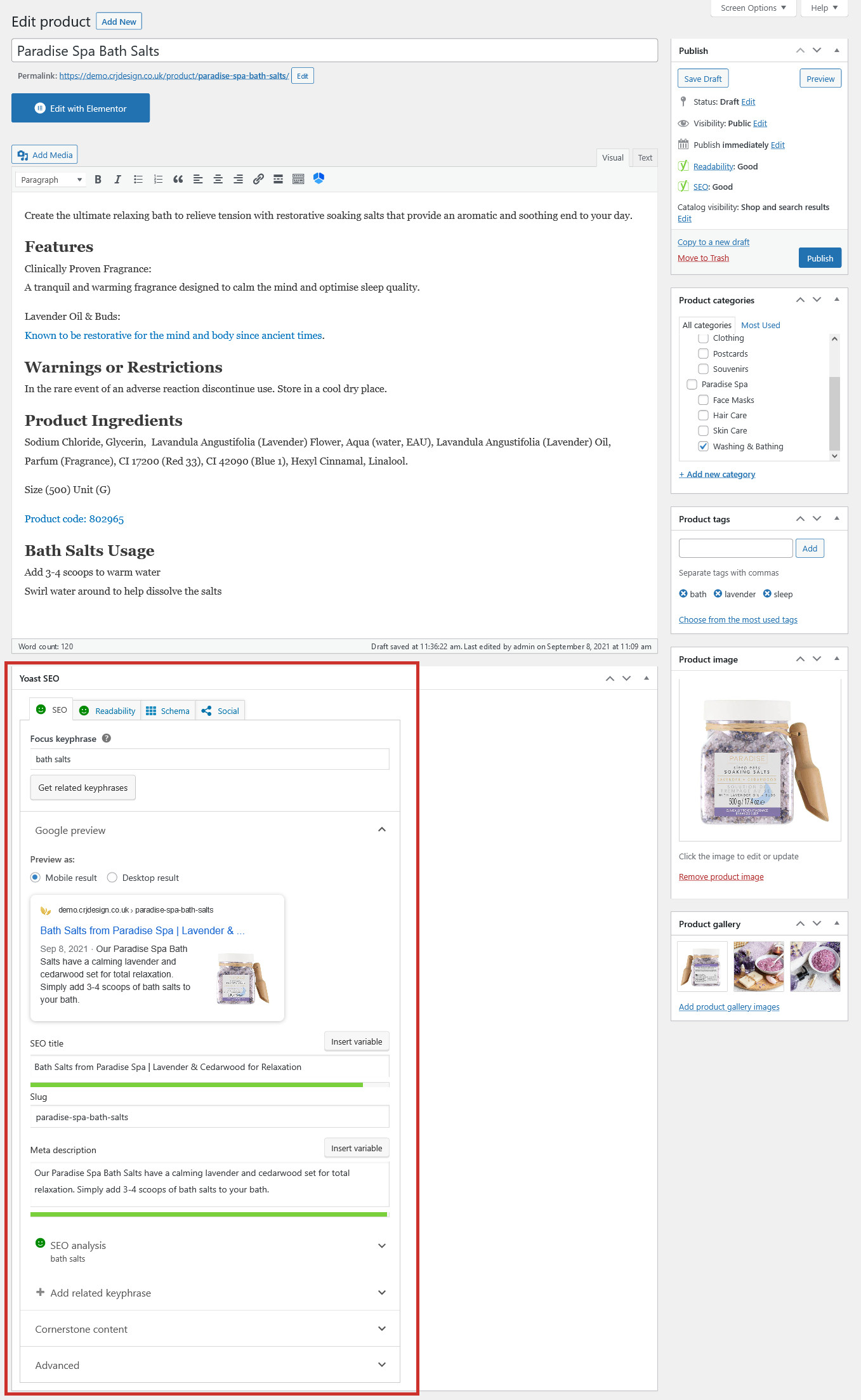
Don’t forget to optimise your product for SEO using the Yoast SEO tab:
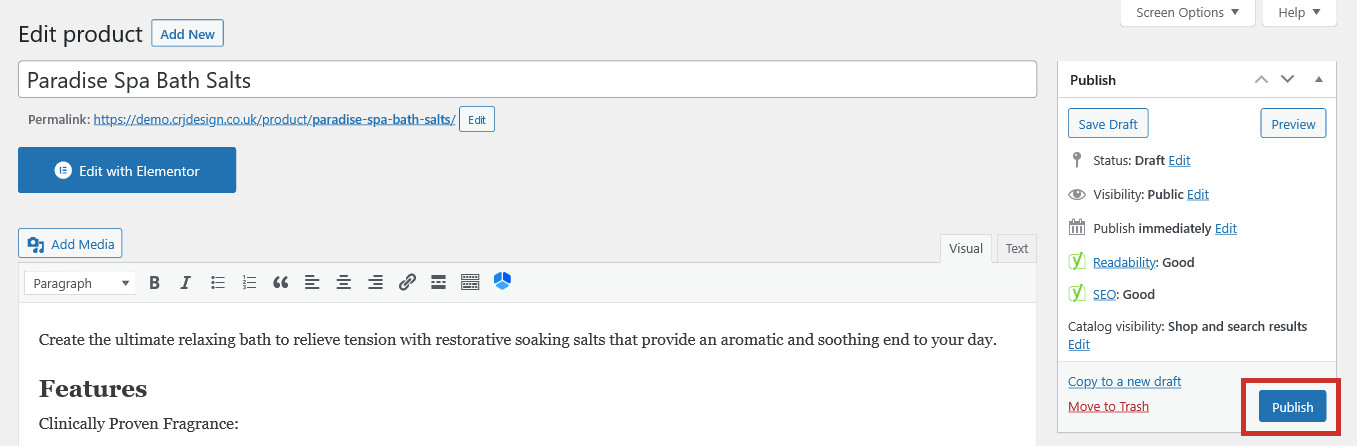
Finally, click Publish to add your product to your store (or Save as a Draft if you’re not ready yet but want to save your progress):
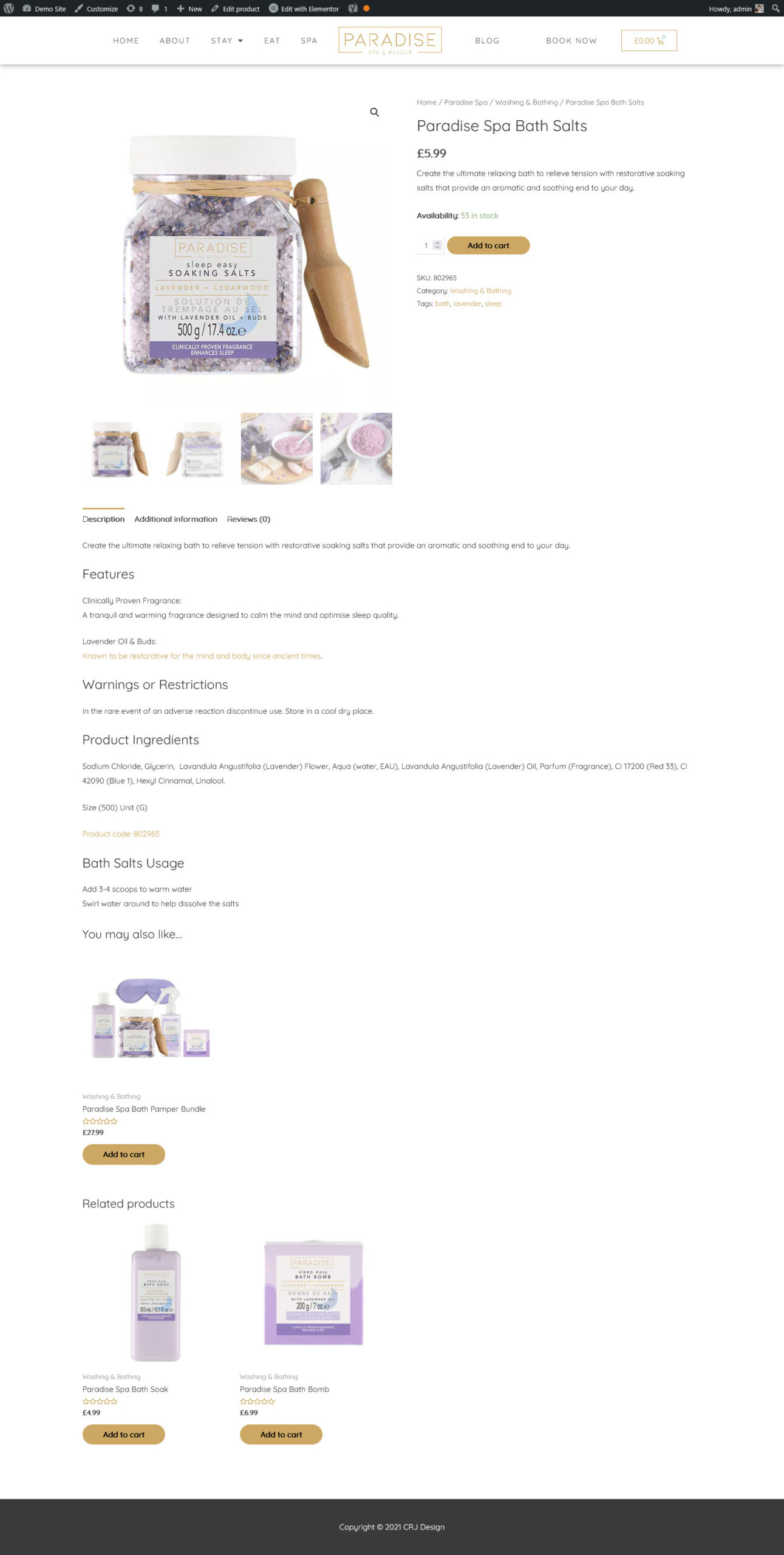
The product will now automatically be added to your online store. Take a look at how the example product we’ve created will appear to your customers (click the plus icons for more information):
Product Name
Price
Short Description
Stock
Main Image
Photo Gallery
SKU
Category & Tags
Long Description
Up-Sells
Cross-Sells