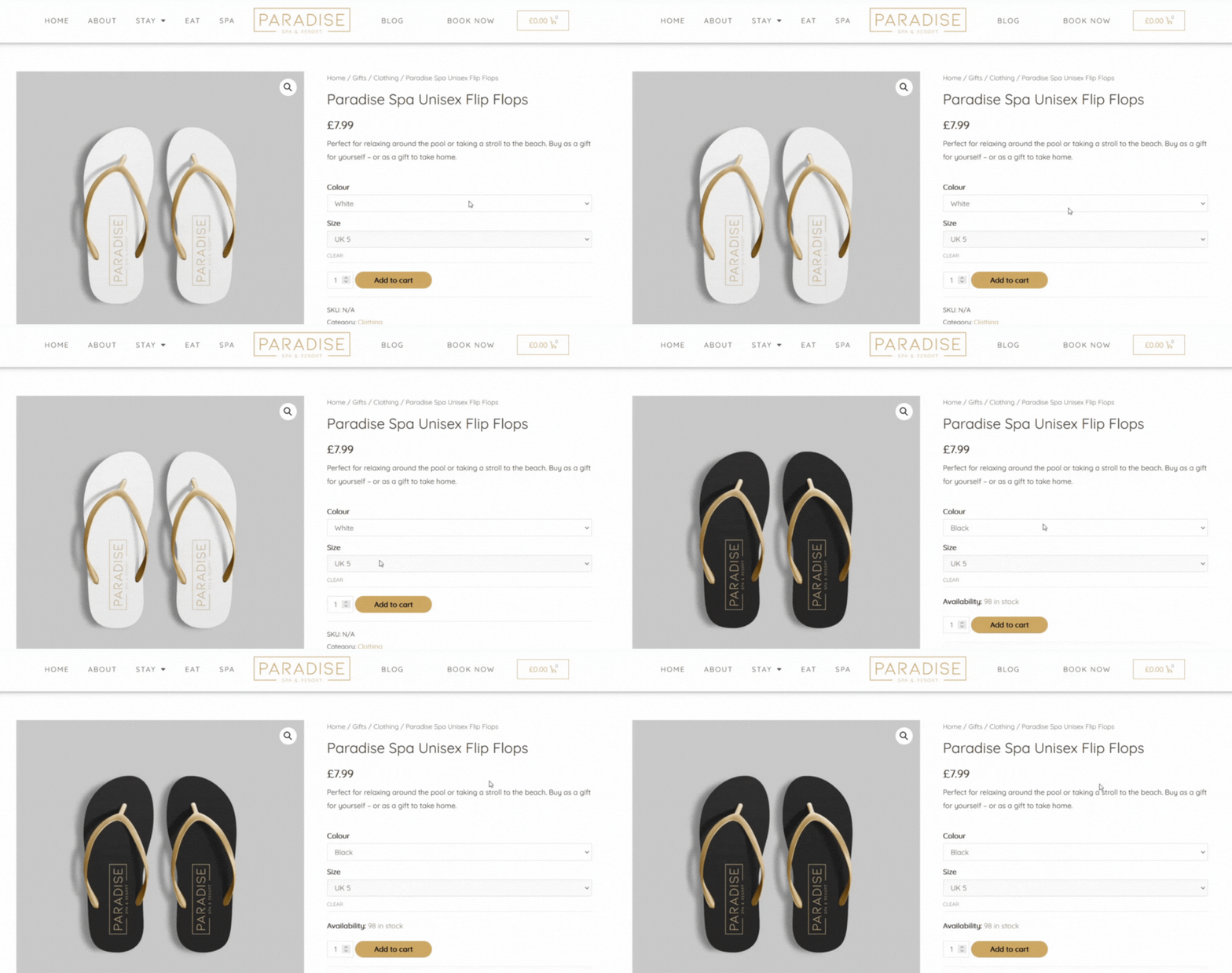
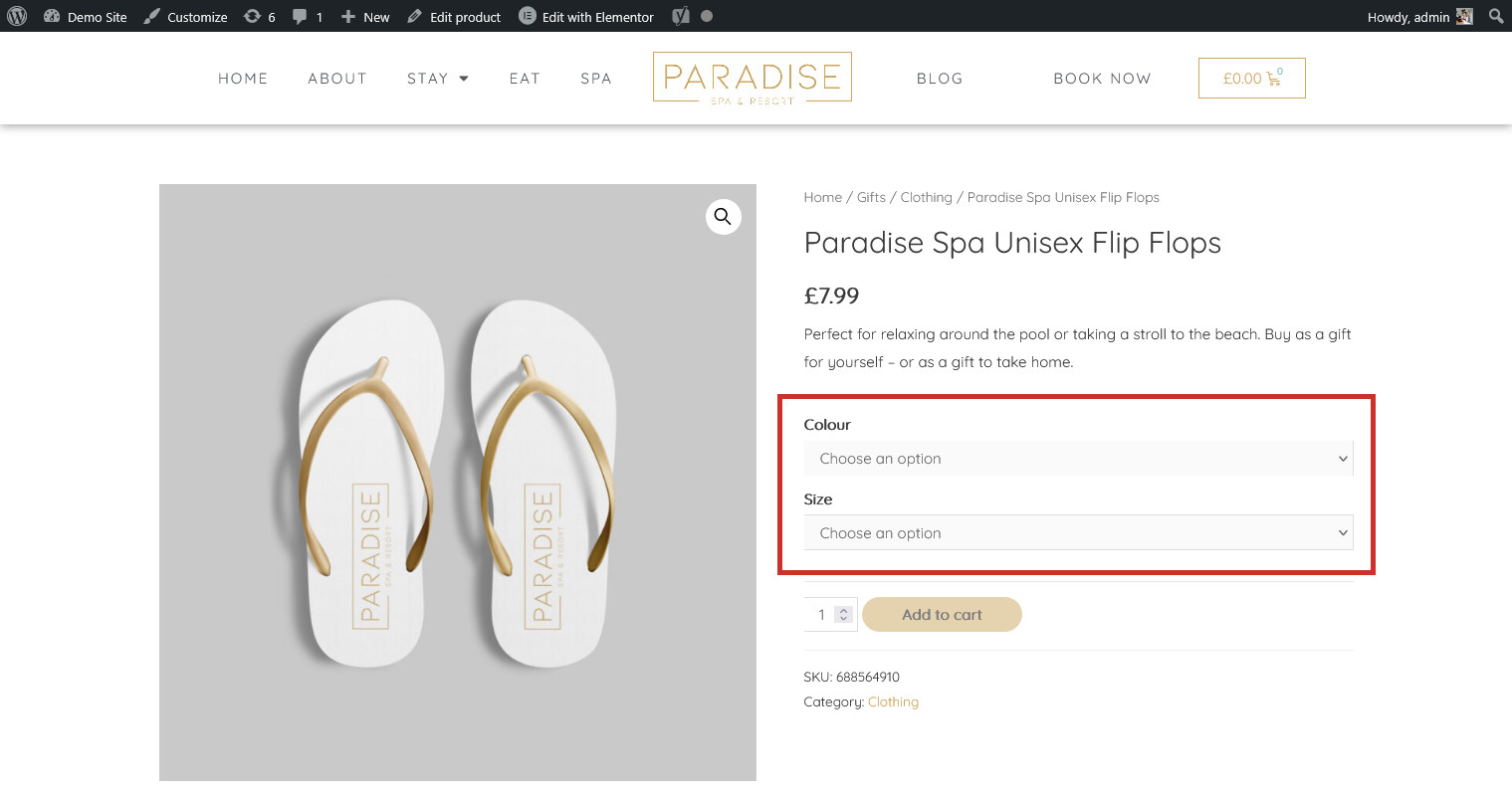
Variable products are products which have different options for the customer to choose from. For example, a pair of shoes which come in various colours and sizes. Here is an example of a variable product (notice how the customer must choose from different product options):
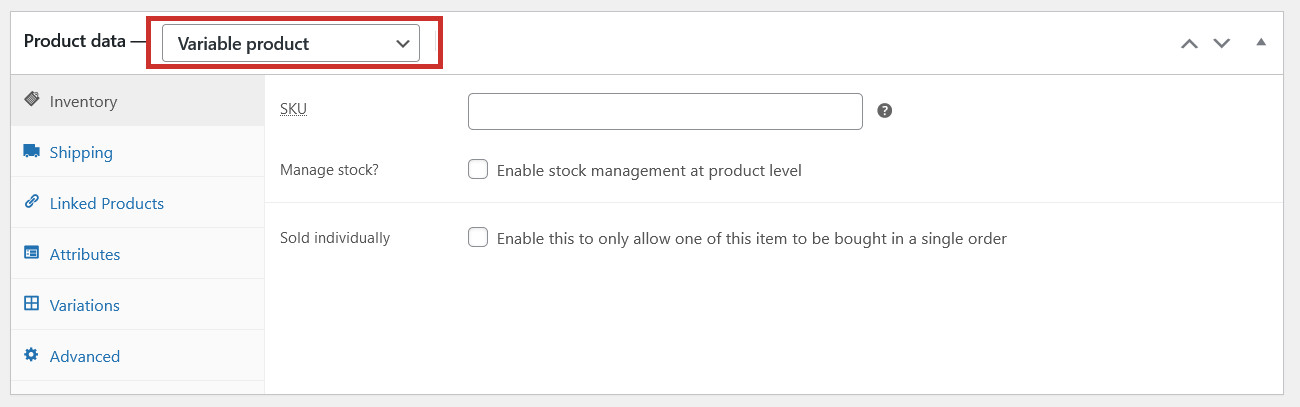
Variable products are added in the same way as regular products (please refer to these instructions), but with a few changes. Once you have given your variable product a name, descriptions, category, (optional) tags, and images, you need to change to product type from ‘Simple product’ to Variable product in the Product data tab:
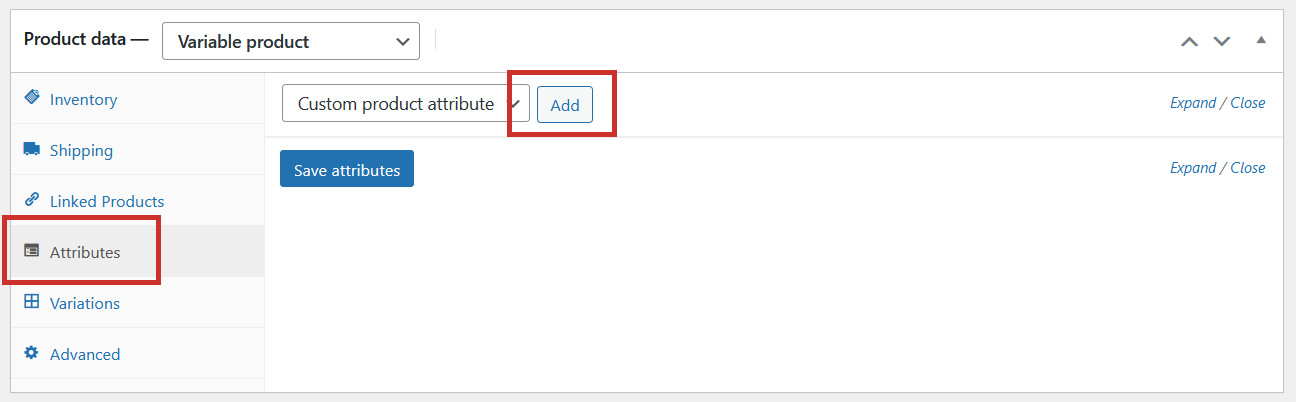
Next, you need to give the product some Attributes. These are the different options available. ‘Colour’ could be an attribute, with different values (options): Black, White. Click on the Attributes tab and click ‘Add’ next to ‘Custom product attribute’:
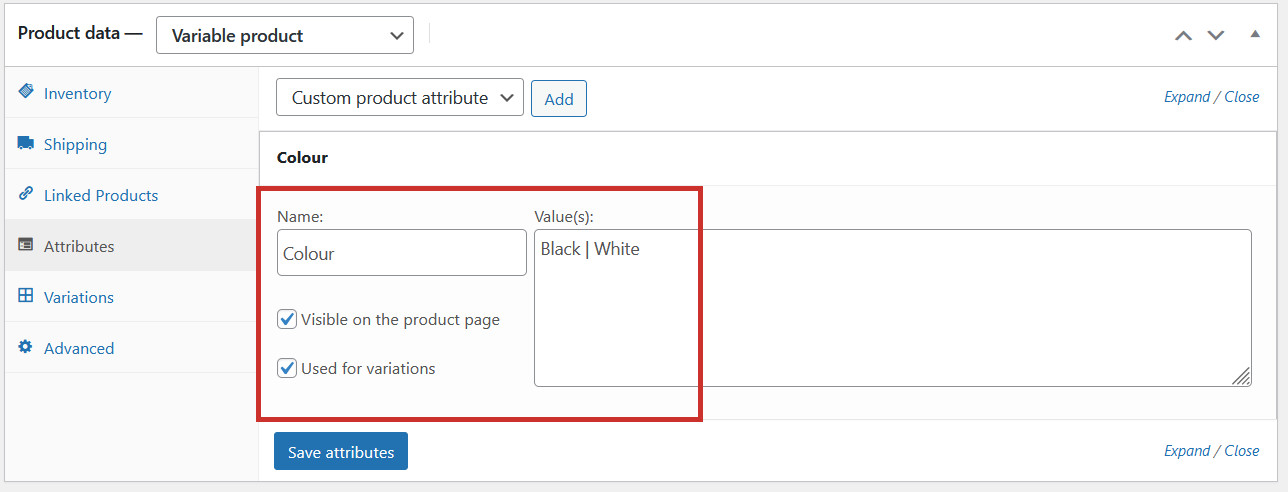
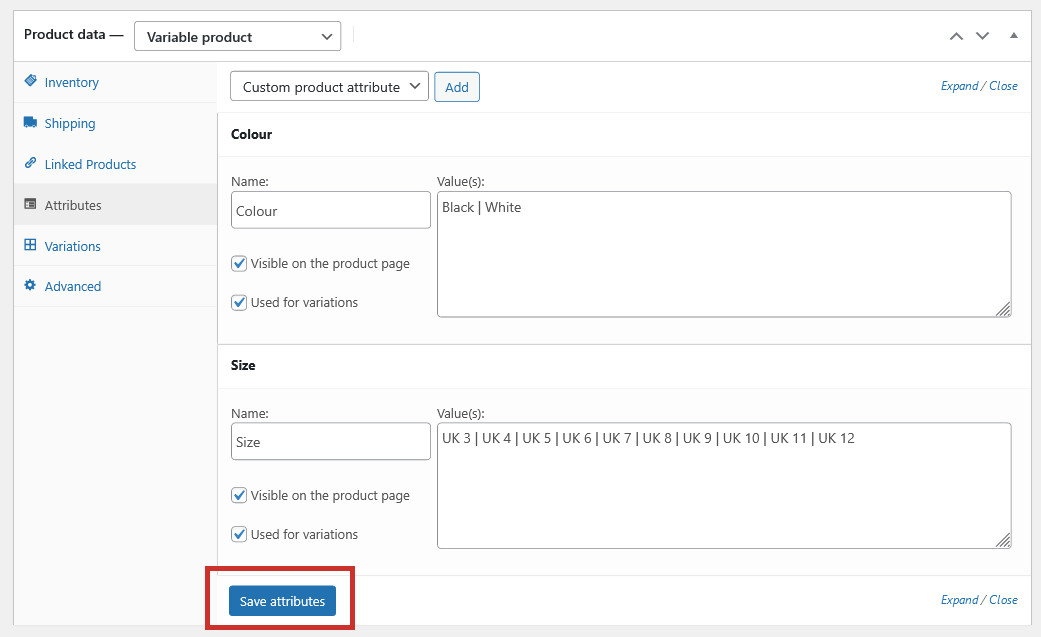
Enter the Name of the attribute (eg. ‘Colour’), and then add the options (Values), seperated by a | symbol. Ensure ‘Used for variations’ is checked:
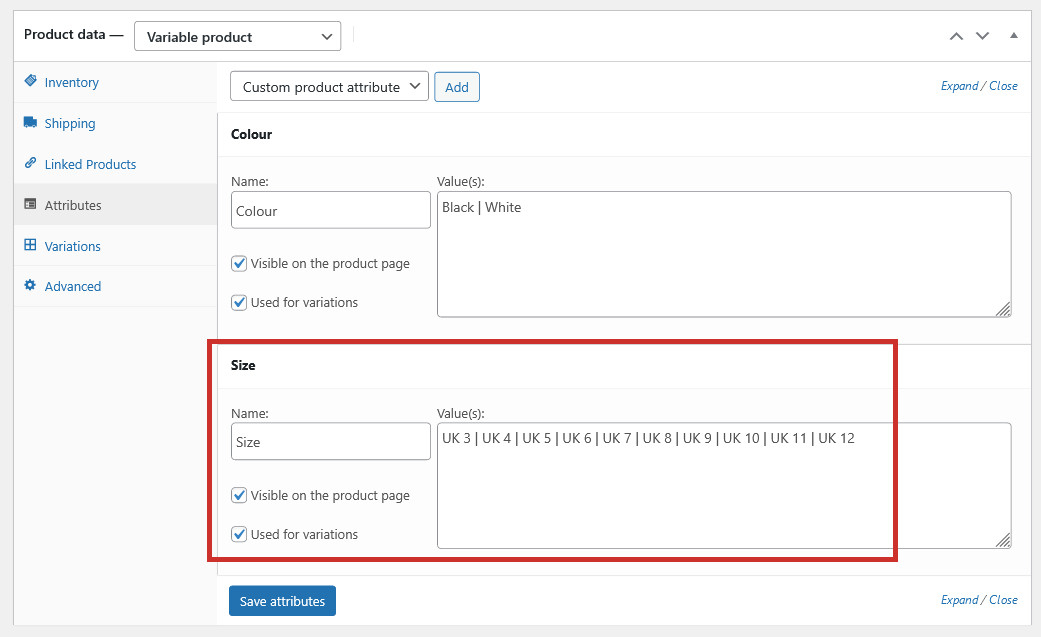
You can add multiple attributes if you need to. This product is also available in various sizes, so I have added another attribute named ‘Size’, with different shoe sizes as values:
When you’ve finished making attributes, click Save attributes before continuing:
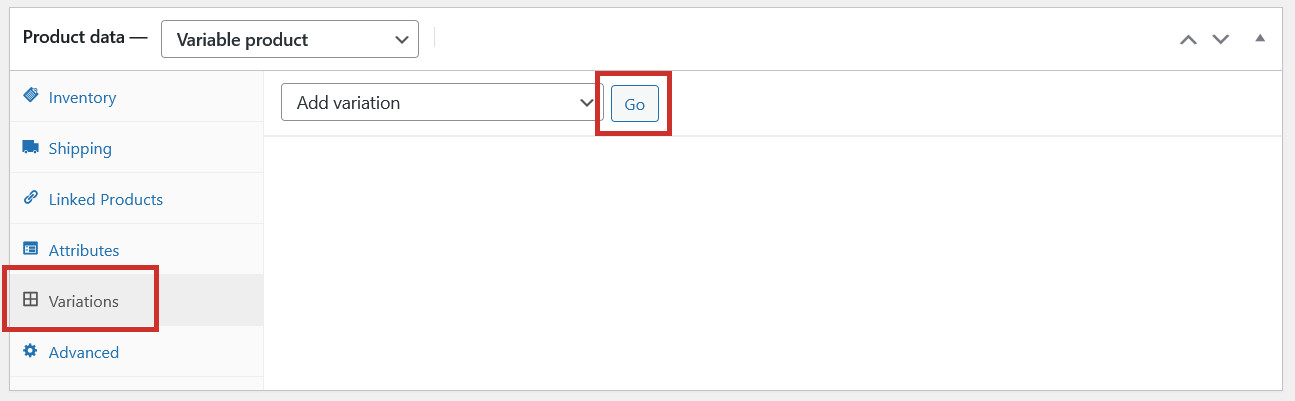
Now we need to use those attributes to make the product variations. Click on the Variations tab and click Go next to ‘Add variation’:
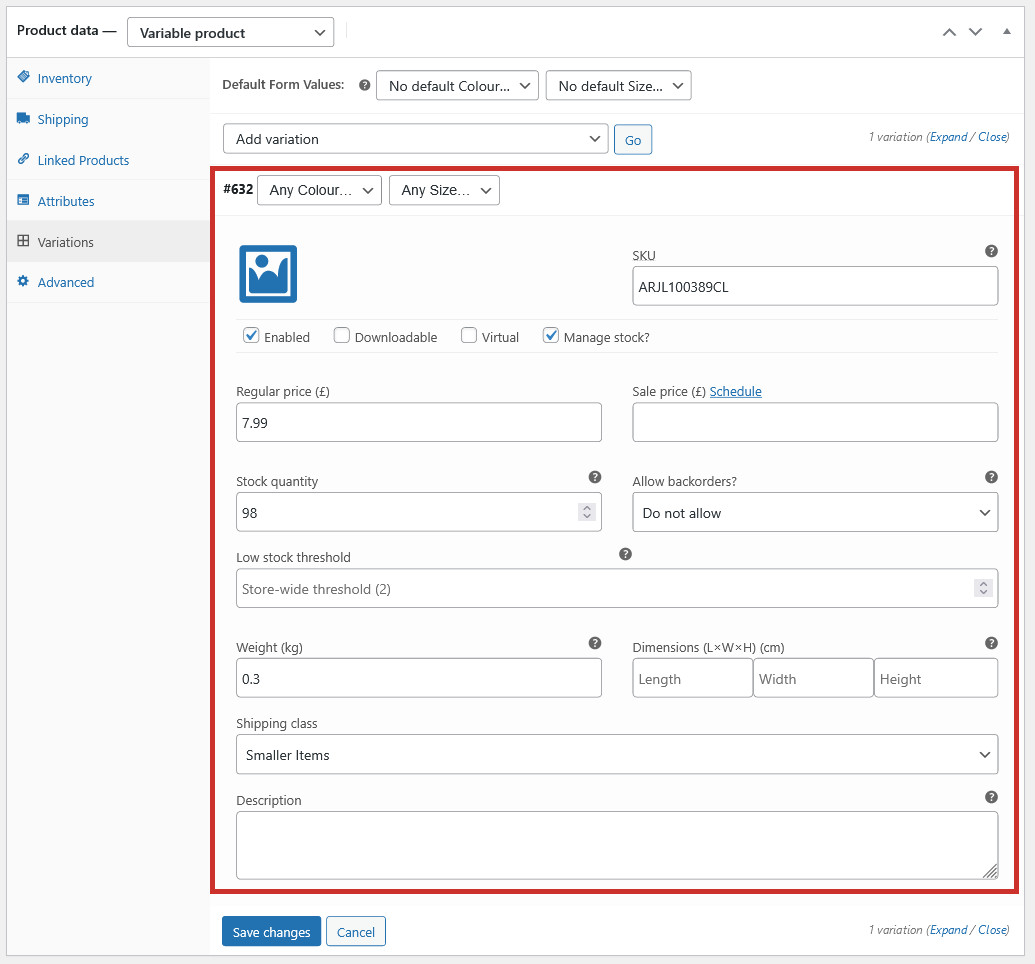
This will automatically create a product version (variation) in ‘any’ colour and ‘any’ size. If your product variations do not affect the price or weight of the product, then this is the only variant you need to add. Click on the variation to add a price, SKU, stock level (find out more), weight (optional), and shipping class (optional).
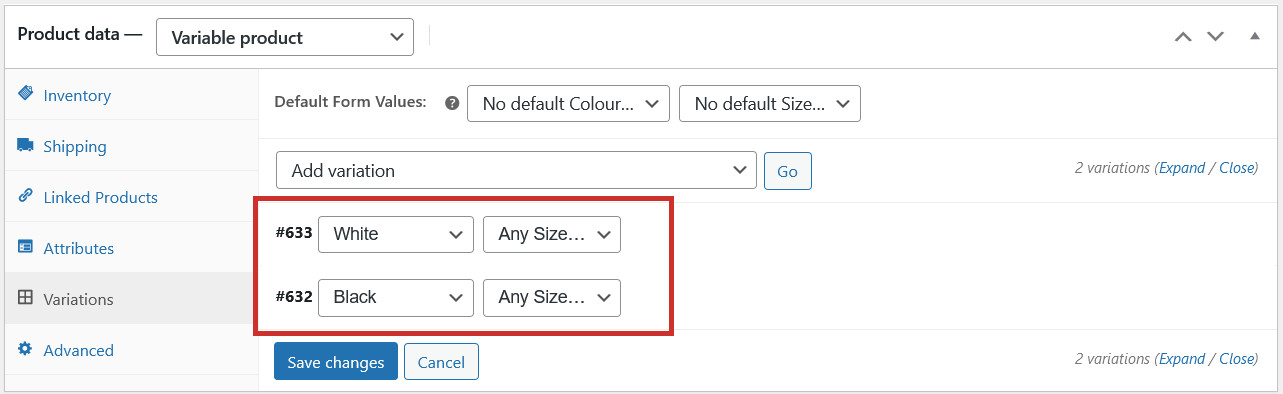
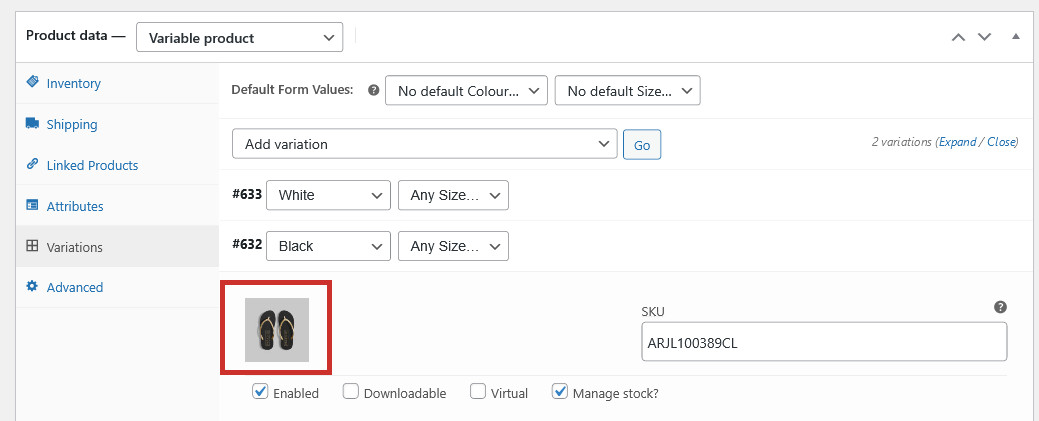
However, if your product variations have different stock levels, prices, images, weights etc., you need to add more variations. For example, we want the image to show the black pair of flip flops when somone selects the colour black, so we’ve made another variation and changed one to Colour: Black and one to Colour: White. We do not need to make variations for each shoe size, as this won’t affect the product image or price:
Each product variation can now be edited individually to change the image (or, if needed, stock level, price, or weight):
Now when someone chooses the colour black, the picture will change:
Variable products with different prices
As mentioned above, if your variable product comes in different prices, depending on which option is chosen, then you need to create variations for each option and set the price for each option individually.
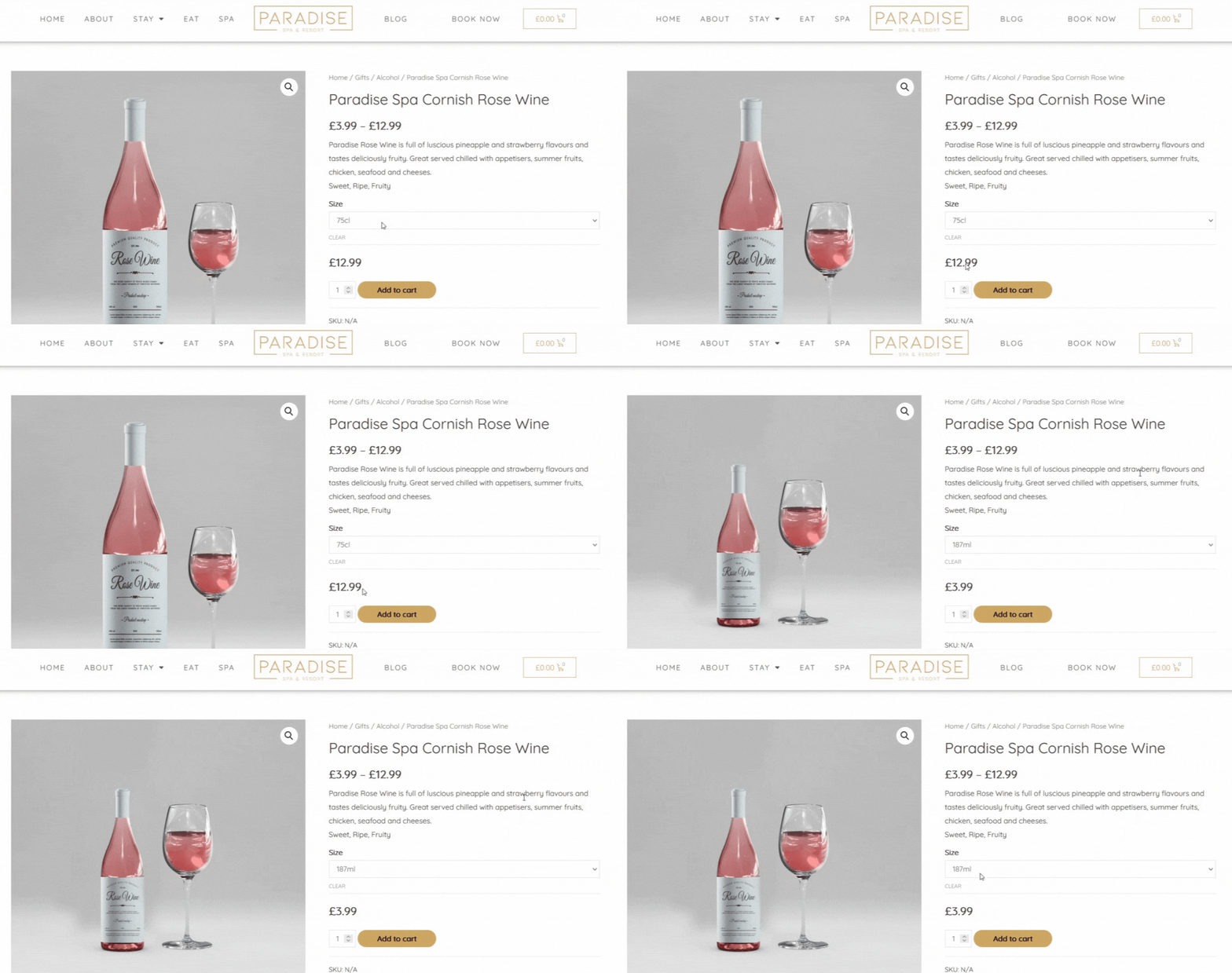
For example, say you are selling a drink which comes in different bottle sizes; they are of course going to have different prices. The example below is available in a large 75cl bottle (for £12.99), or a small 187ml bottle (for £3.99):
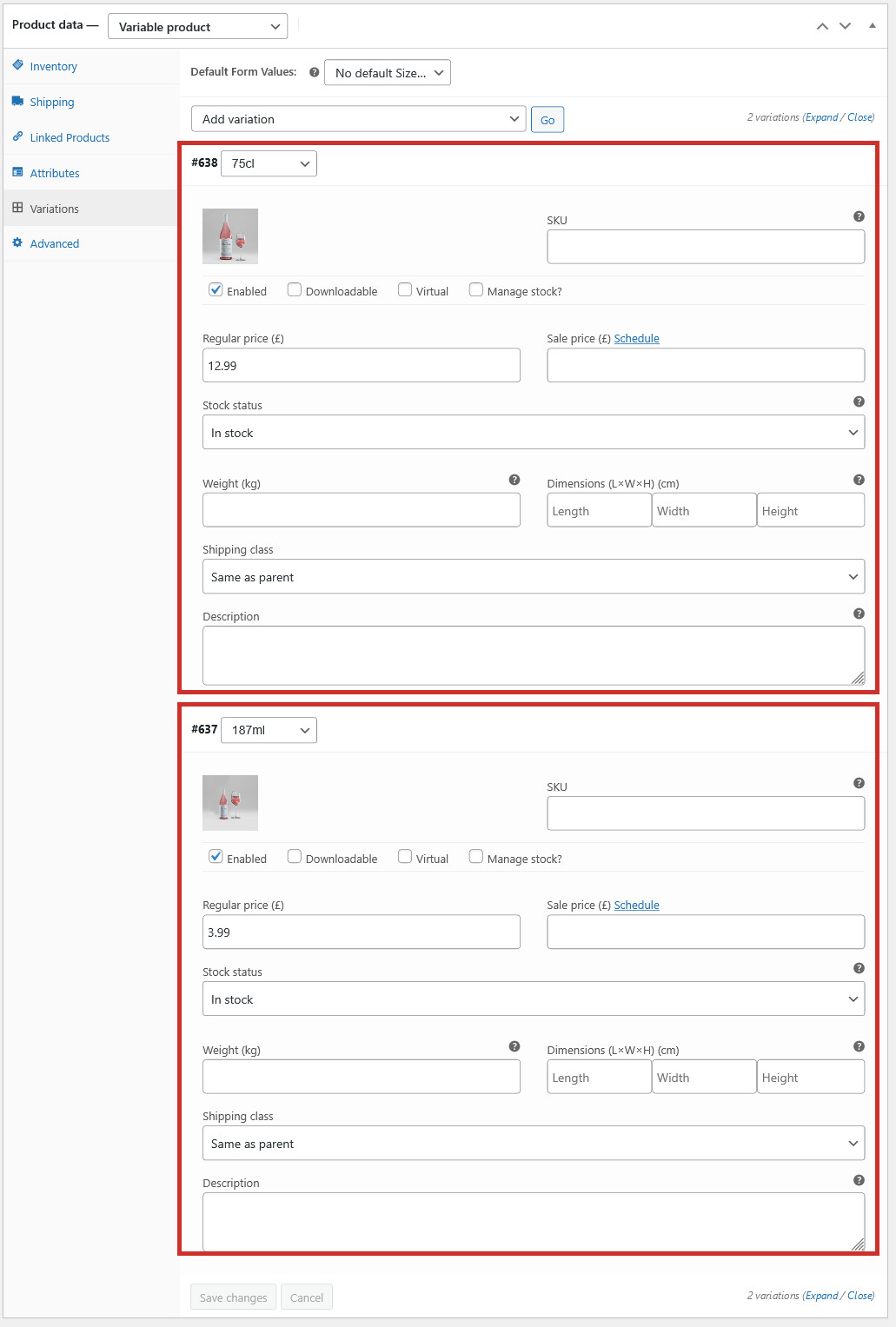
For this to work, each Size option has its own variation, each with a different price and image: