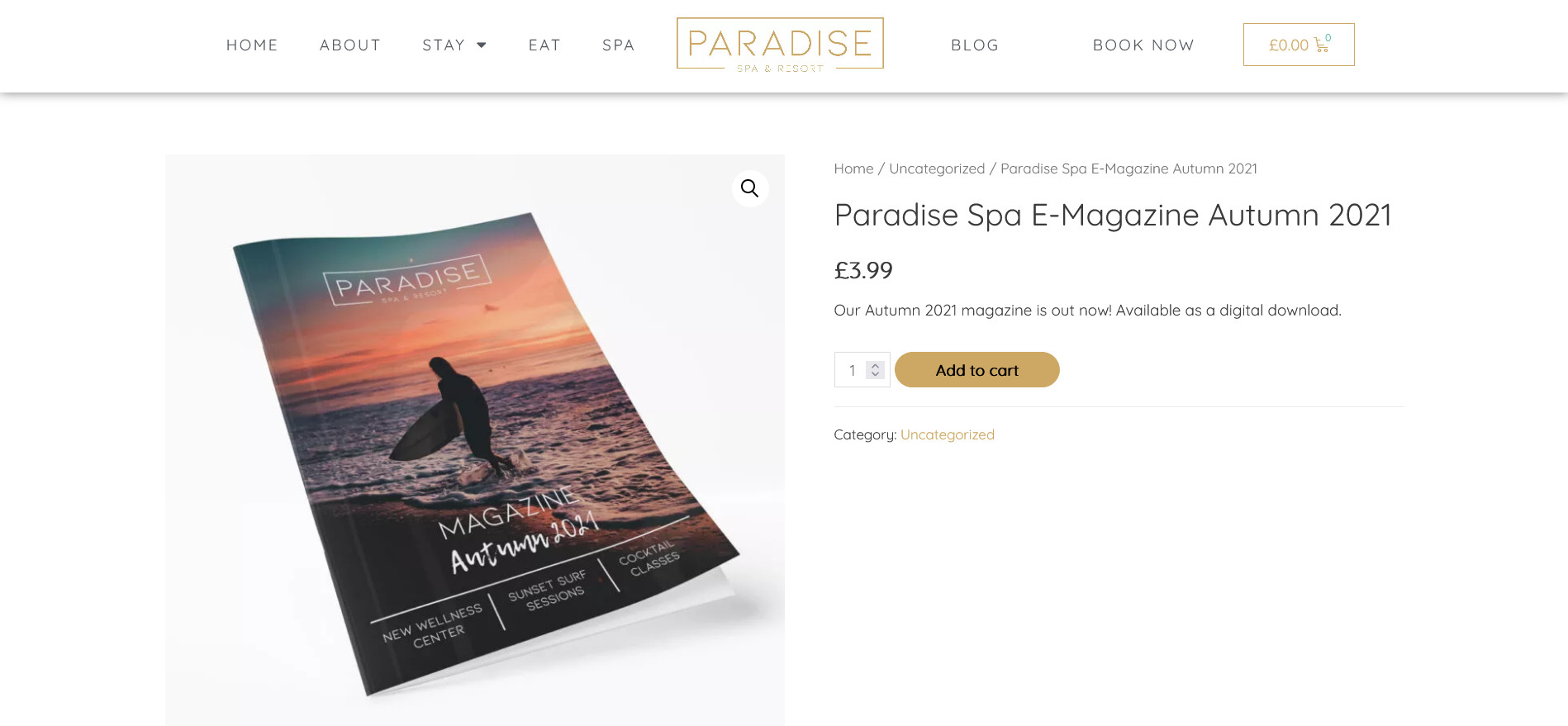
Downloadable products are virtual products which will be sent the customer via a downloadable file. These products aren’t physical items which are posted to the customer, so no shipping costs will be applied. Examples include e-books, video files, software, and music files. In this example we’re adding a downloadable e-magazine to the store:
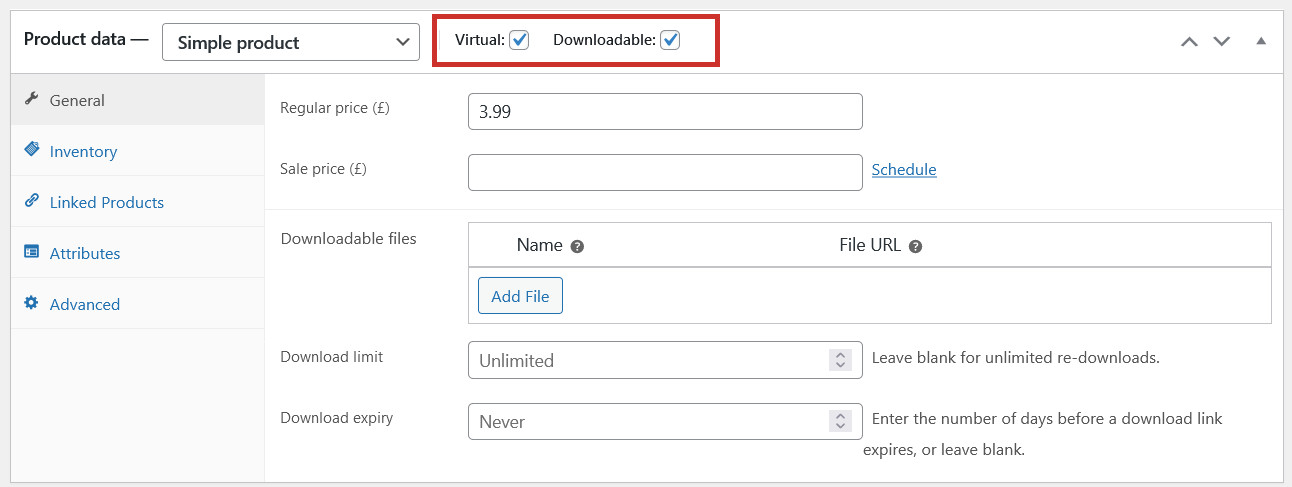
Downloadable products are added in the same way as regular products (please refer to these instructions), but with a few changes. Once you have given your product a name, descriptions, category, images, and price, tick the Virtual and Downloadable checkboxes in the Product data tab:
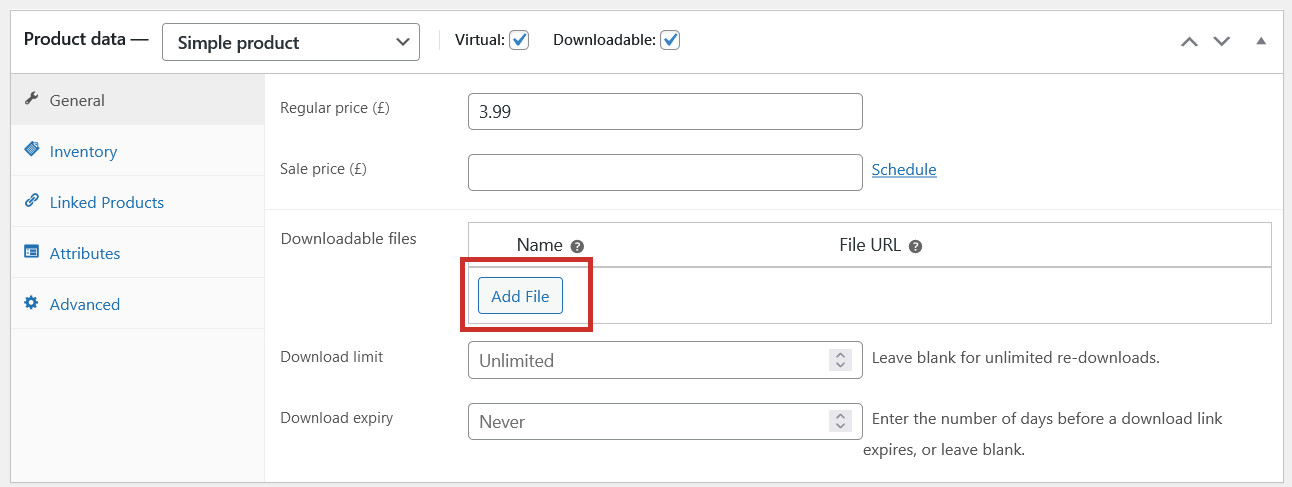
You’ll notice a new section appear for you to enter the settings for the downloadable product, and upload the file. Click Add File to upload the file which the customer will receive upon purchase:
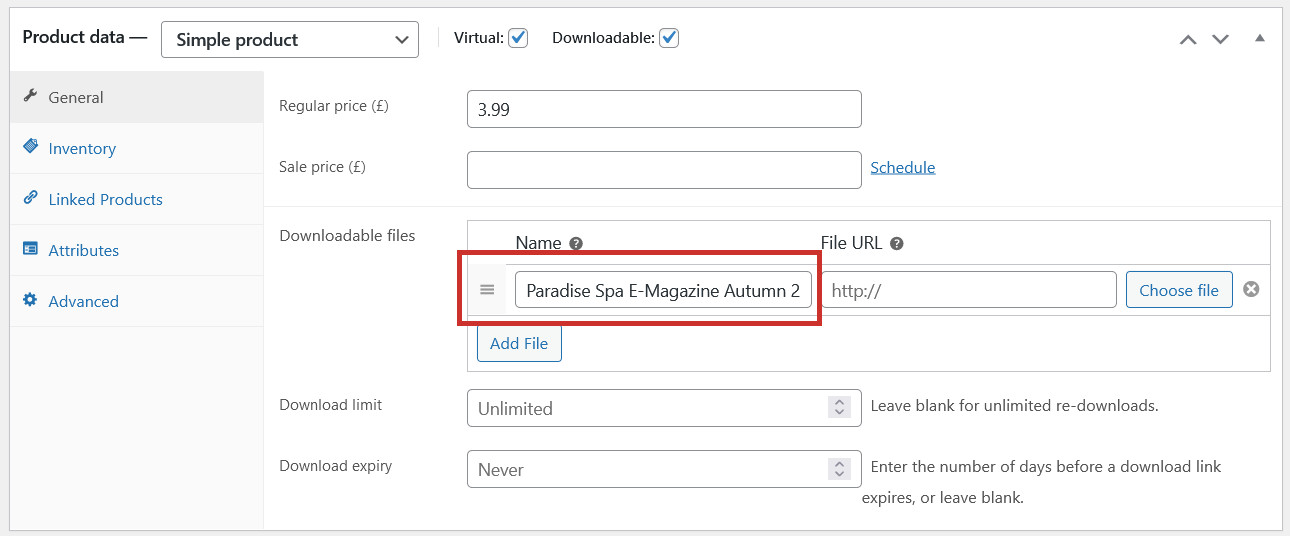
Enter a relevant Name for the file (eg. Paradise Spa E-Magazine Autumn 2021):
Click Choose file to upload the file for download (or if it’s been uploaded externally – eg in Dropbox or Google Docs, you can copy and paste the link into the File URL field):
If your product has multiple downloadable files, you can add more using the Add File button.
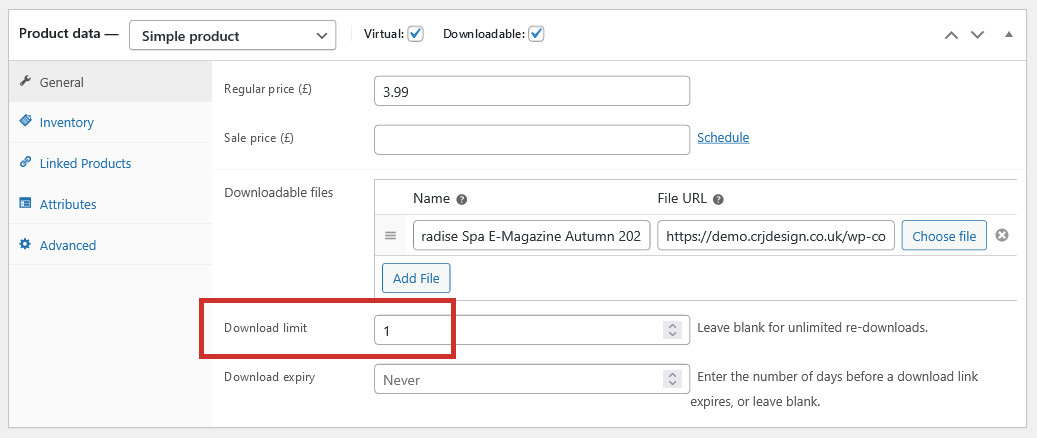
Next, set an optional Download limit. This is the maximum number of times someone can download the file (if you leave it blank, it can be downloaded an unlimited number of times):
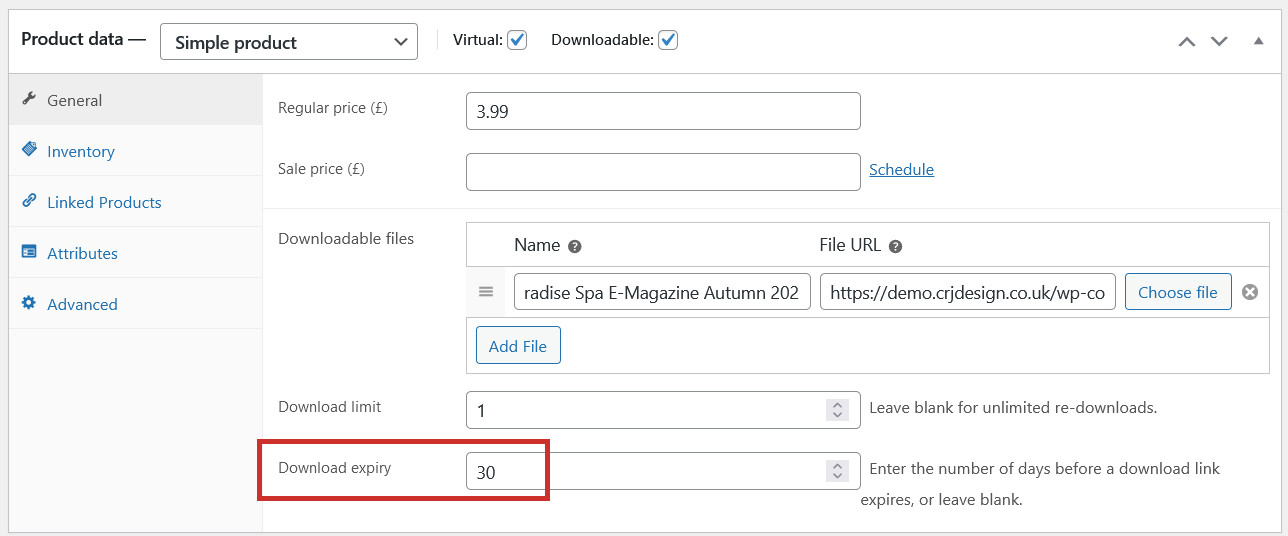
Finally, set an optional Download expiry. This is the number of days before the download expires. If you leave it blank, it can be downloaded forever:
Click Publish to add your product to the website.
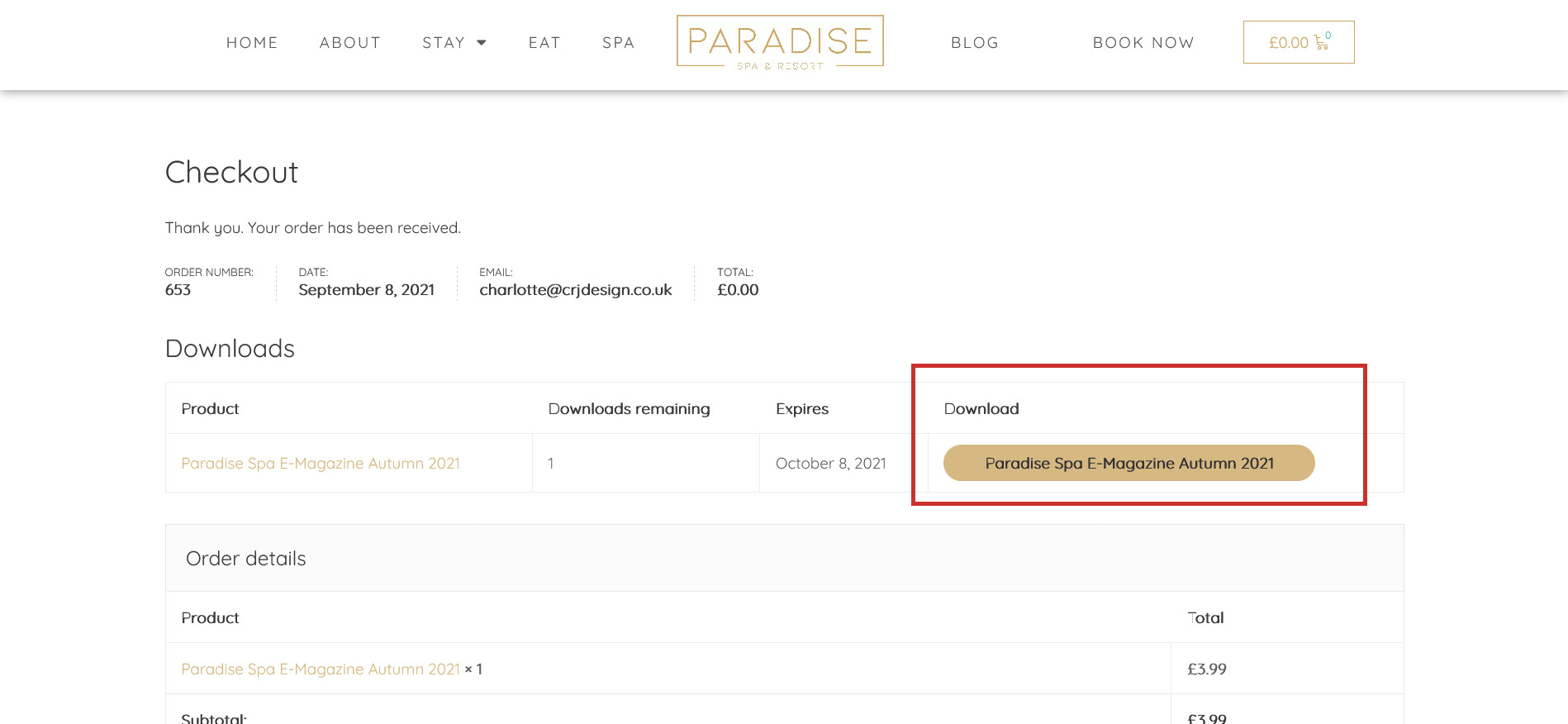
When someone purchases your downloadable product, they will receive the download link to the file in their order confirmation: