How to issue a refund in your online shop

If you need to refund all – or part – of an order, you can edit the order to issue the refund (and notify the customer that a refund has taken place).

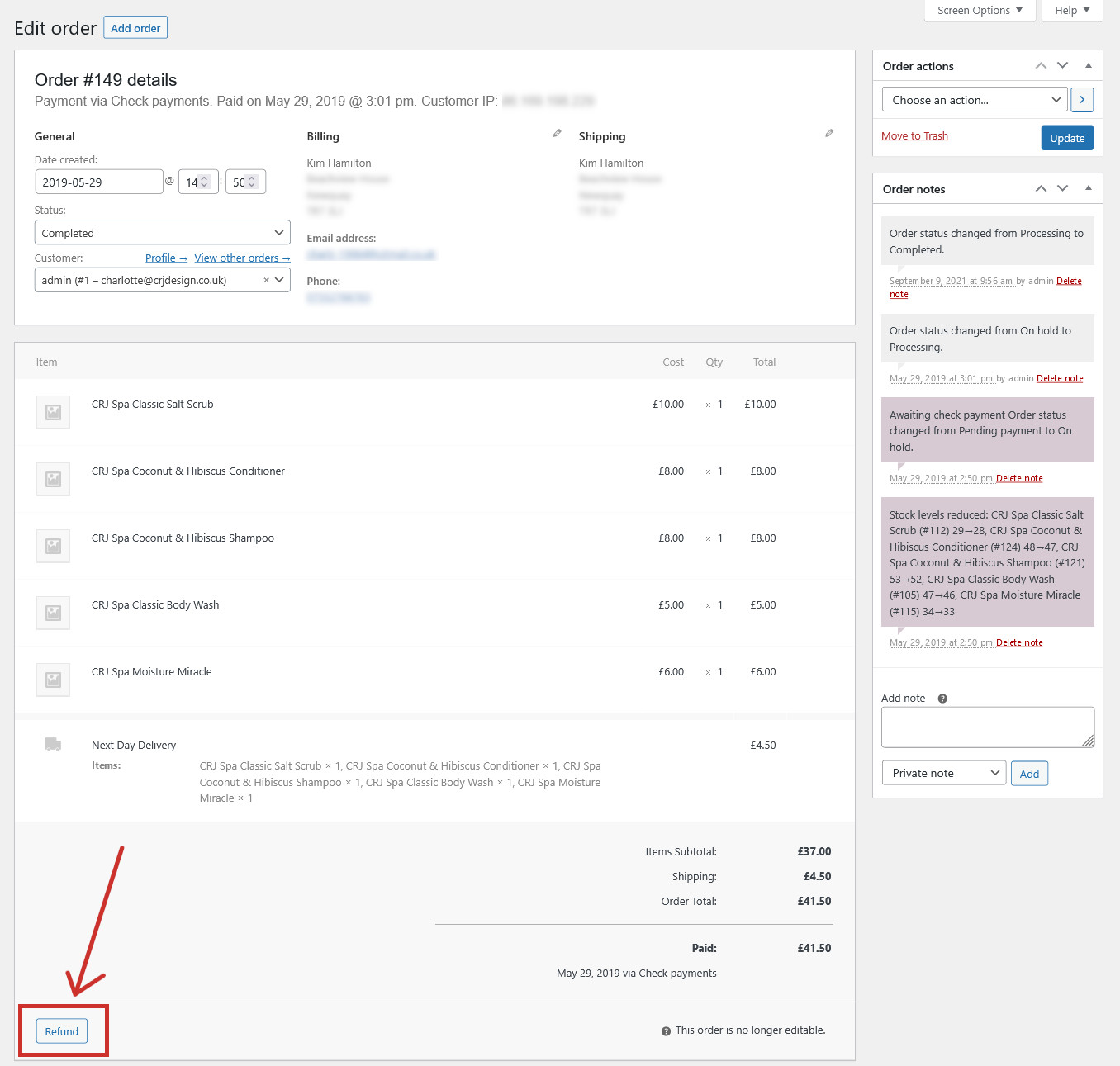
When managing your orders, click on the order you wish to refund and click the Refund button underneath the list of items that were purchased:

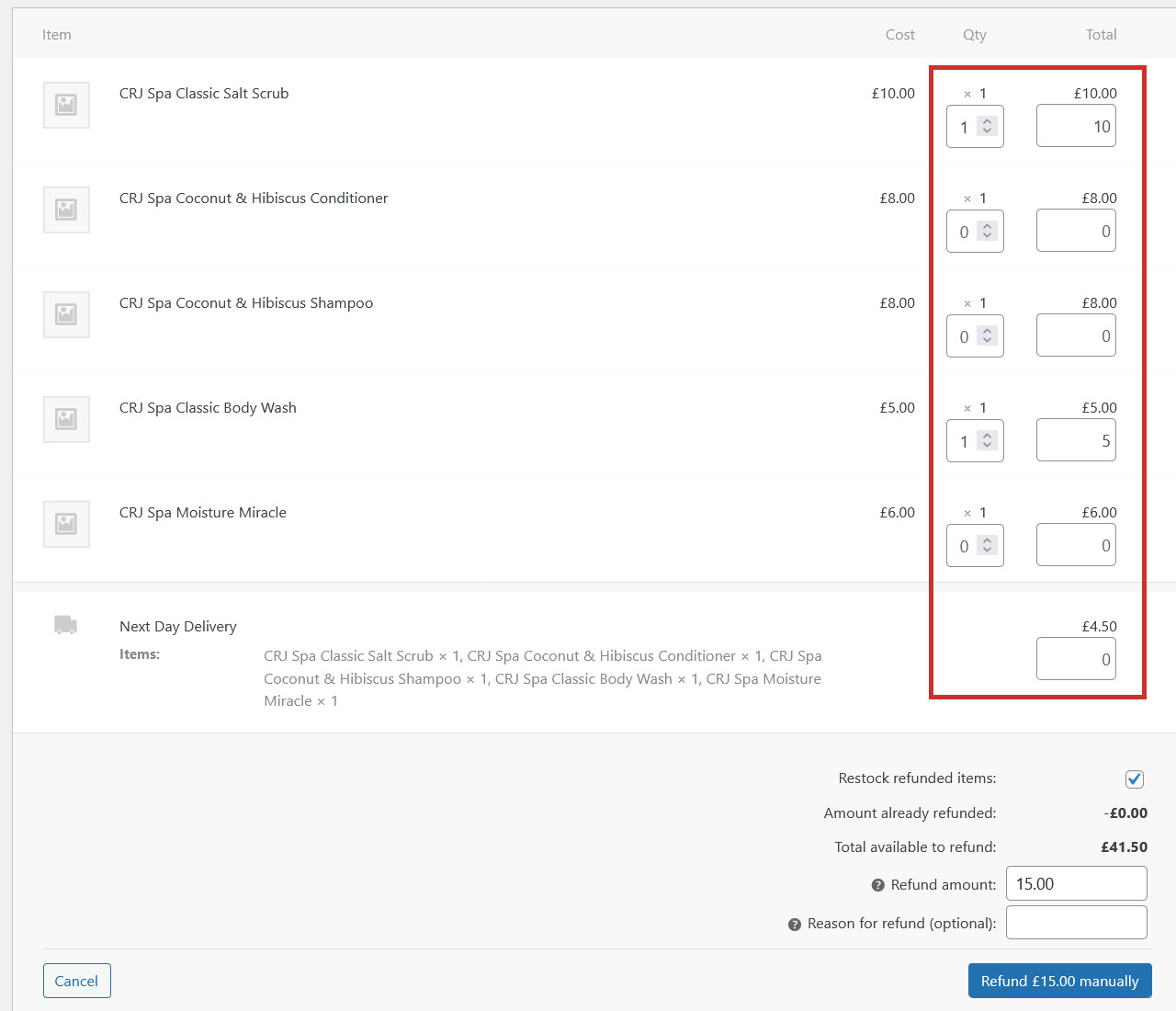
You will be able to select which specific items have been refunded from the order (in this example, we’ll refund the Salt Scrub and Body Wash in full). If you are only partially refunding an item, you can change the refund amount in the ‘Total’ box. You can also choose to optionally refund all or part of the delivery costs:
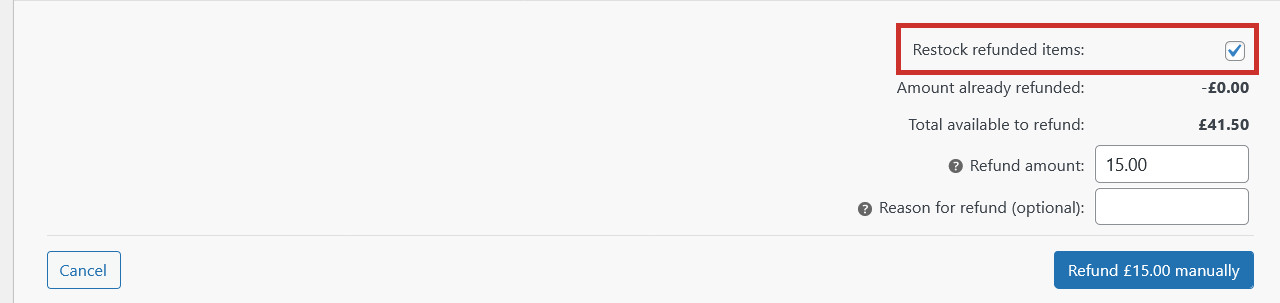
If the refunded items are to be re-stocked (the customer has sent them back and they are in a resaleable condition), you can check the Restock refunded items box to put them back in your store:
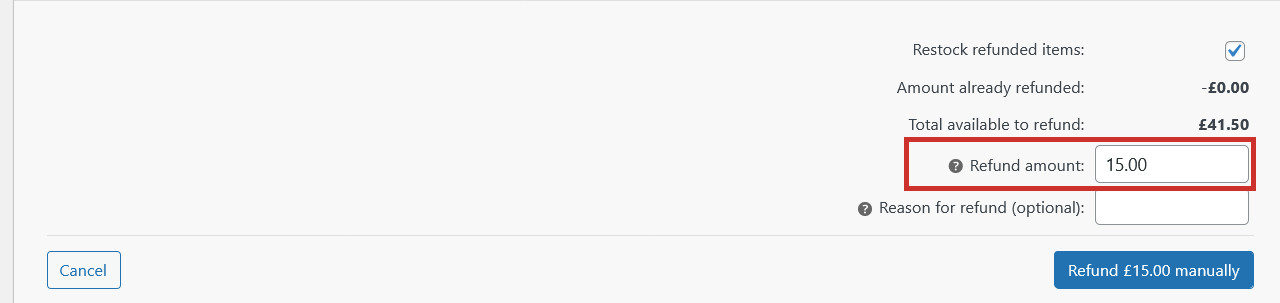
The total Refund amount will be calculated based on which items you have marked for a refund:
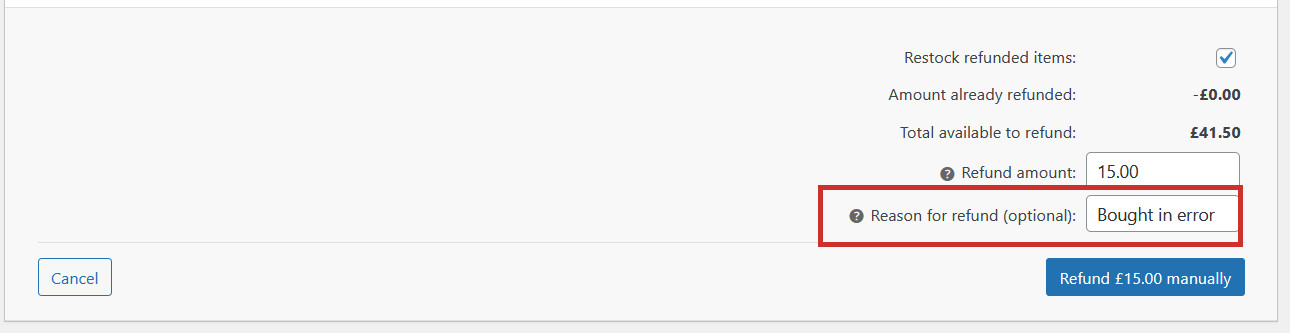
You can enter an optional Reason for the refund (this will be included in the customer’s email):
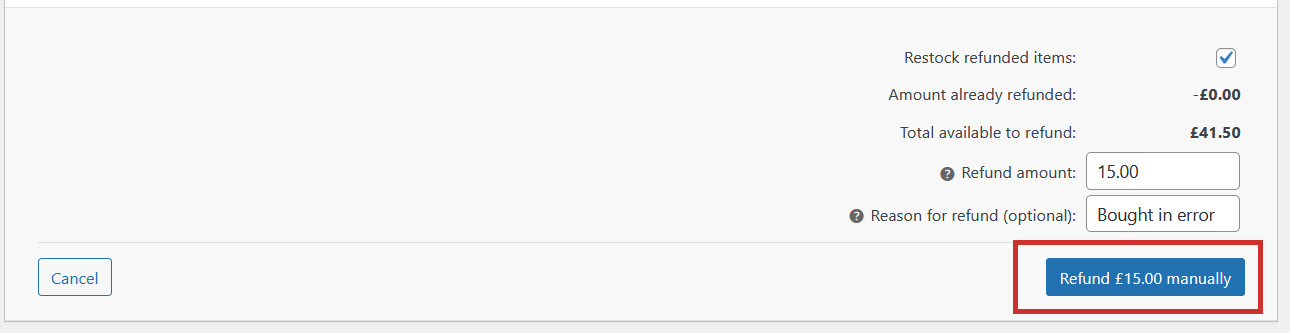
Finally, click the blue Refund button to finalise the refund. This will change the order status to ‘Refunded’, and send an email to the customer letting them know about the refund: