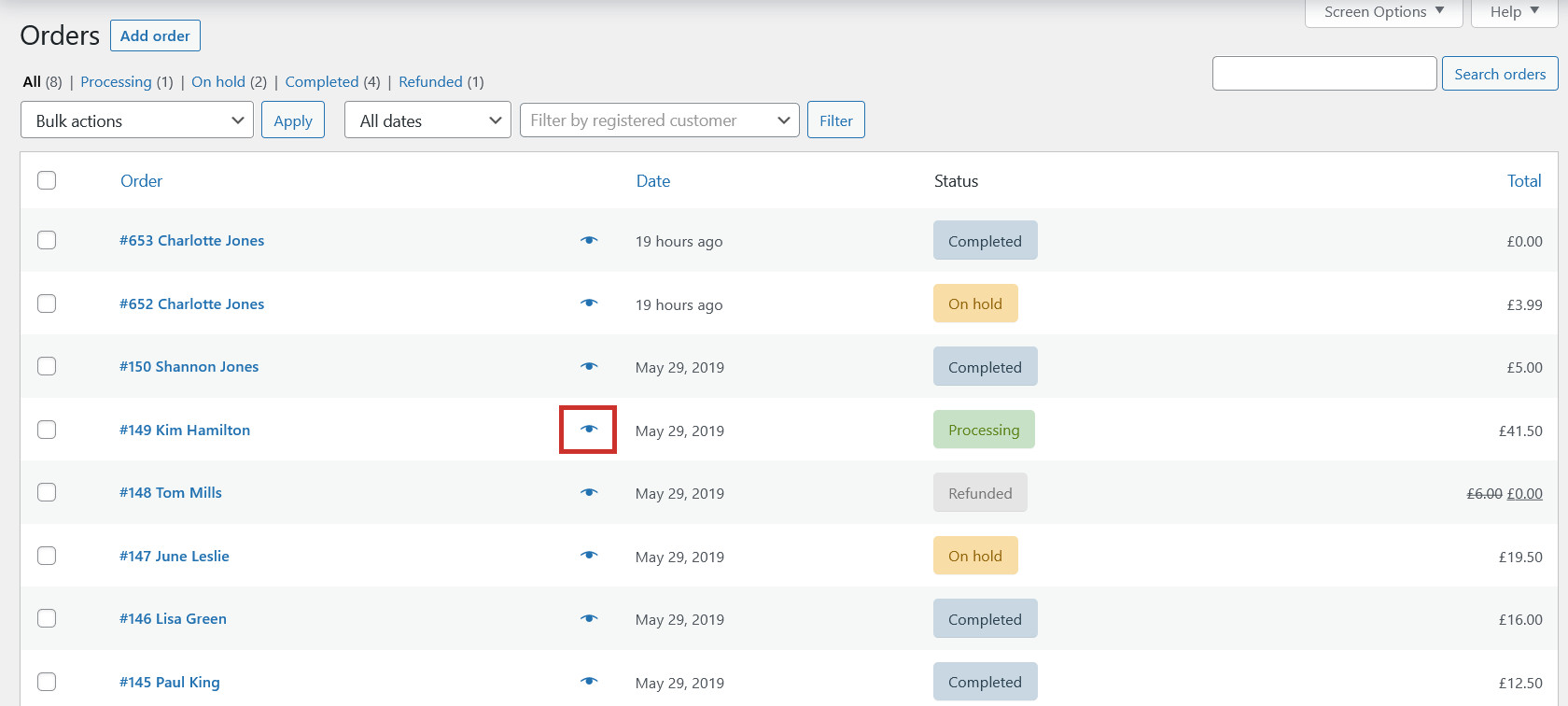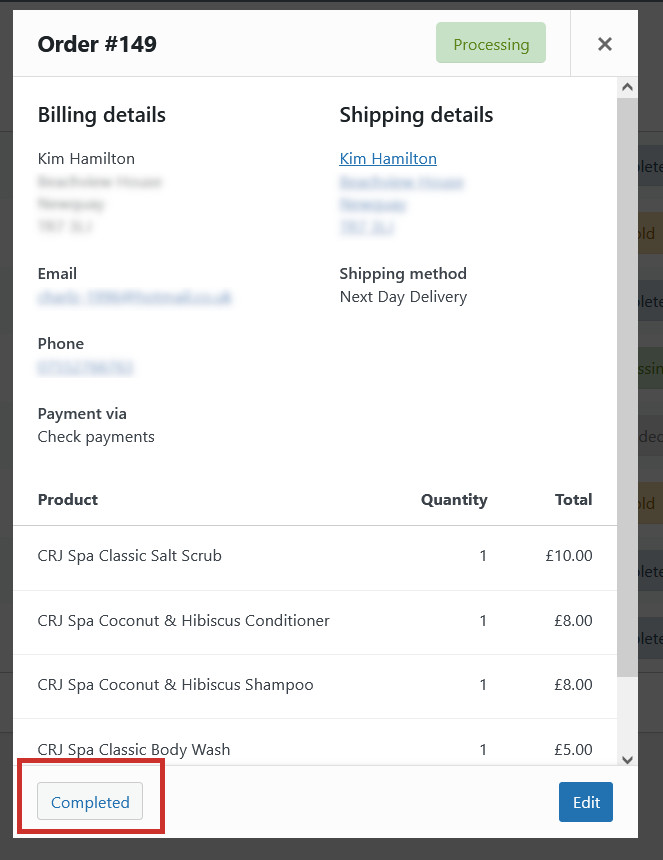
It’s important that you manage your orders effectively and change the order status to ‘Complete’ when you have finished processing them (when you have packaged and posted the order). Most orders will have a ‘Processing’ status, unless the order was a downloadable product (in which case the order will be complete as there’s nothing you need to do), or you are awaiting payment as the customer chose to pay via cash, BACS, or cheque (in this situation the order will be ‘on hold’). Here are the different order statuses and what they mean:
- Pending payment: The order has been created, but the customer hasn’t paid for it yet (usually this means they are still entering their payment details in Stripe/PayPal etc.)
- Processing: The order has been placed and paid for
- On hold: The order has been placed, but you are awaiting off-site payment (eg. BACS, cheque, cash)
- Completed: The order is complete and has been shipped
- Cancelled: The order has been cancelled
- Refunded: The order has been refunded (click here to learn more)
- Failed: The order was unsuccessful (usually this means the customer took too long to pay and timed out)
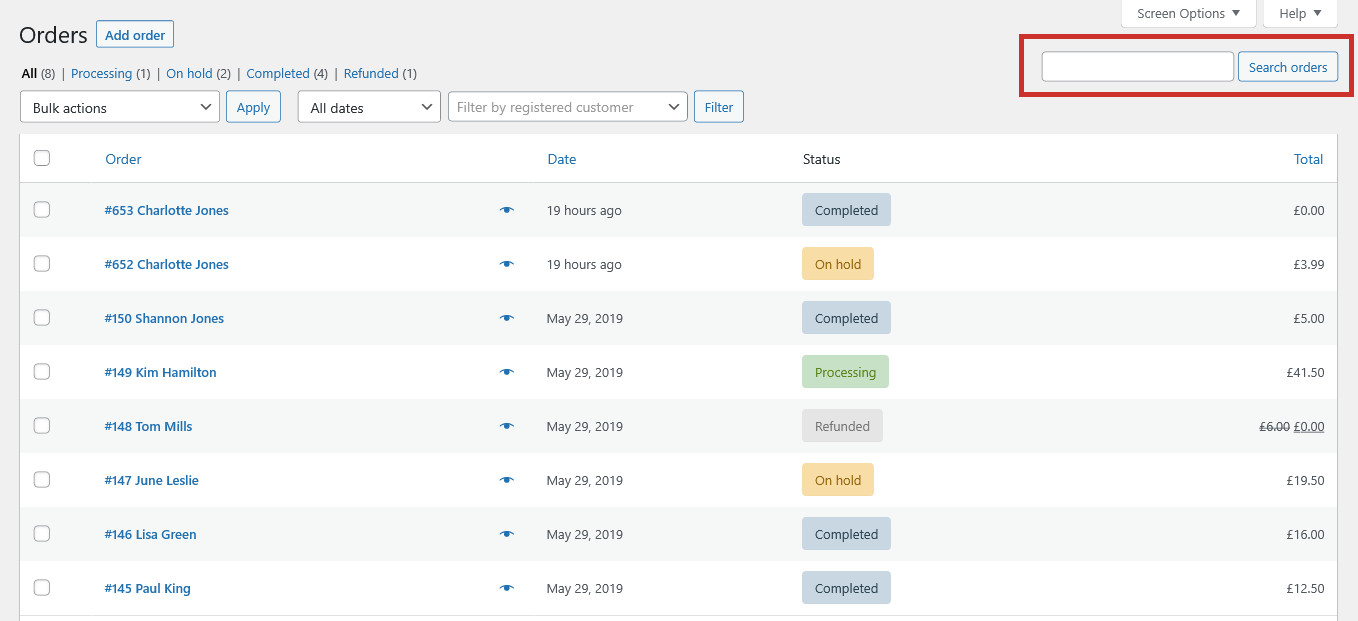
To manage your orders, use the View All Orders or Manage Orders link in your dashboard under the ‘Shop’ heading;
Marking an order as complete will notify the customer that their order is complete.
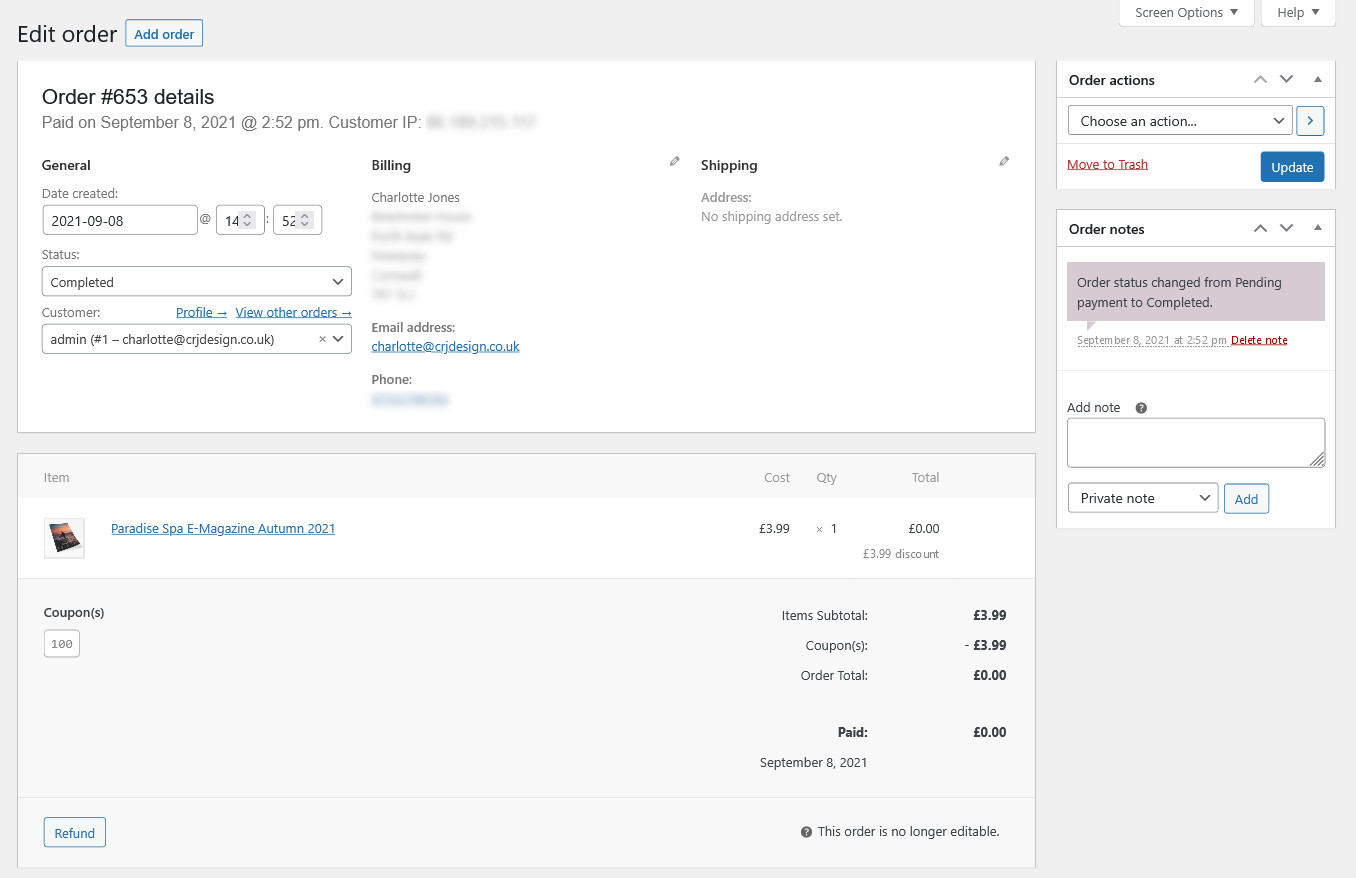
Click on an order (or click ‘Edit’ in the preview window) to view it in detail. You will be able to see even more details about the order including when it was placed, what coupons were used, and the customer’s IP address:
Adding notes to orders
Adding notes to your orders can be helpful to help you keep track of them. Notes can either be private (only visible to you for your reference), or can be emailed to the customer. Customers notes can be useful for requesting reviews, sending tracking numbers, or requesting more information.
When you are viewing an order, you will see an order notes section on the right-hand side. Here you can write a note, select if it’s private or for the customer, and click Add: