Home > How to manage stock levels for your online shop
How to manage stock levels for your online shop
Managing stock means you can control your inventory and can’t sell anything you don’t have (unless you accept backorders). You will also be notified when stock is running low so you can re-stock.
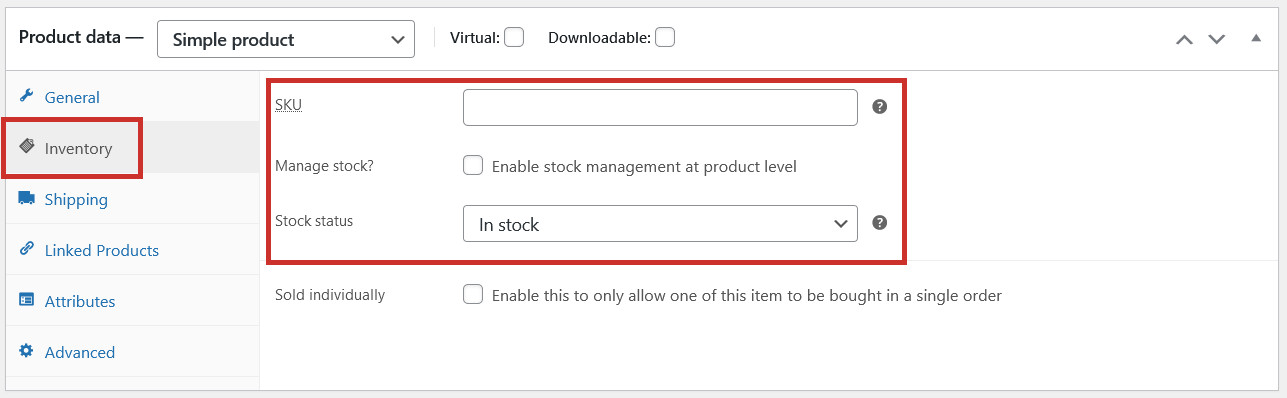
The stock level for a product can be found in the Inventory tab when you are editing or adding a product:
By default, when you add a product, it will show as ‘In Stock’ unless you change the stock status to ‘Out of Stock’. If you don’t need to keep track of stock numbers (eg. because items are made to order, or the products are supplied by someone else), you can continue to use this method.
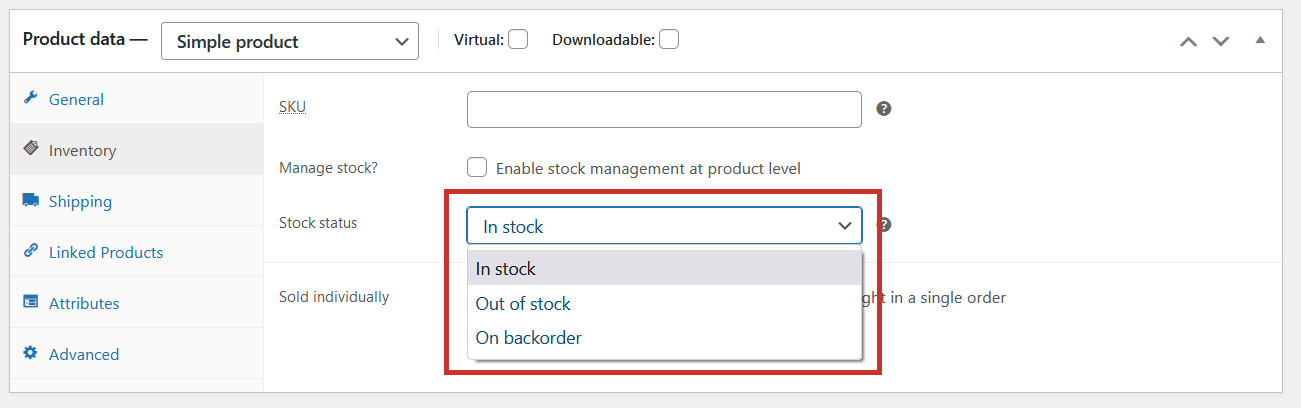
If you decide you want a product to show as Out of Stock, simply change the Stock status:
In stock – available to purchase
Out of stock – not available to purchase (will show as out of stock on the website)
On backorder – customers can still purchase this product but it won’t be shipped until it’s re-stocked
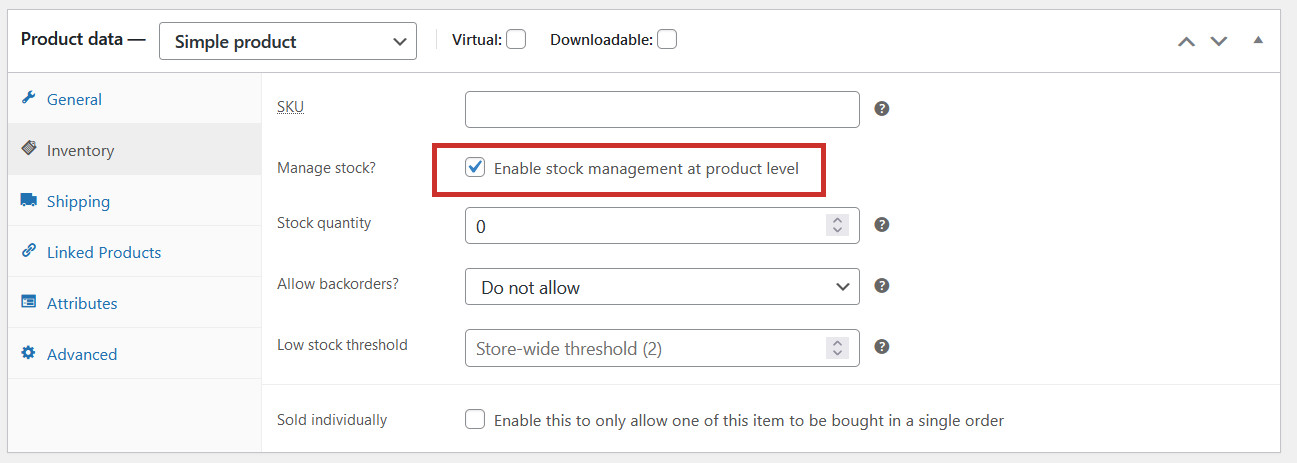
Alternatively, if you need to keep track of actual stock numbers (because you have a limited number of the product to sell), tick the Enable stock management at product level checkbox:
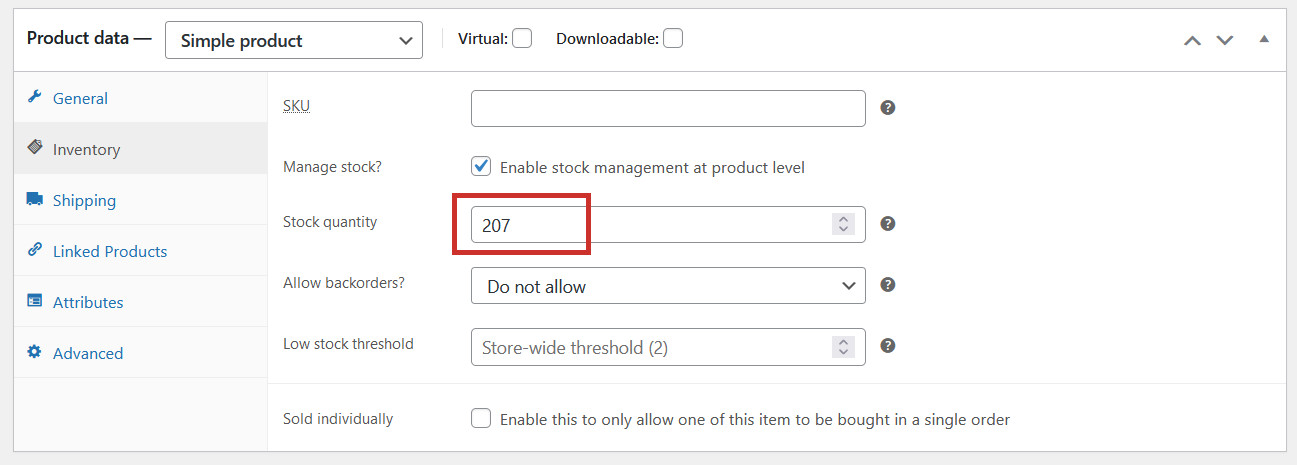
You will now be able to enter a Stock quantity (the quantity of the product you currently have available to sell):
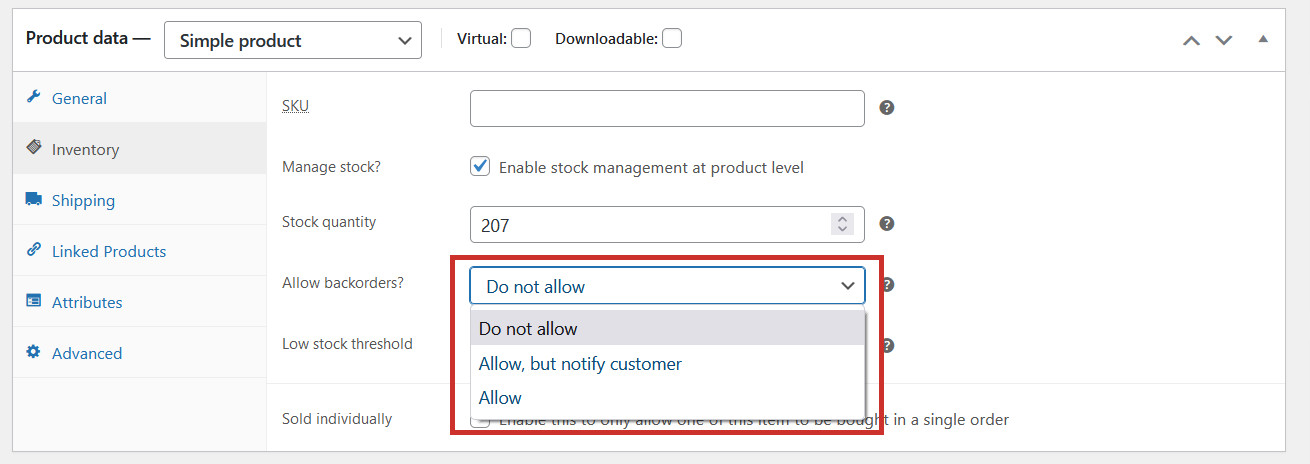
If you Allow backorders, customers will still be able to purchase the product if it is out of stock (only allow backorders if you are certain you will be re-stocking this product soon):
Do not allow – backorders won’t be accepted and the product will be unavailable to buy once stock gets to 0
Allow, but notify customer – backorders will be accepted, and customers will see a message letting them know it’s available on backorder
Allow – backorders will be accepted, but customers won’t know that the product is out of stock and on backorder
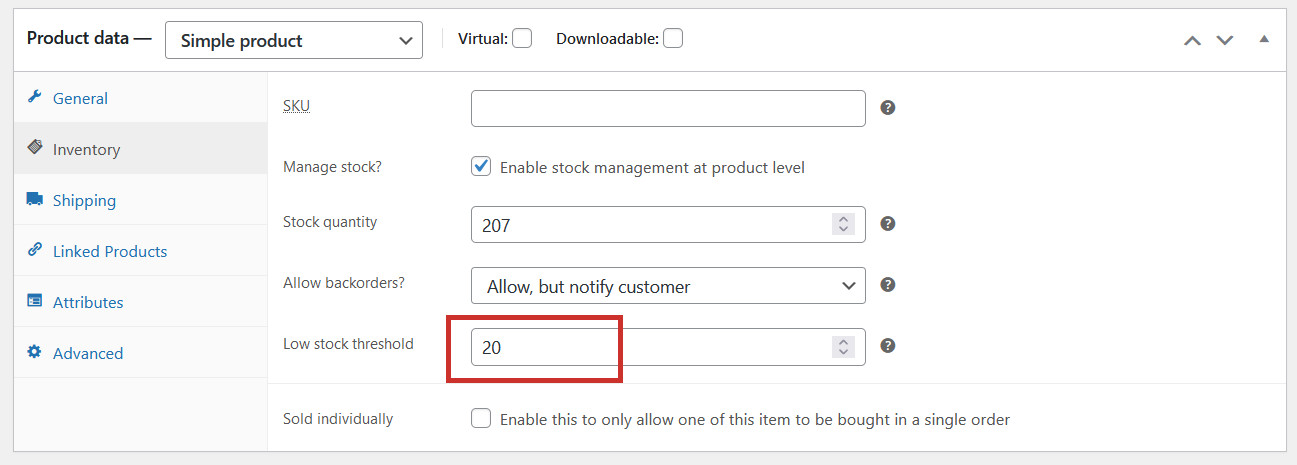
You can also set a Low stock threshold for the product to overwrite the store default. When stock reaches the low stock threshold, you will be notified via email so you can re-stock if you need to:
Don’t forget to click Update to save your changes once you have altered your stock levels.
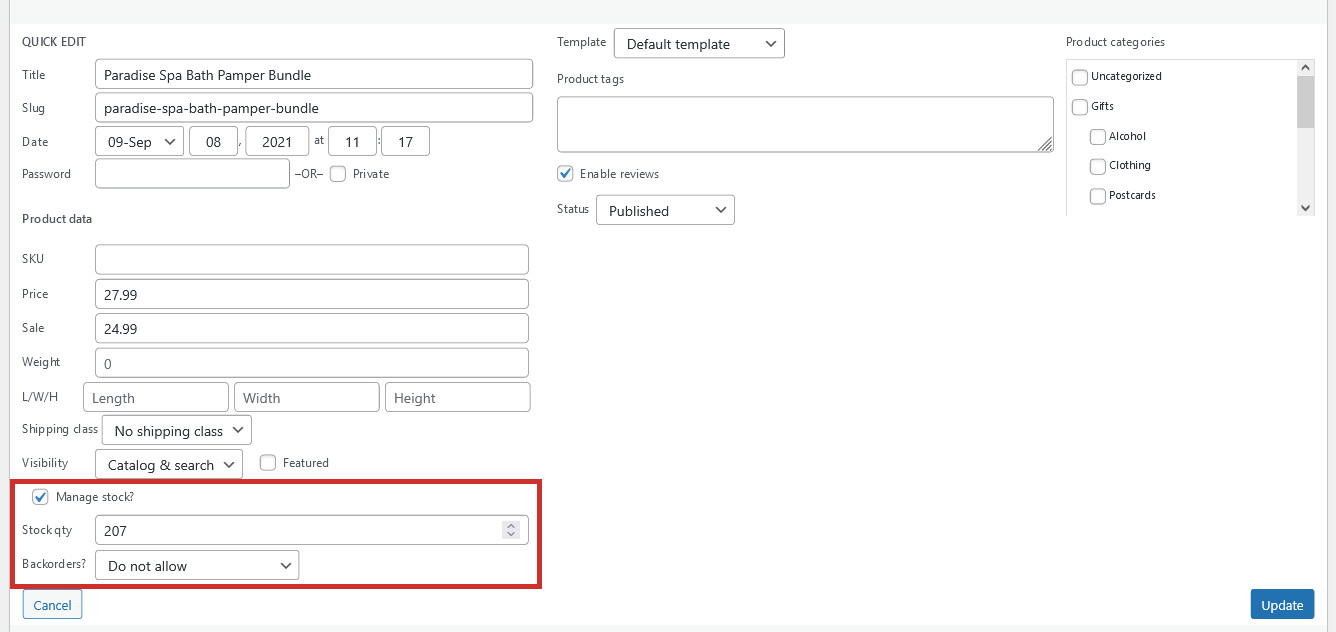
You can also update your stock using theQuick Edit feature, which is a faster and easier way of doing everything shown above:
Managing stock for variable products
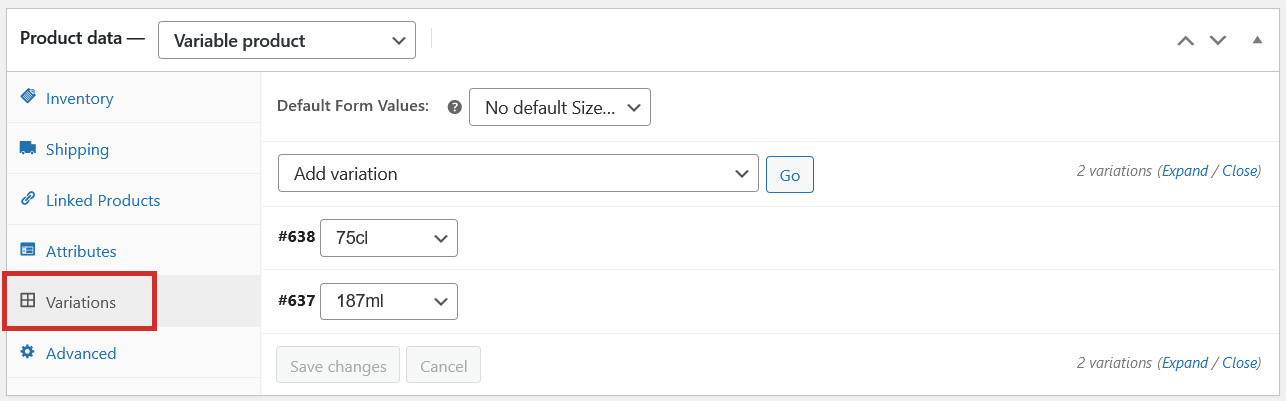
For variable products, you need to manage the stock for each variation individually (note: this can’t be done using Quick Edit). To update the stock levels, edit the variable product and head to the Variations tab:
Click on the variation you want to update the stock for. As with regular products (above), you can either have the product as ‘In Stock’ or ‘Out of Stock’, or you can have a Stock quantity.
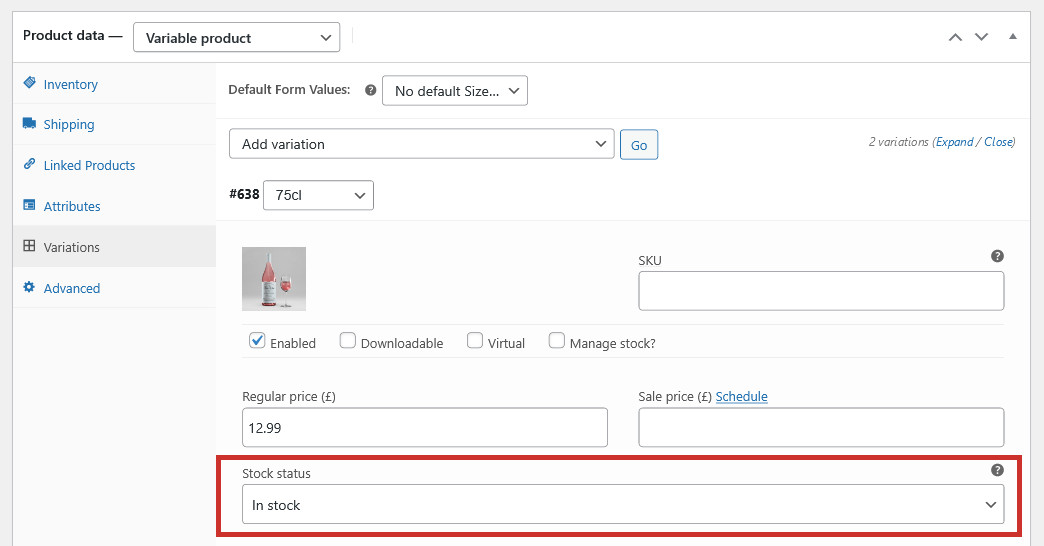
If you don’t need to keep track of stock numbers, you can just change the variation to In Stock, Out of Stock, or On Backorder:
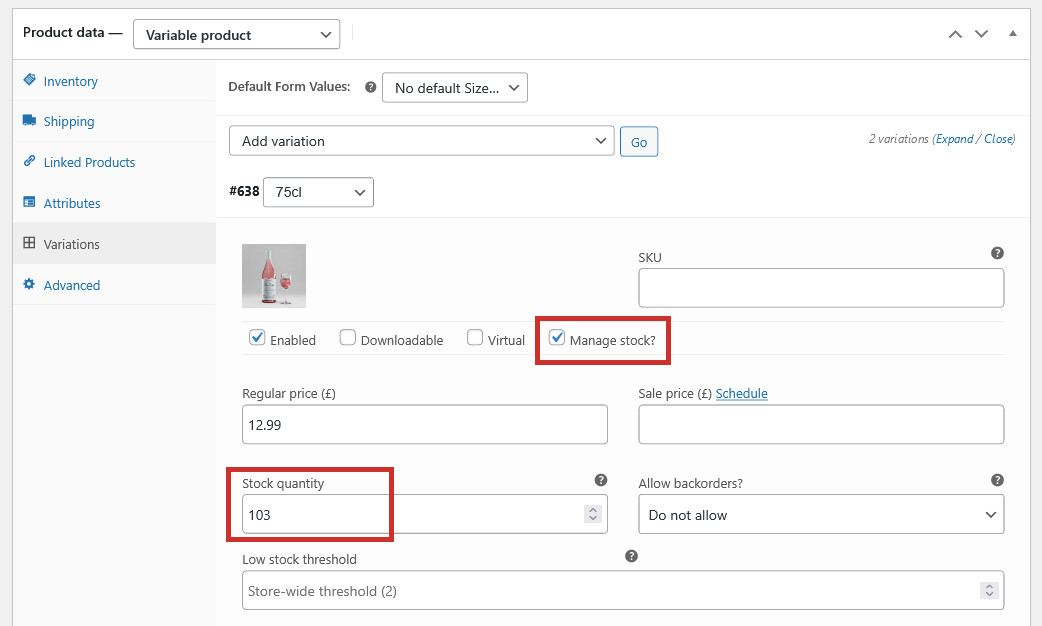
To keep track of actual stock quantities for each variation, tick the Manage stock? checkbox and enter a Stock quantity:
Decide if you would like to Allow backorders for the product variation, and enter an optional Low stock threshold:
Once you have Saved your changes, the product will now have different stock quantities for each variation.