How to manage your online store’s delivery (shipping) options

There are plenty of delivery (shipping) options for your store, include free delivery, collection, different delivery options for different locations, and different delivery prices for different items.

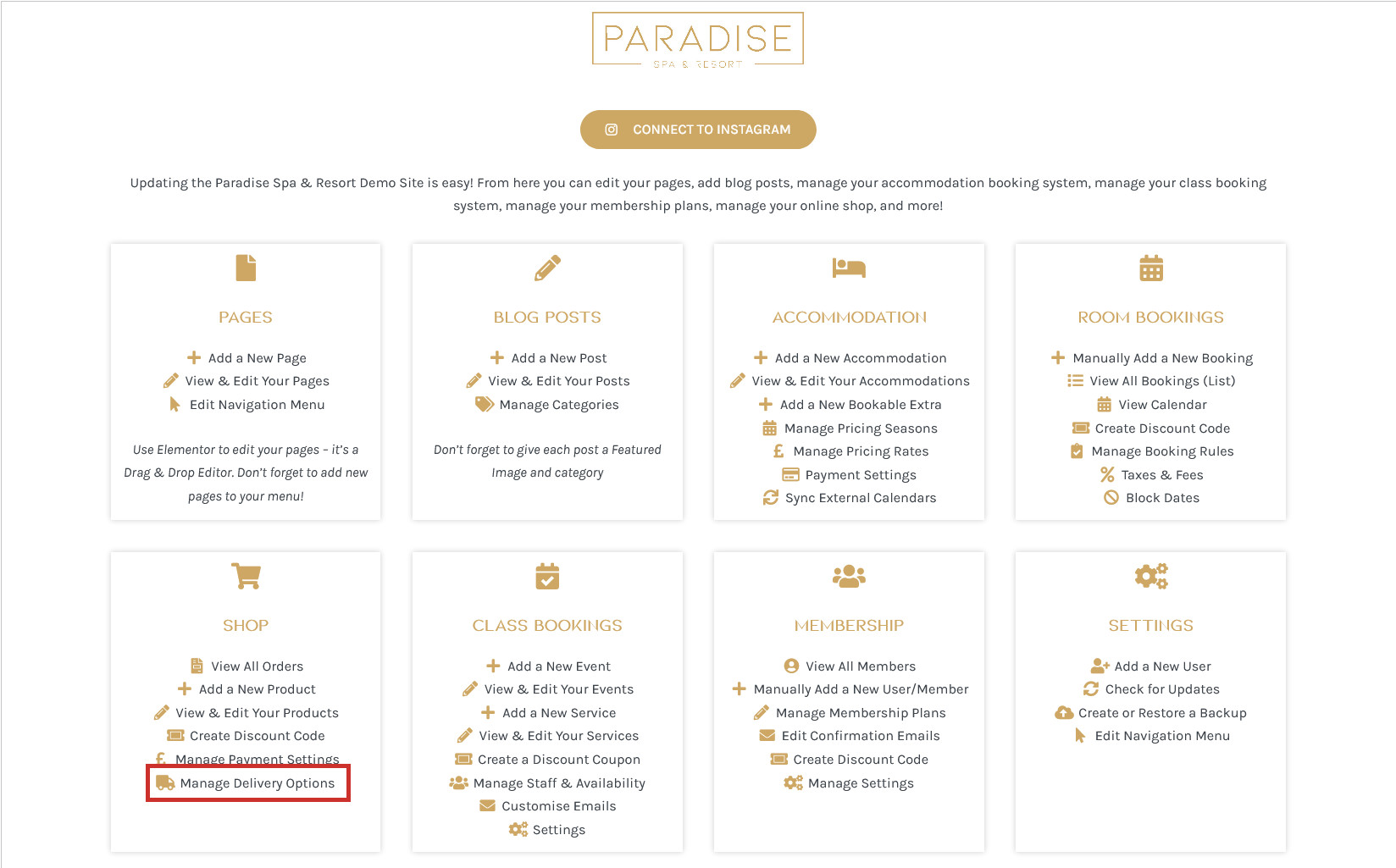
To manage your delivery (shipping) options, use the Manage Delivery Options link in your dashboard under the ‘Shop’ heading:

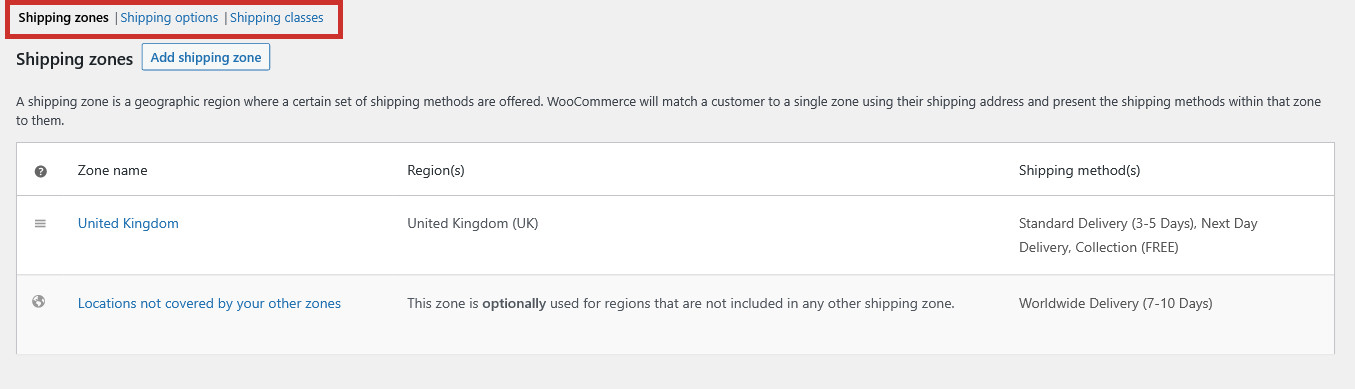
Here you will find:

  • Shipping zones: Locations you deliver to, each containing specific delivery options
  • Shipping options: Delivery settings
  • Shipping classes: Can optionally be used to group similar products together and set different delivery costs for different products (eg. large items, smaller items)

Shipping zones

Shipping zones are locations you deliver to. These can be restricted to continents, countries, or postcodes. Each zone has its own set of shipping methods, allowing you to set different postage costs depending on the destination.

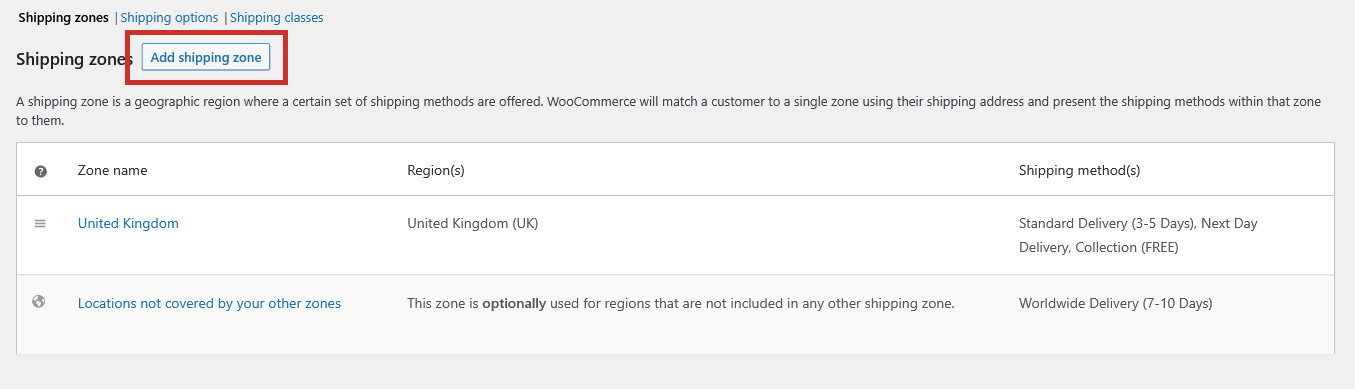
To edit a Shipping zone (and to edit the shipping methods within it), just click on it. To add a Shipping zone, use the Add shipping zone button:

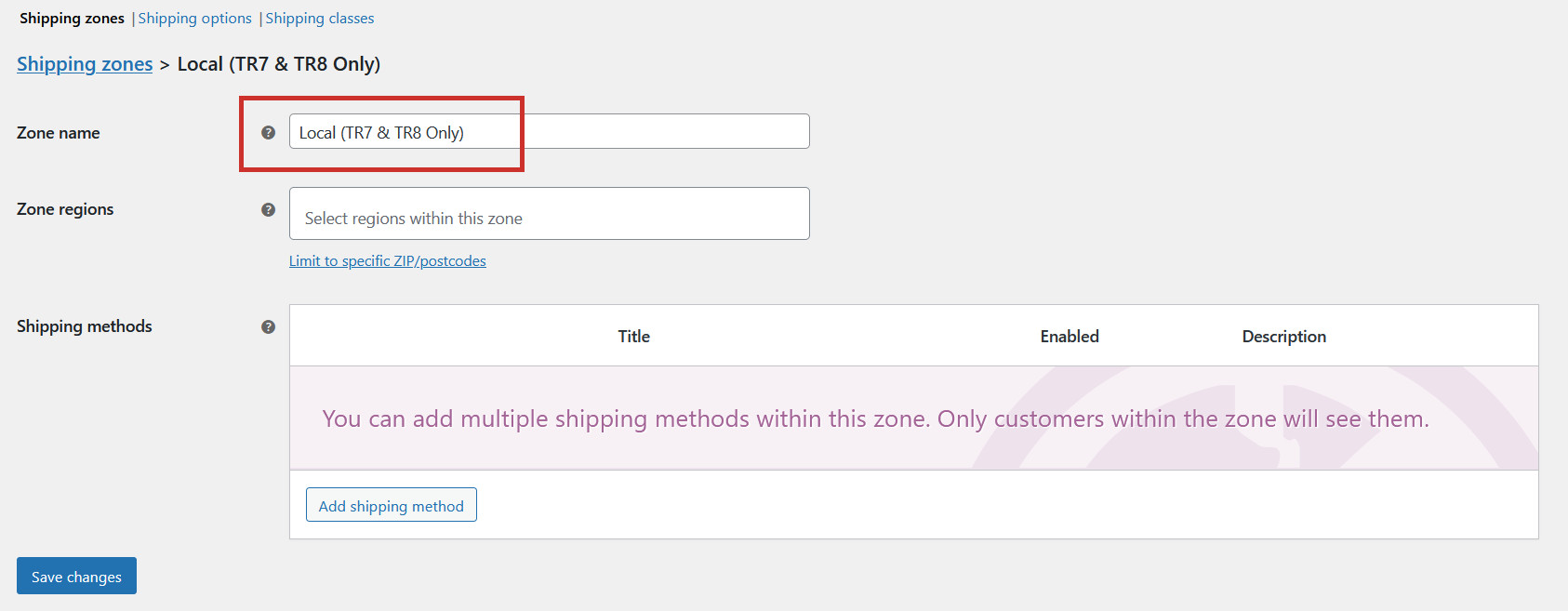
Give the shipping zone a relevant Name (just for your reference):
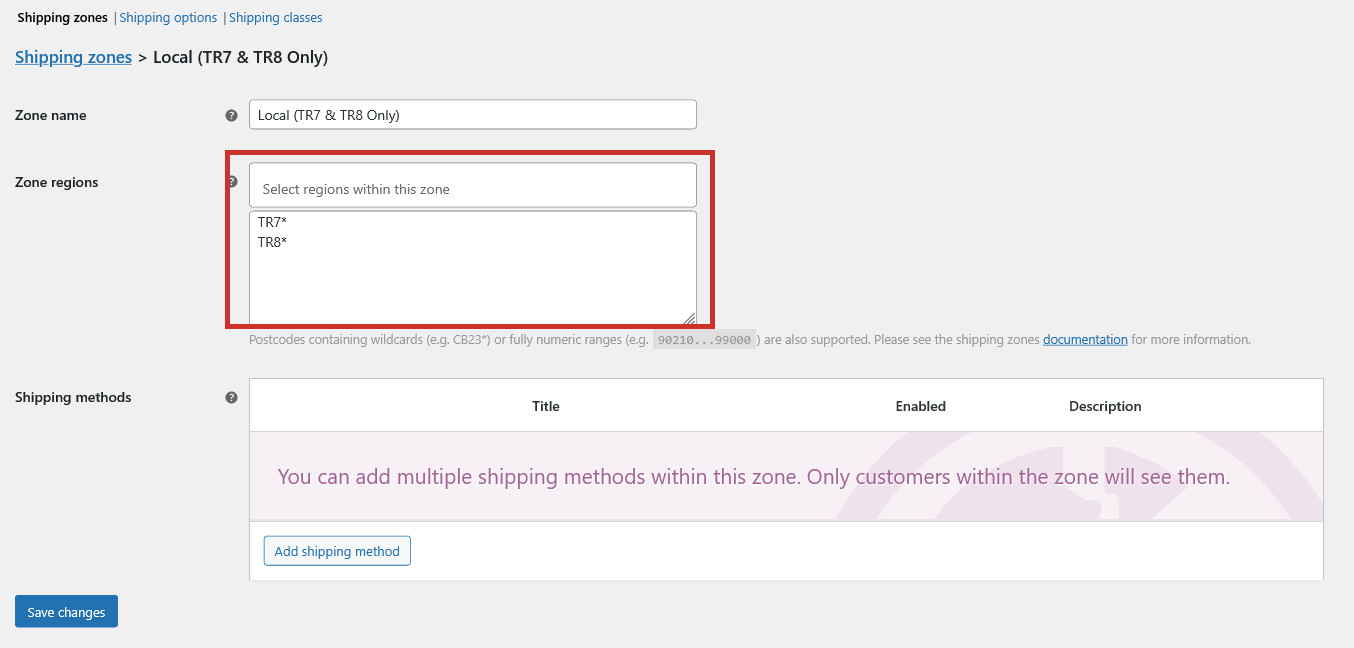
Select the regions inside this zone (you can choose countries or continents). Alternatively, you can limit to specific postcodes and use wildcards (*) or numeric ranges to save typing every postcode individually – eg. TR7* will include any postcode that starts with TR7:
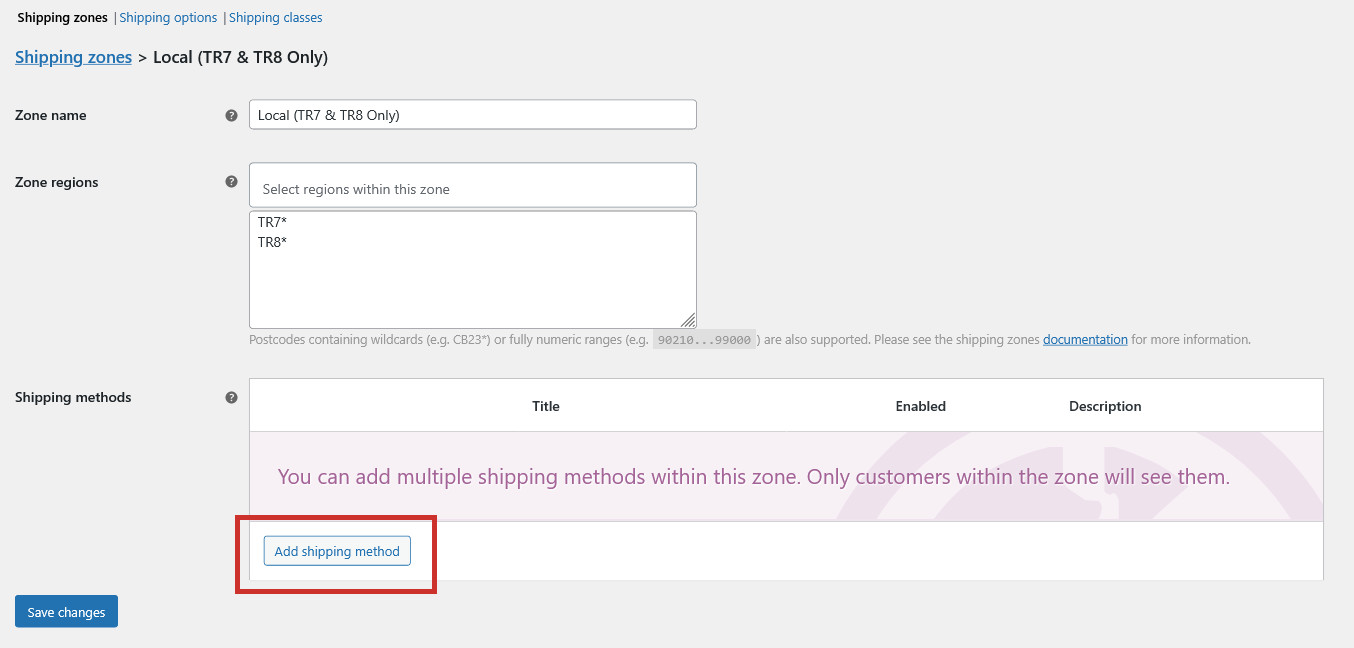
Now you can add shipping methods to your zone. Use the Add shipping method button to add a shipping method:

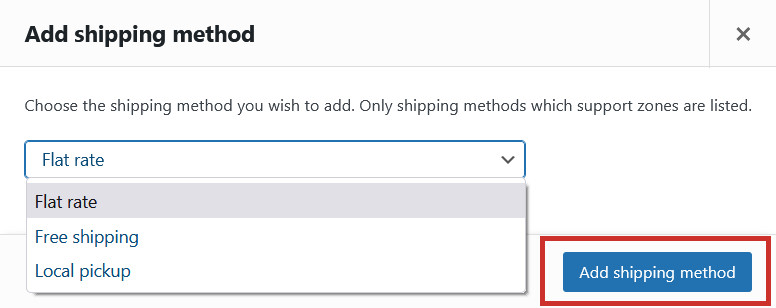
Here you can select:

  • Flat rate: A fixed shipping cost which can have different prices depending on the shipping class
  • Free shipping: Free delivery which can optionally require a minimum spend and/or a free shipping coupon
  • Local pickup: Offer collection from your store, instead of delivery

Choose which method you’d like to add and click the blue Add shipping method button:

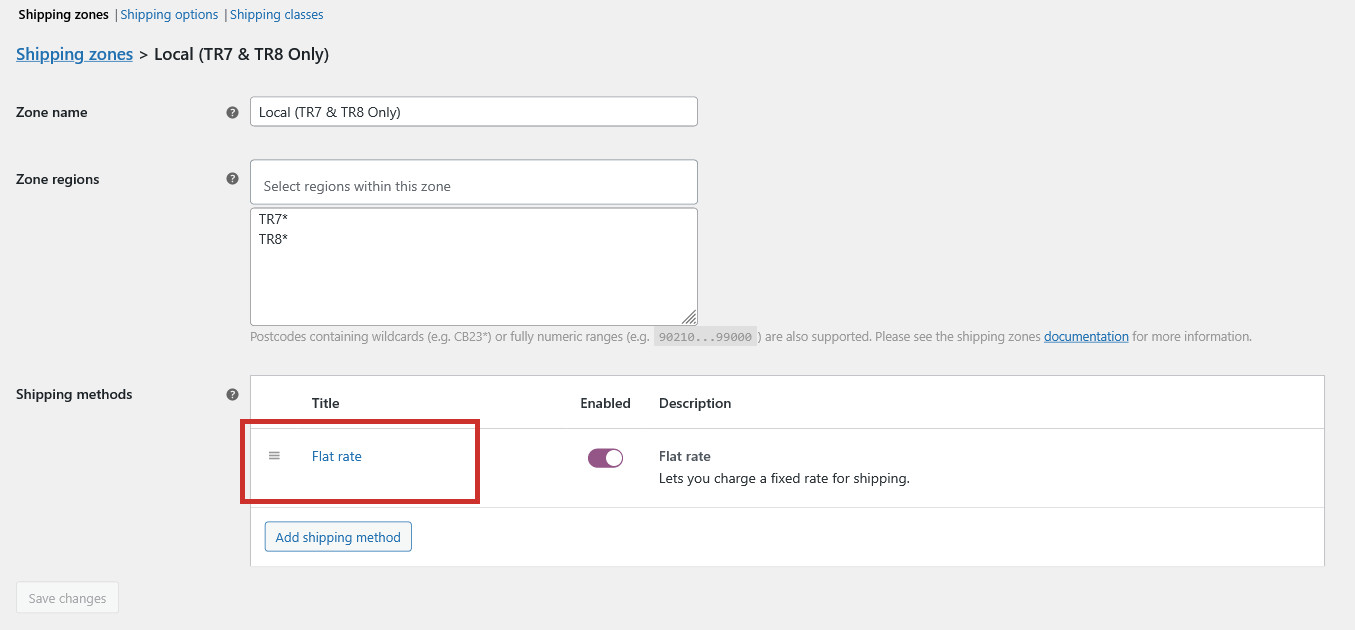
Once you have added the shipping method, it will appear within your zone. Click on it to rename it and set the price:
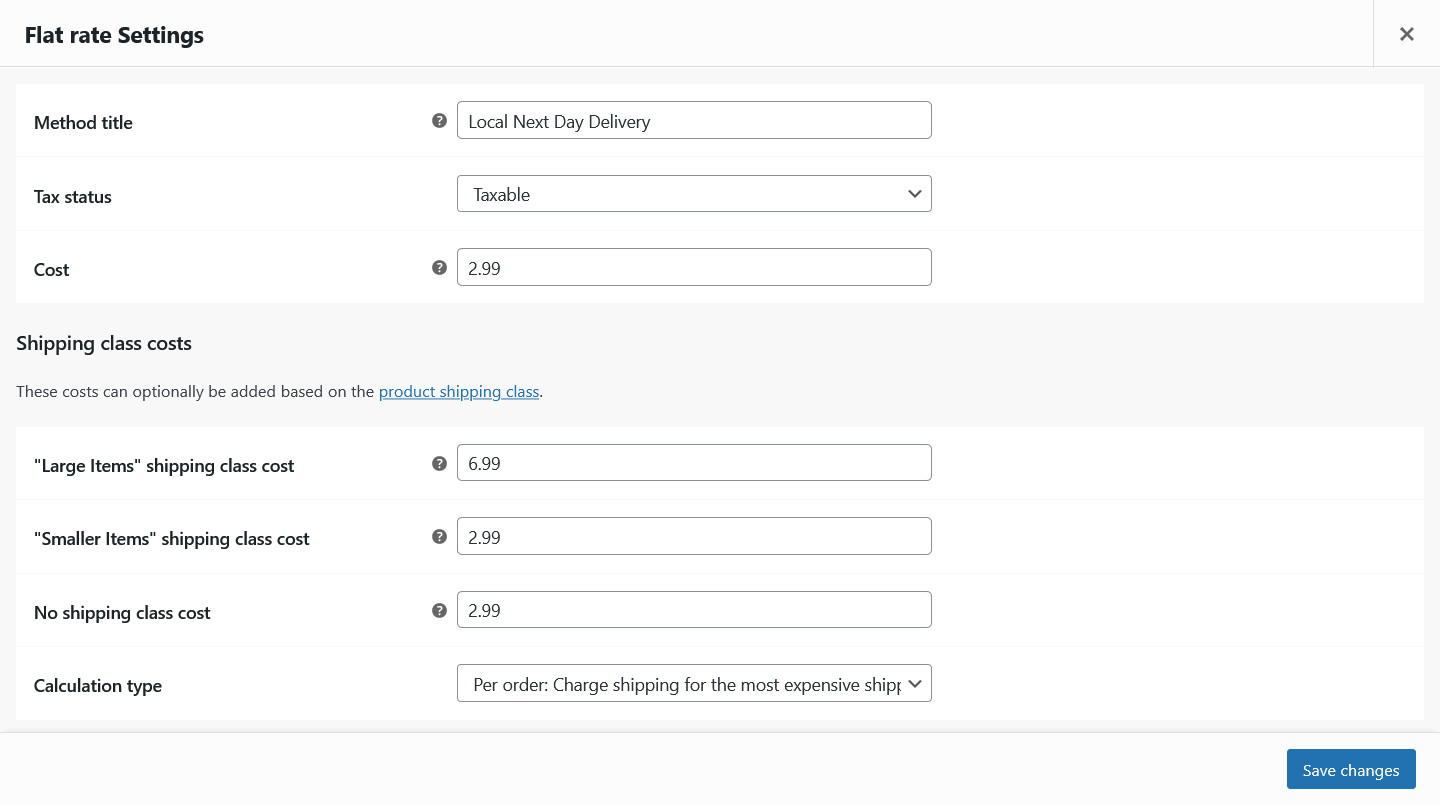
Here you can enter the name of the shipping method and enter the price:
  • Method title: A relevant and user-friendly name for the shipping method (visible to customers in checkout)
  • Tax status: Whether or not the shipping method is taxable
  • Cost: The cost of the shipping method (use a sum eg. 2.99 * [qty] to multiply the shipping cost by the number of products in the cart)
  • Shipping class costs: If you have shipping classes enabled in your store, here you can set different shipping costs for different classes
  • Calculation type: (For shipping classes) Either charge shipping based on the most expensive class in the cart (‘per order’), or charge shipping for each class individually (‘per class’)

Click Save Changes to save your shipping method.

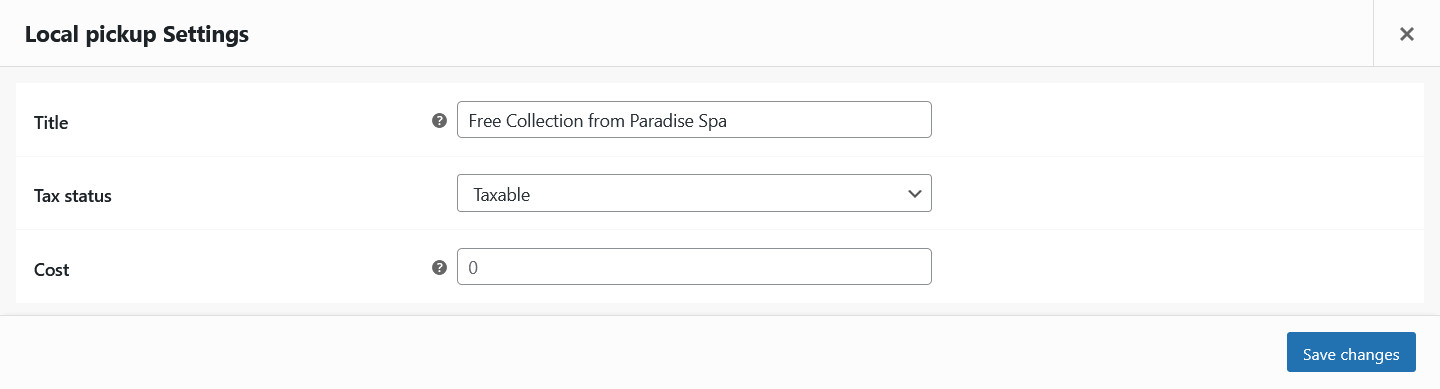
For Local pickup (collection), just give the method a Title, Tax status, and Cost:

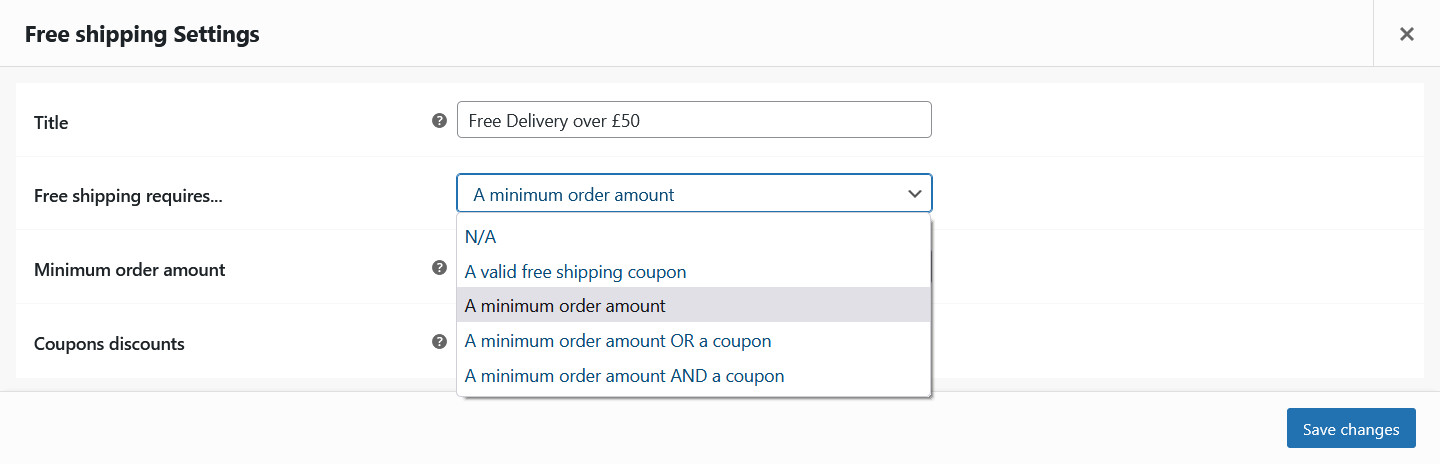
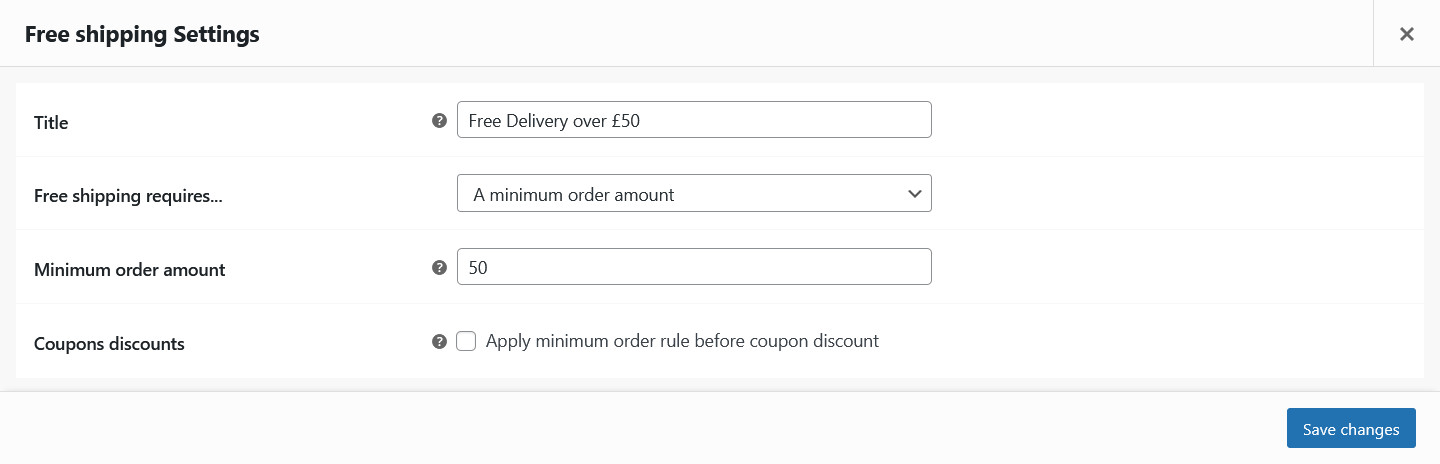
For Free shipping/delivery, give the method a Title and optionally choose if free shipping requires a minimum spend and/or a coupon:
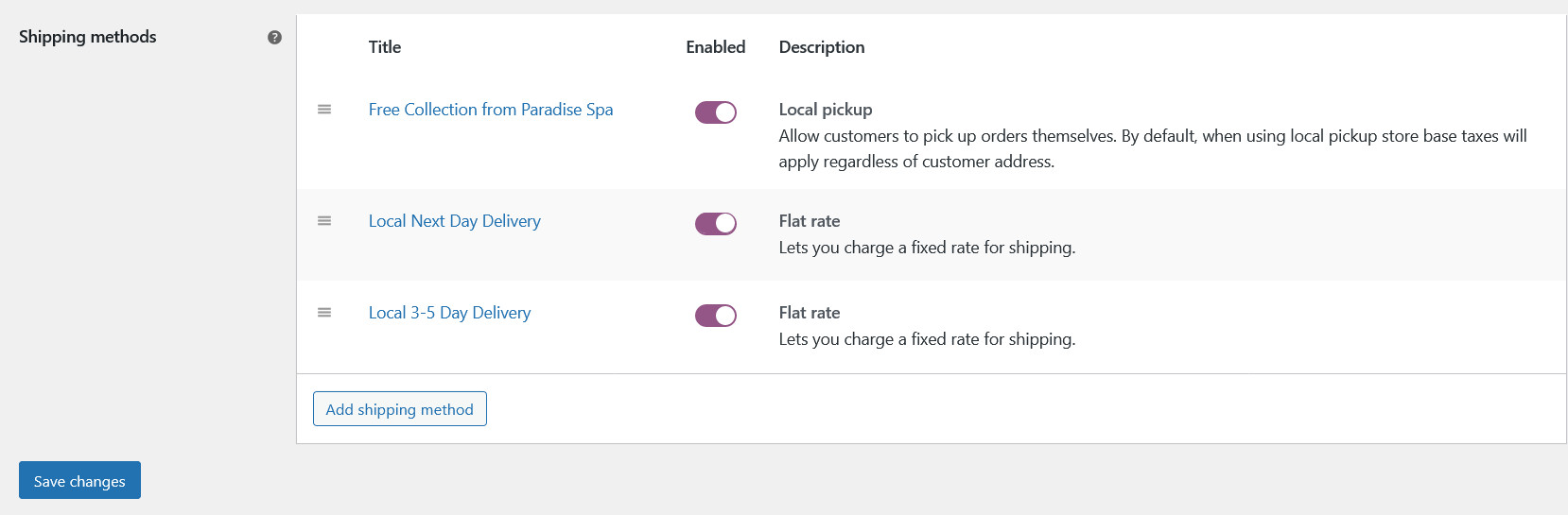
You can continue to add multiple shipping methods if you need to, including multiple flat rate shipping methods (eg. a next day delivery fee and a standard delivery fee):
You can drag and drop shipping methods into a different order using the icon. This will determine the order customers will see the available shipping methods in the checkout. Click Save changes when you’re done.

Shipping options

The settings for your store’s shipping/delivery can be found in the Shipping options tab:
  • Enable the shipping calculator on the cart page: If checked, this will enable customers to enter their address and pick a shipping option from the cart (basket) page
  • Hide shipping costs until an address is entered: If checked, shipping costs will be hidden until the customer enters their address
  • Shipping destination: ‘Default to customer billing address’ recommended – this will use the customer’s billing address for shipping unless they enter a different shipping address during checkout
  • Debug mode: Enable debug mode if you are having issues with your shipping zones and methods

Click Save changes to save your settings.

Shipping classes

Shipping classes can be used to charge different flat rate shipping costs for different products in your store, as some items may cost more to post than others. For example, you may sell greeting cards, which cost less than £1 to post as a standard letter, but you may also sell larger gifts which need sending as a parcel and therefore cost a lot more to post.

To add and edit Shipping classes, go to the Shipping classes tab. Click Add shipping class to add a shipping class:

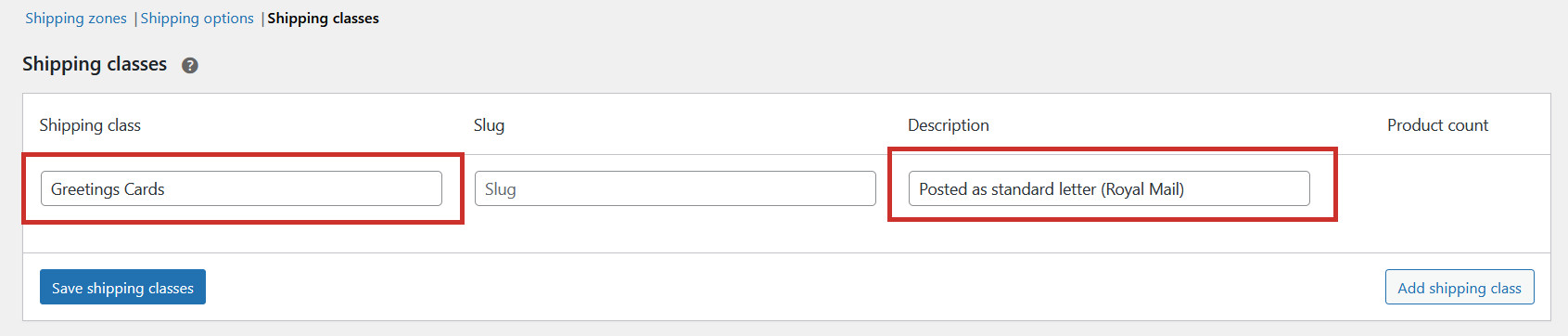
Enter a name for the shipping class and an optional description for your reference:
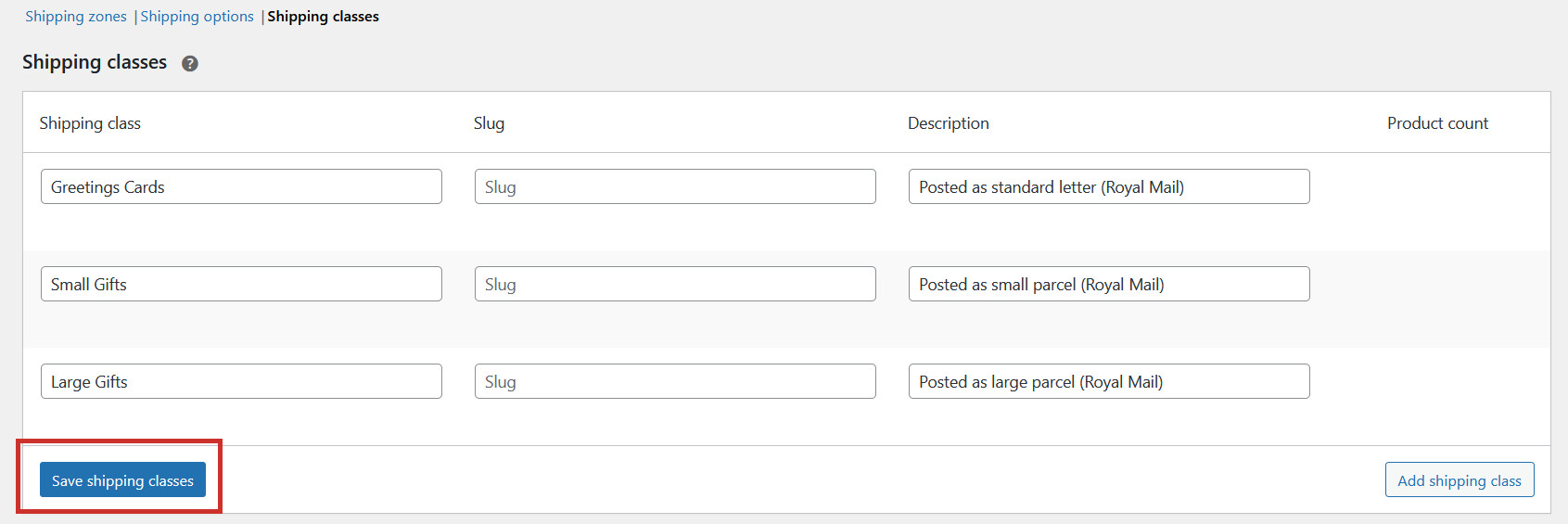
Keep adding more shipping classes if you need to and then Save shipping classes:
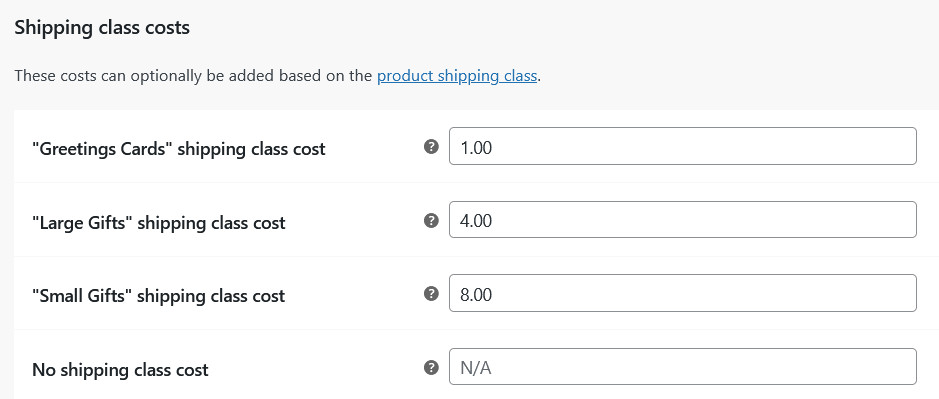
Now when you are adding a Flat rate (fixed fee) shipping method in Shipping zones, you can enter different prices for different shipping classes:
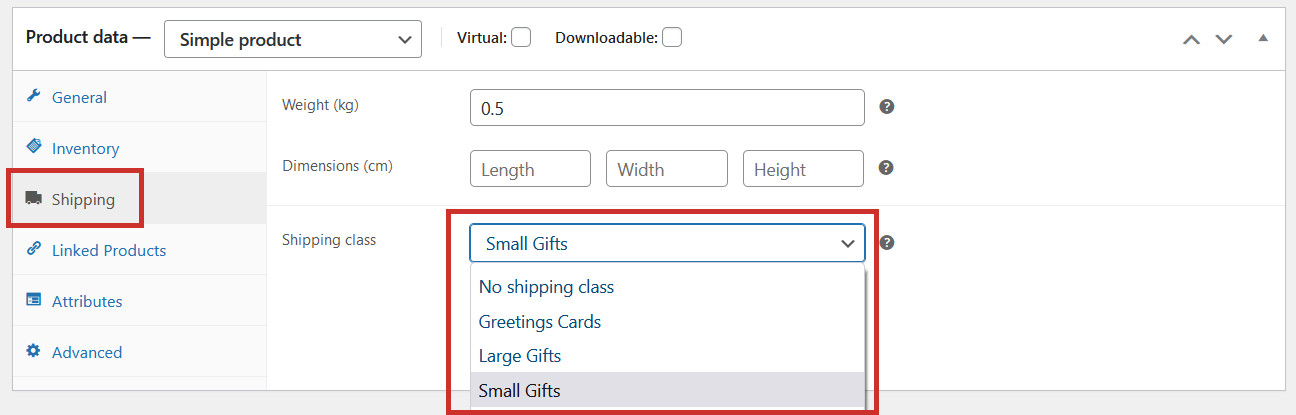
Products can be assigned to a specific Shipping class from the Shipping tab when you are adding or editing them: