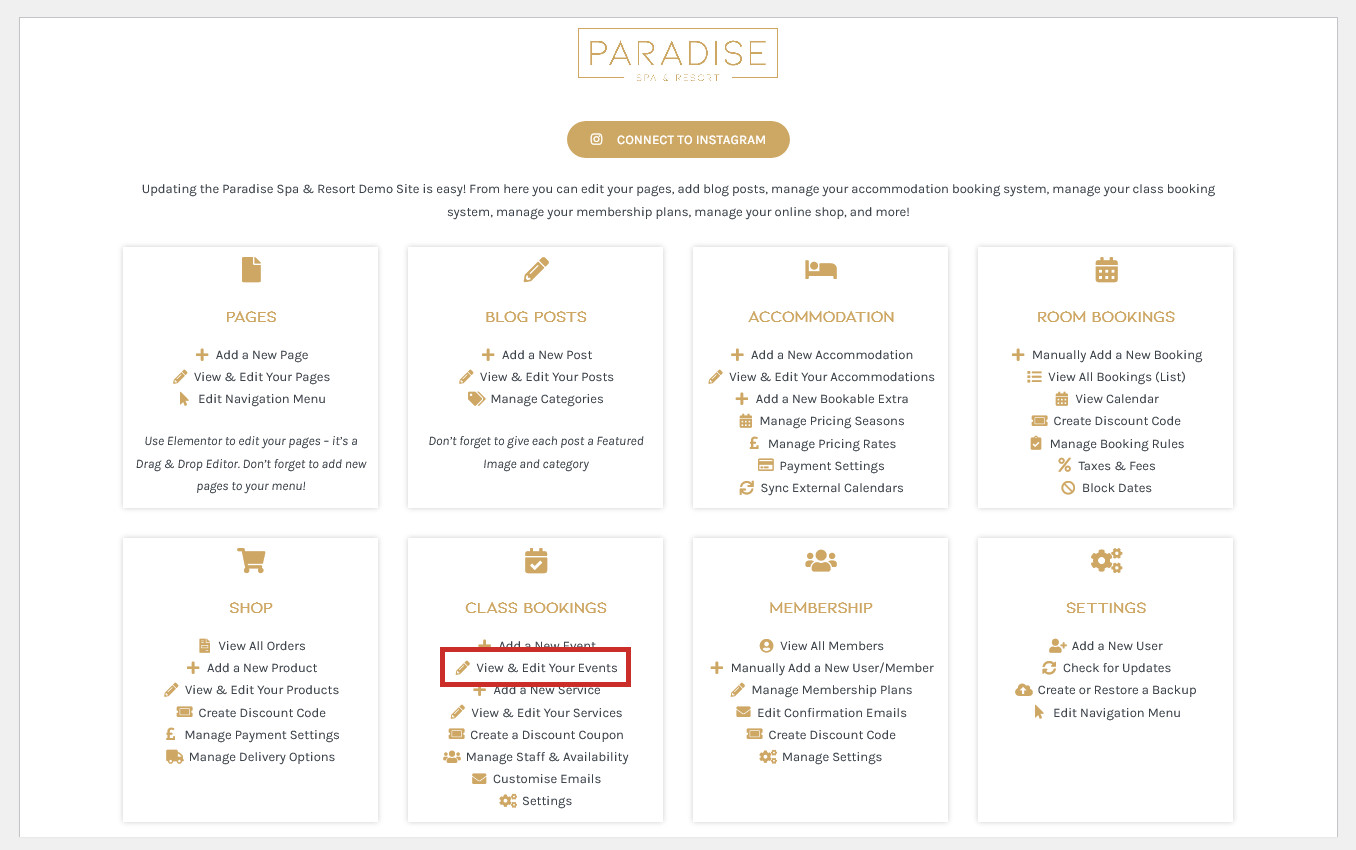
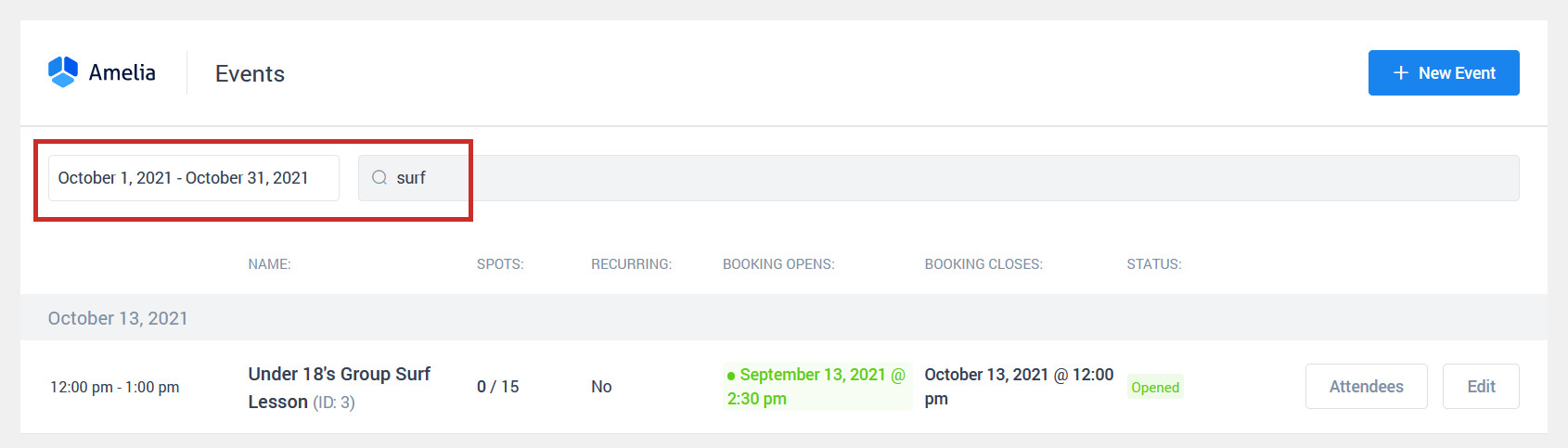
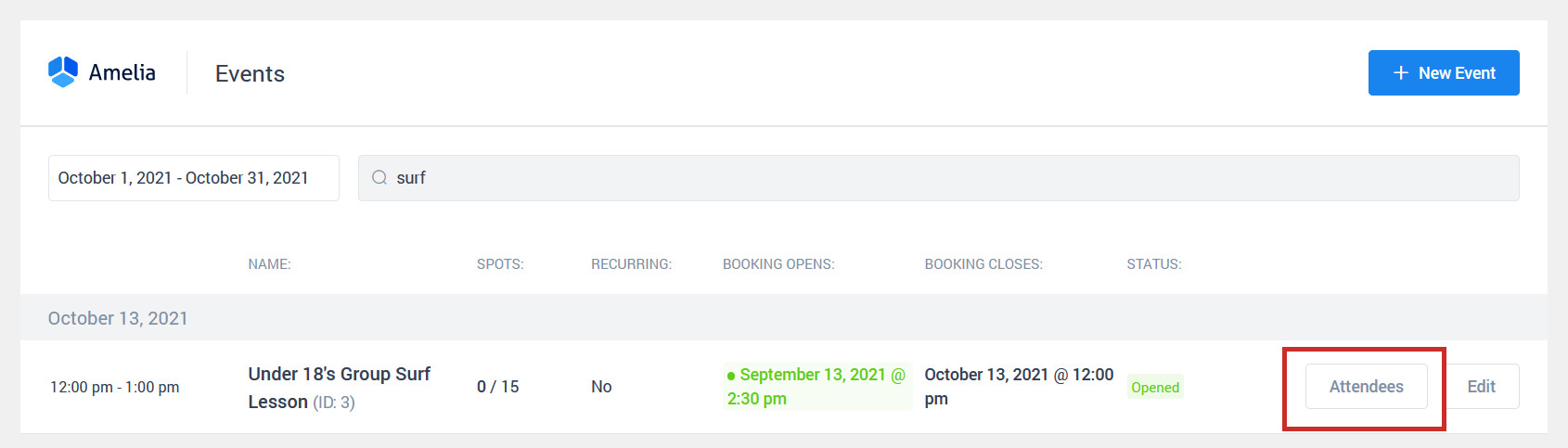
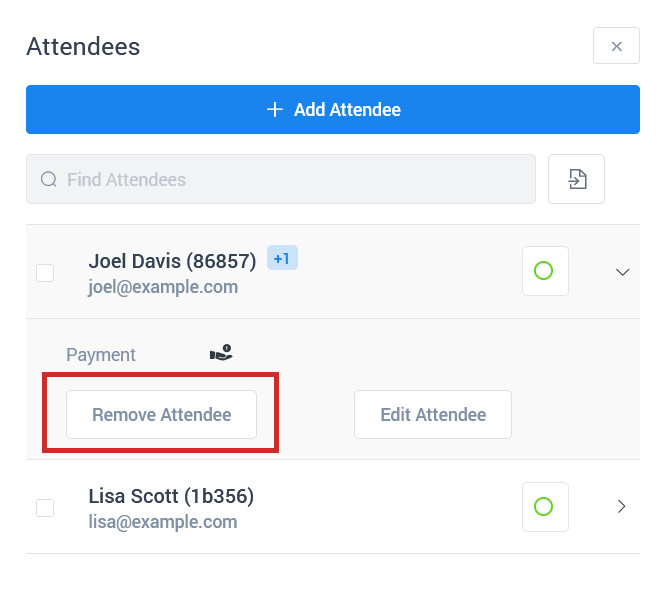
You should receive an email when someone books into your event, so you can keep track of names and numbers, but you can also view attendees by clicking on the event in your booking system. Here you can also manually add guests to your attendee list if they have booked direct and bypassed the online booking system. To view attendees, use the View & Edit Your Events link in your Dashboard under the ‘Bookings’ or similar heading:
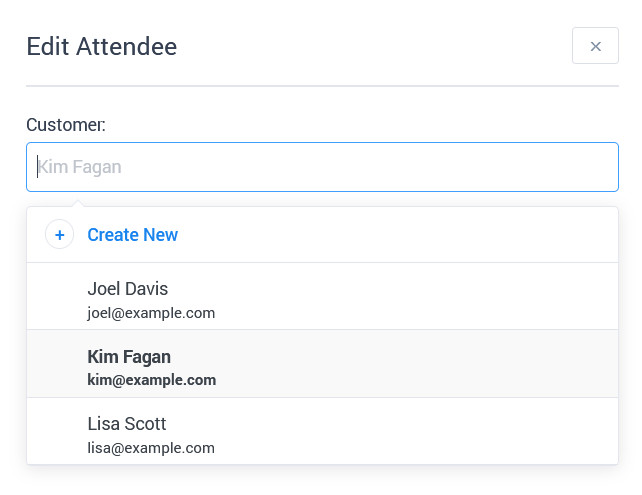
Use the Add Attendee button to manually add someone to the event. If they are an existing customer who has booked previously, their details will already be saved and you can select them from the drop-down list. If they are a new customer, you need to add them as a new customer and enter their name and contact details: