How to manually add an appointment

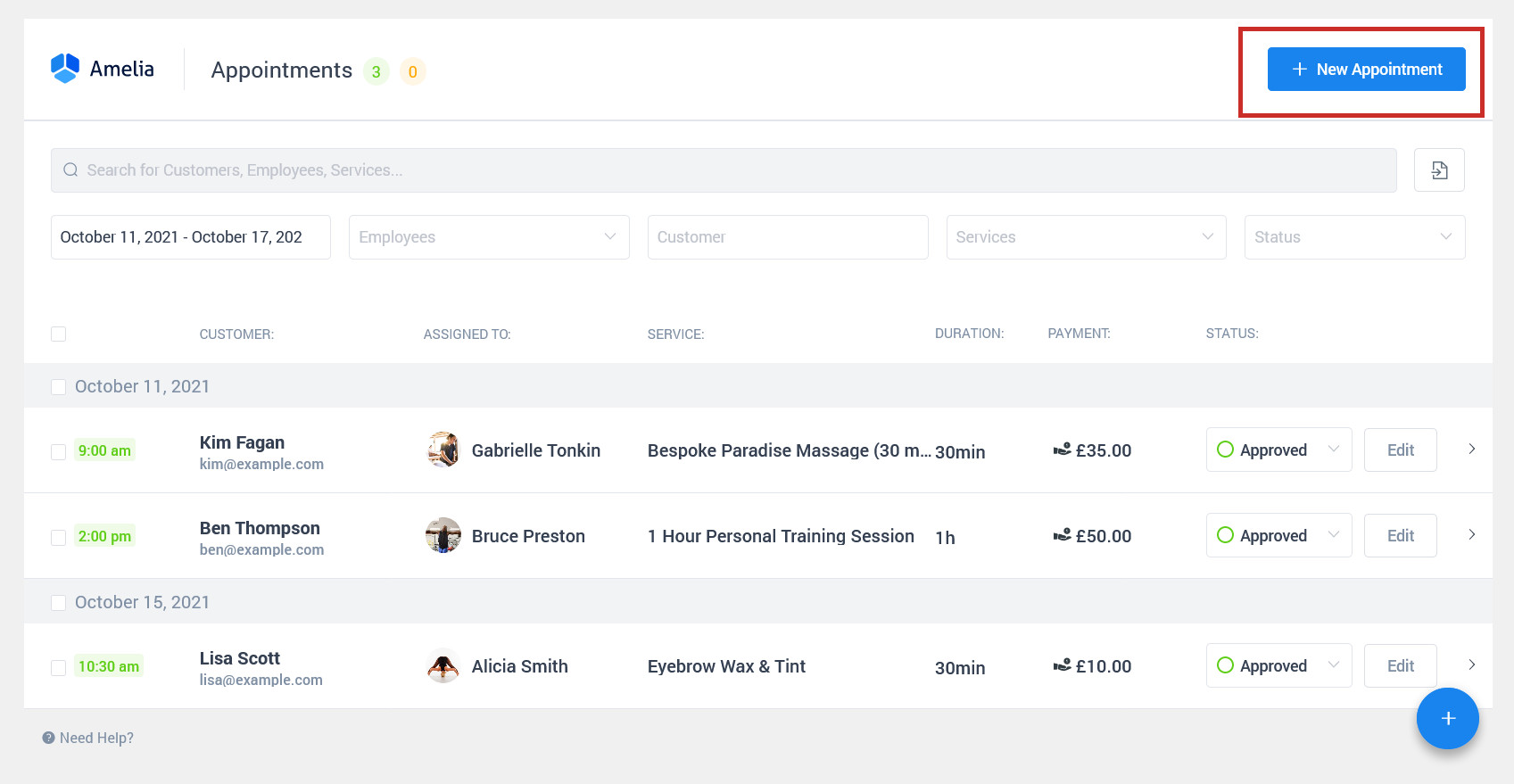
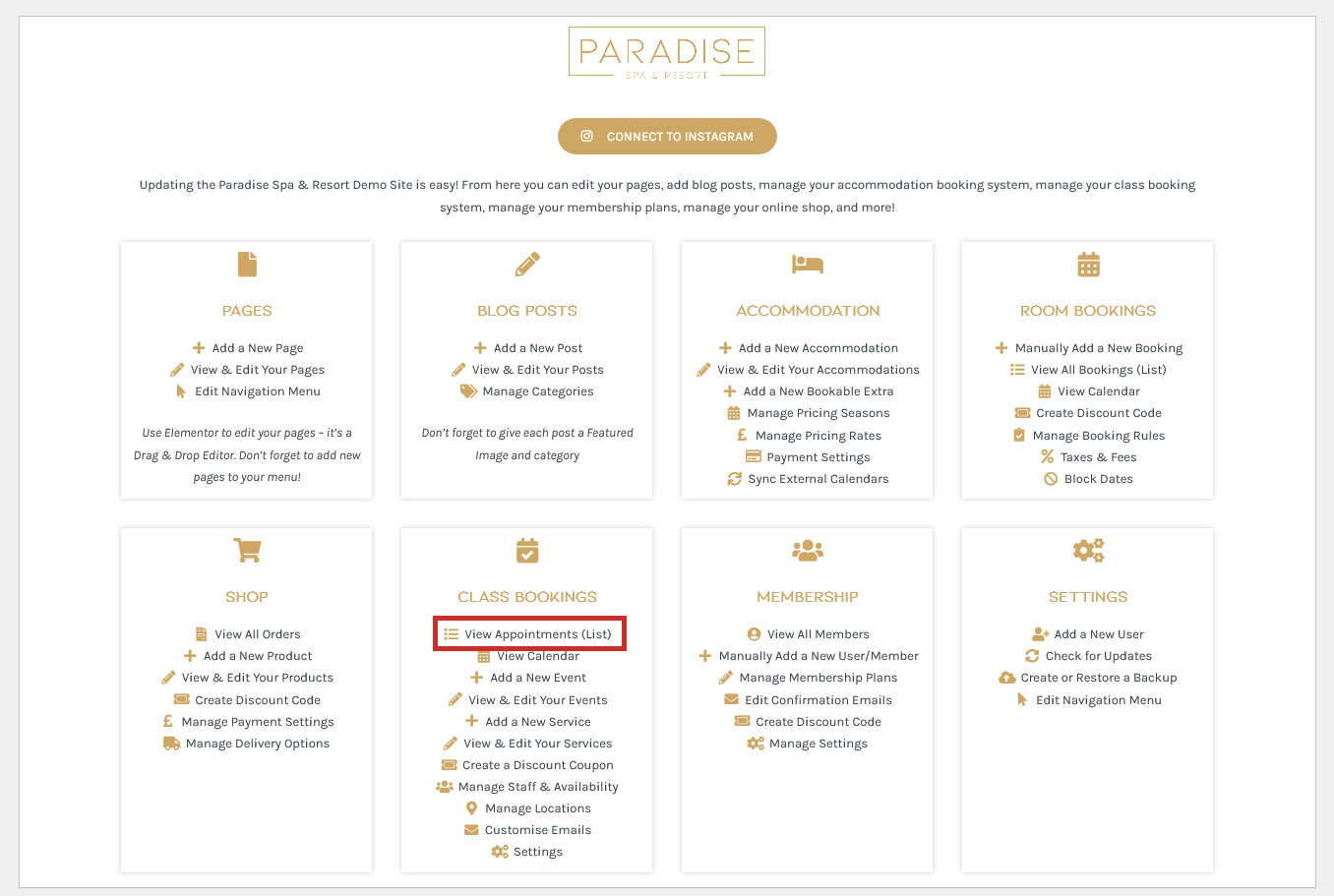
Not all customers will use the online booking system. Some may book direct via email or phone. To keep your customer database and availability up-to-date, you can manually add appointments by using the View Appointments (List) link in your dashboard under the ‘Bookings’ or similar heading:
Click the blue Add Appointment button at the top of the page to manually add an appointment:
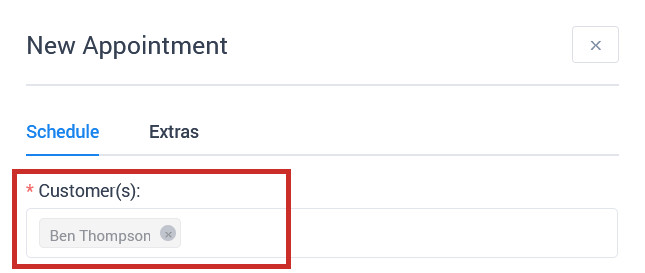
Select an existing customer or create a new one if they are not already in your database:
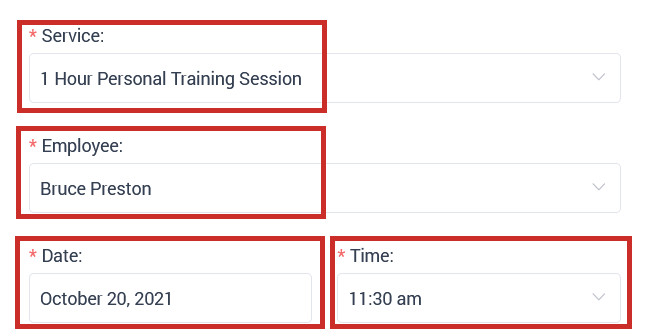
Select the Service, Employee, Date, and Time of the booking:
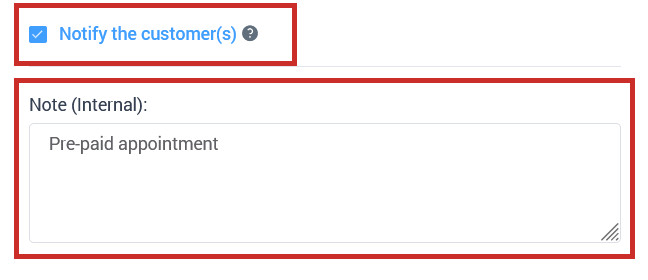
Choose whether to notify the customer via email of the booking (we suggest you do), and enter any optional notes about the booking (for your reference only):
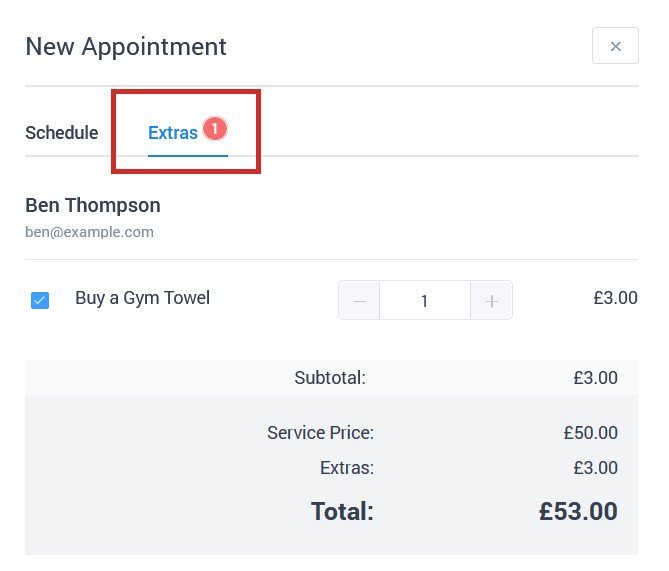
If the customer booked an optional service extra, you can select this in the Extras tab:
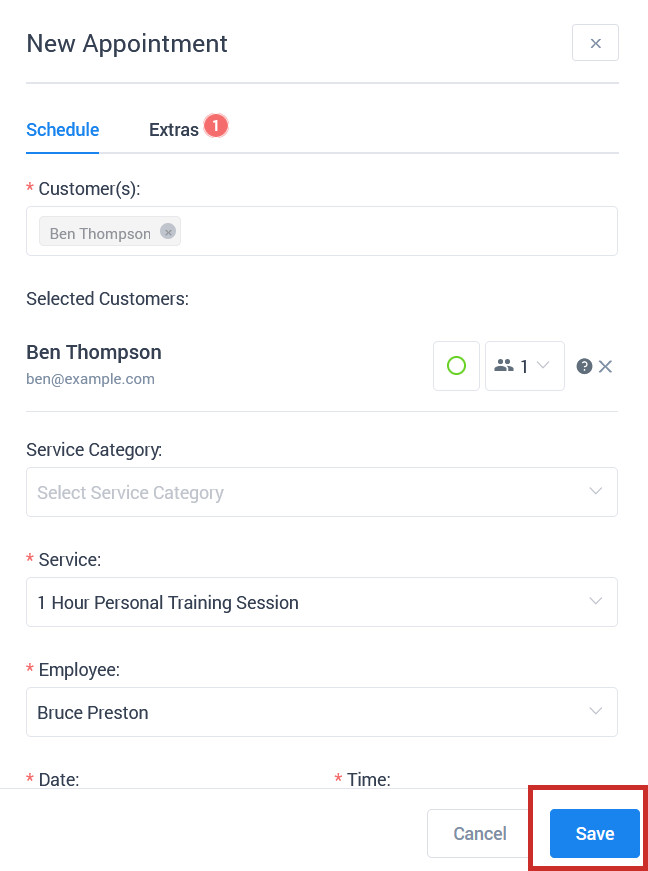
Click Save to finish adding the appointment. The employee will be notified via email of the new booking: