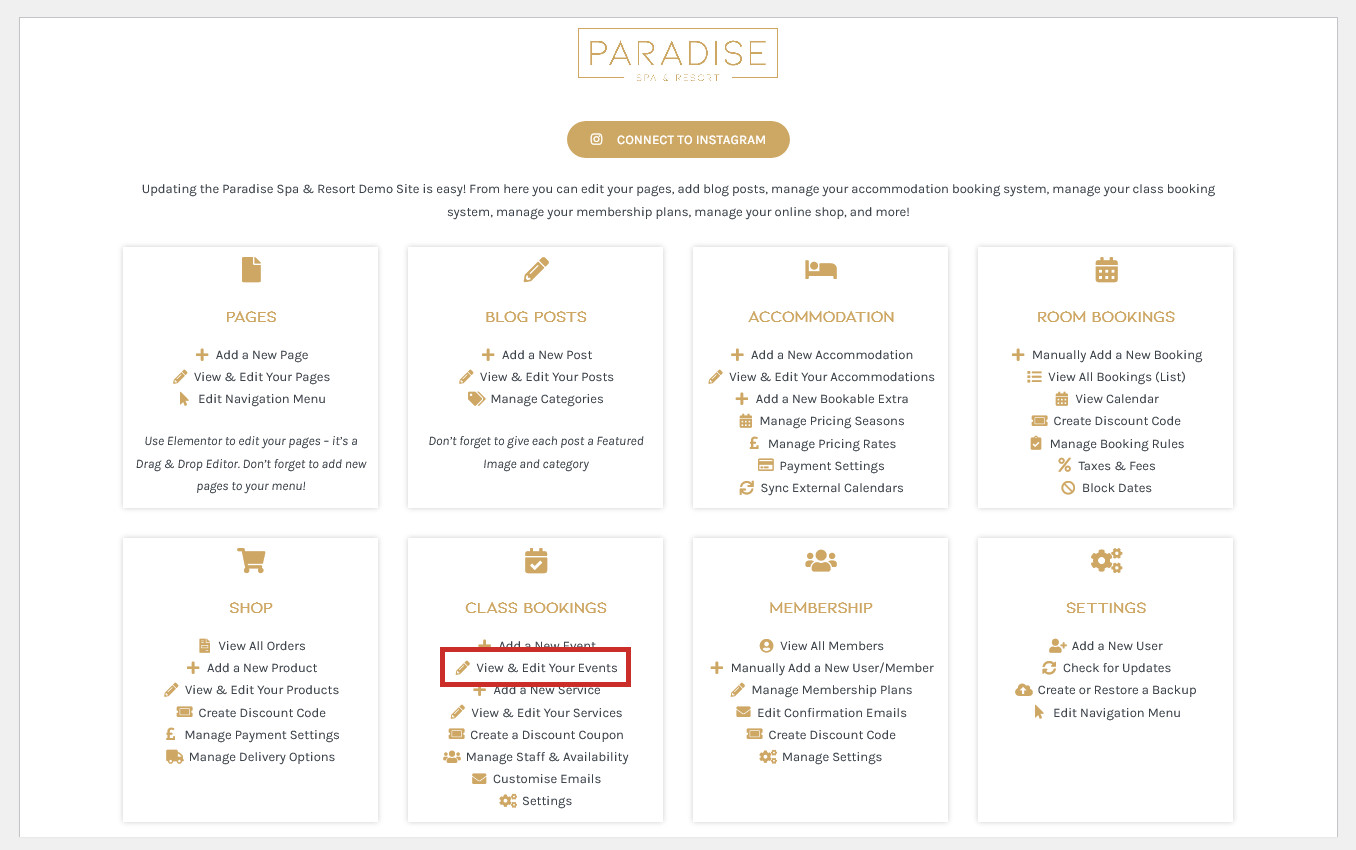
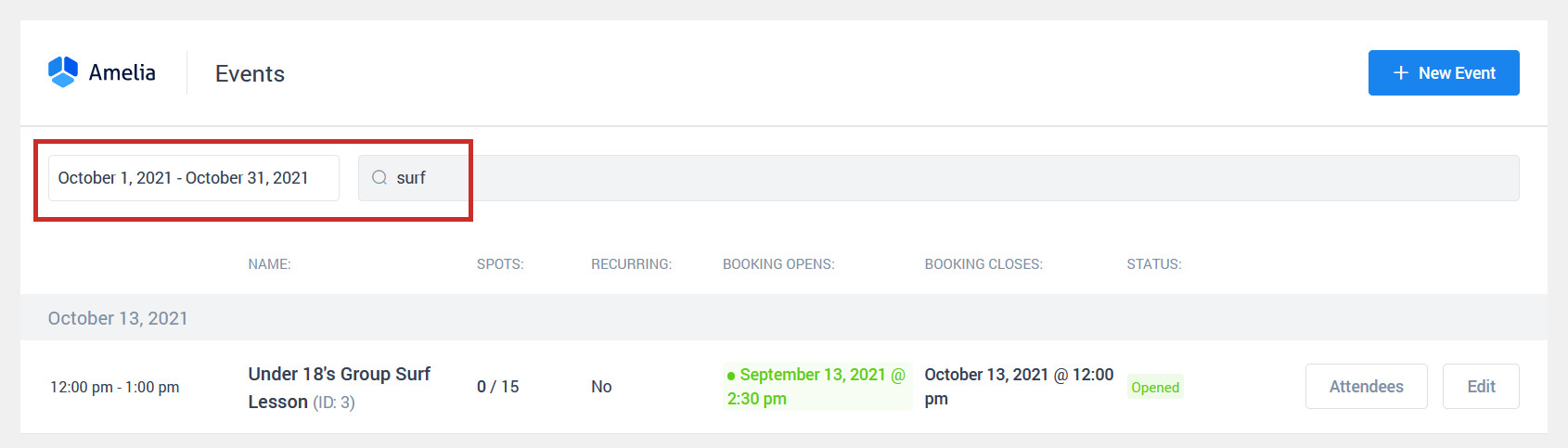
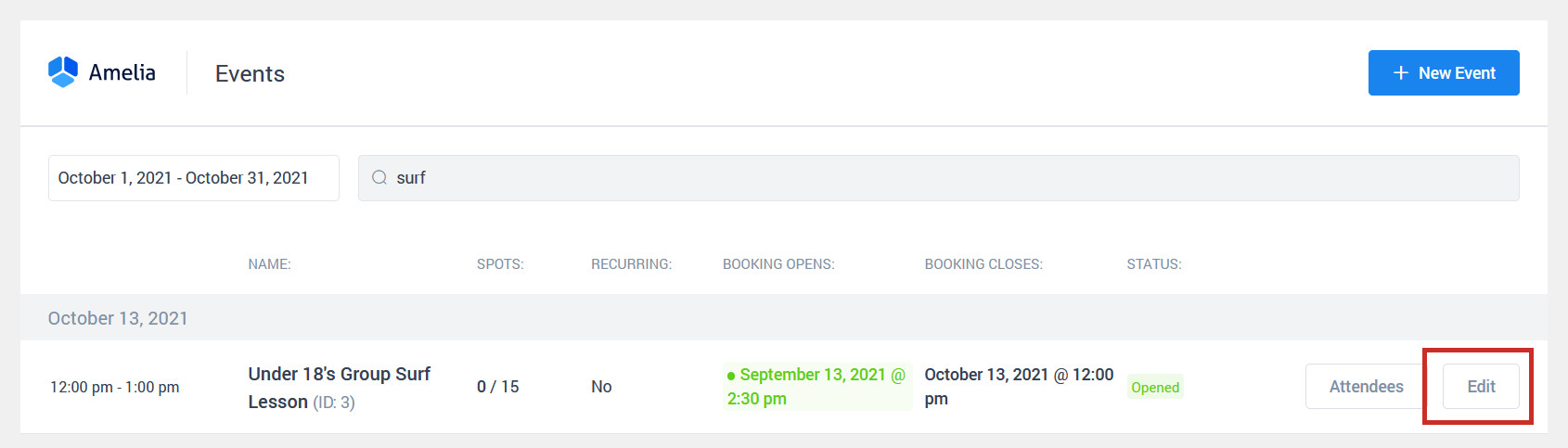
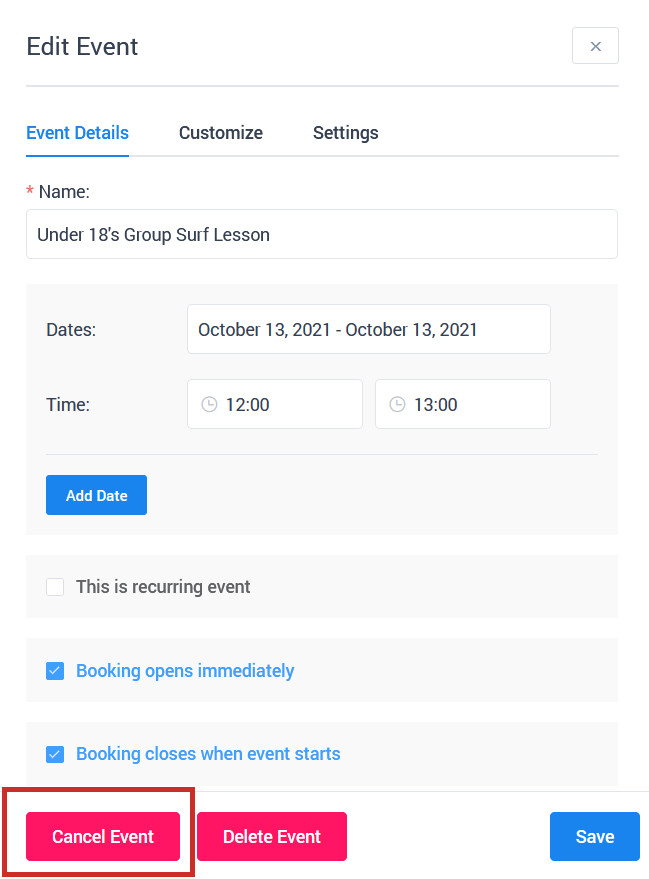
In the unfortunate event that you need to cancel an event, you can cancel and/or delete the event with ease in the booking system. To cancel or delete an event, use the View & Edit Events link in your dashboard under the ‘Bookings’ (or similar) heading:
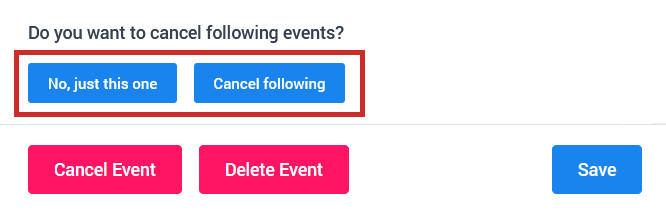
If this is a recurring event, you will be asking if you wish to cancel all following events too, or just this one:
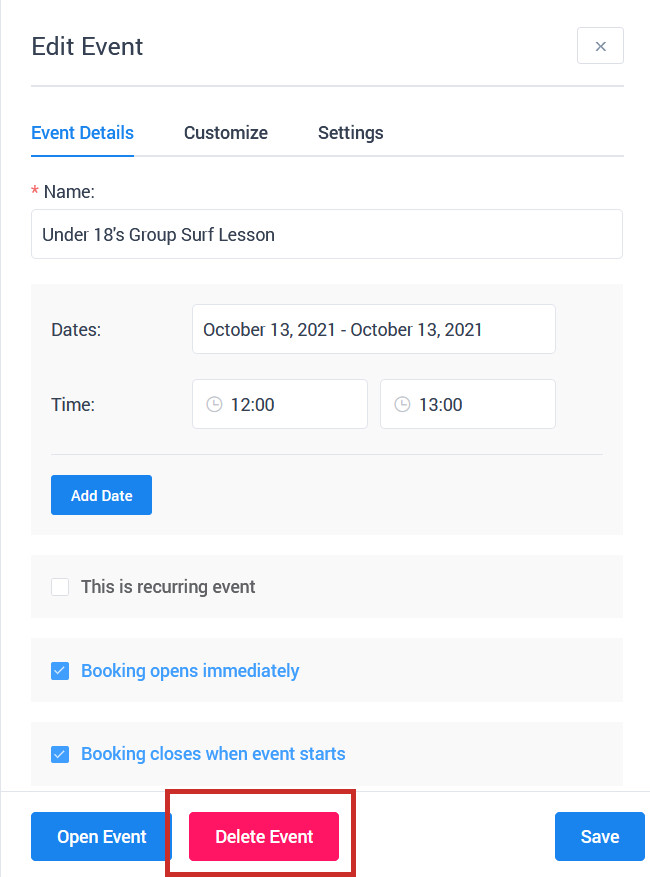
Customers who are booked into your event will be notified via email that the event has been cancelled, and it will show as Cancelled in the booking system. If you wish to also delete the event and remove it from the system entirely, click Edit again and click Delete. You can also open the event up again instead if needed: