In addition, you can also choose to allow payment on arrival, or via bank transfer. We strongly recommend the use of Stripe as it is easy-to-use and has very low fees.
From the Payment Settings page, you can select how you would like to receive payment, and change other settings such as the deposit amount.
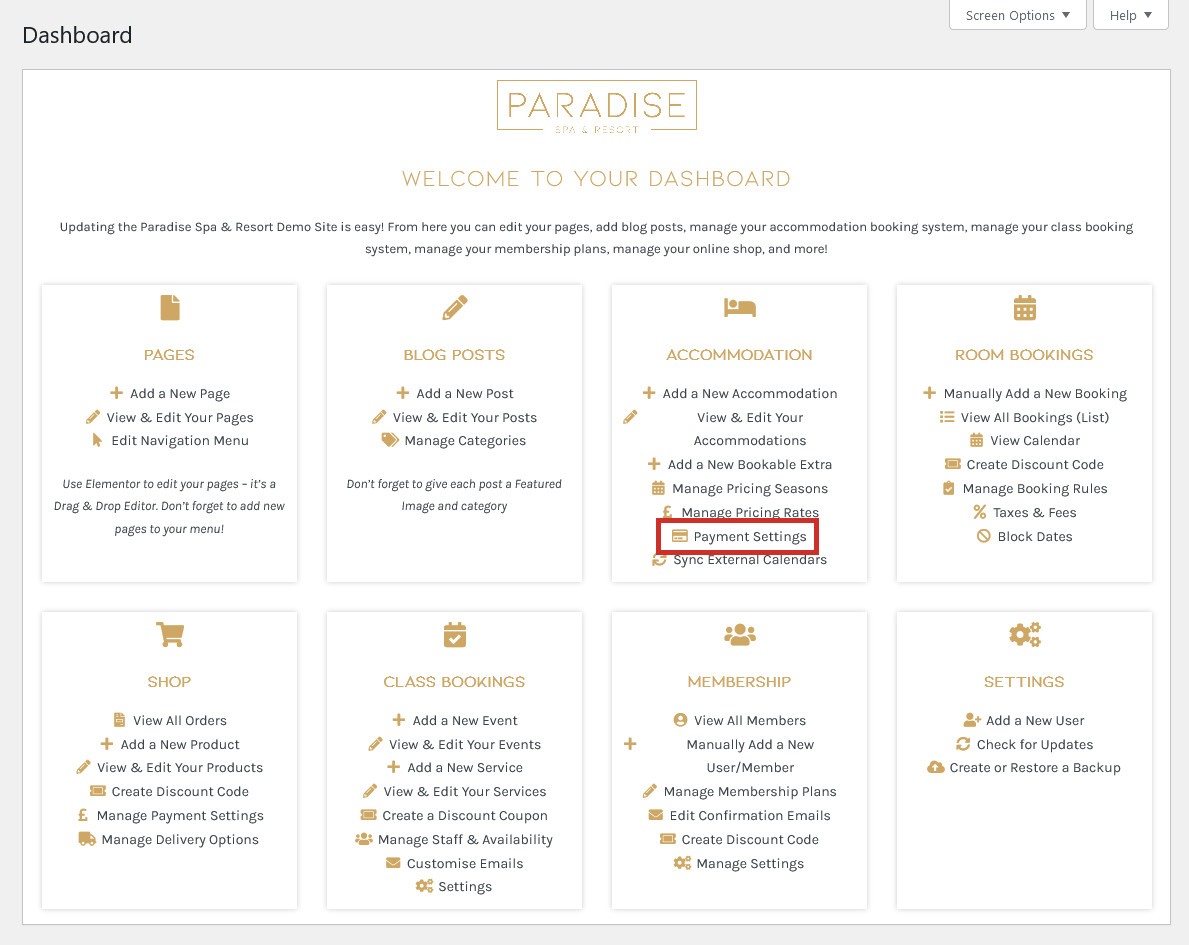
To manage your payment settings, use the ‘Payment Settings‘ link in your dashboard under the ‘Accommodation’ heading:
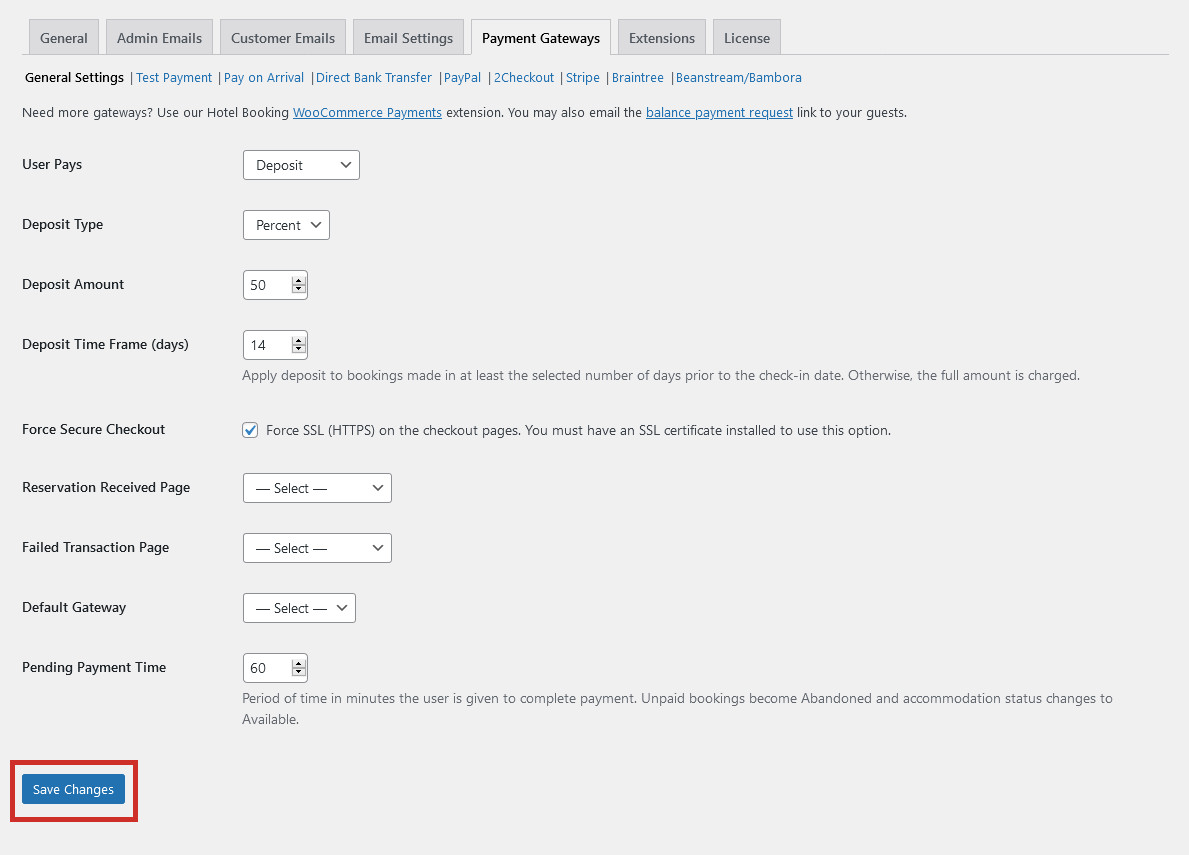
You will be taken to the general payment settings page, where you can manage settings such as:
Whether to charge the full amount or take a deposit
What deposit amount you will be taking
The deposit time frame
The default payment method on checkout
The pending payment time
Don’t forget to click Save Changes at the bottom of this page if you make any alterations to your payment settings.
At the top of the page you will see a horizontal menu listing all of the available payment methods. Click on a payment method to set it up, remove it, or edit your details:
Test Payment
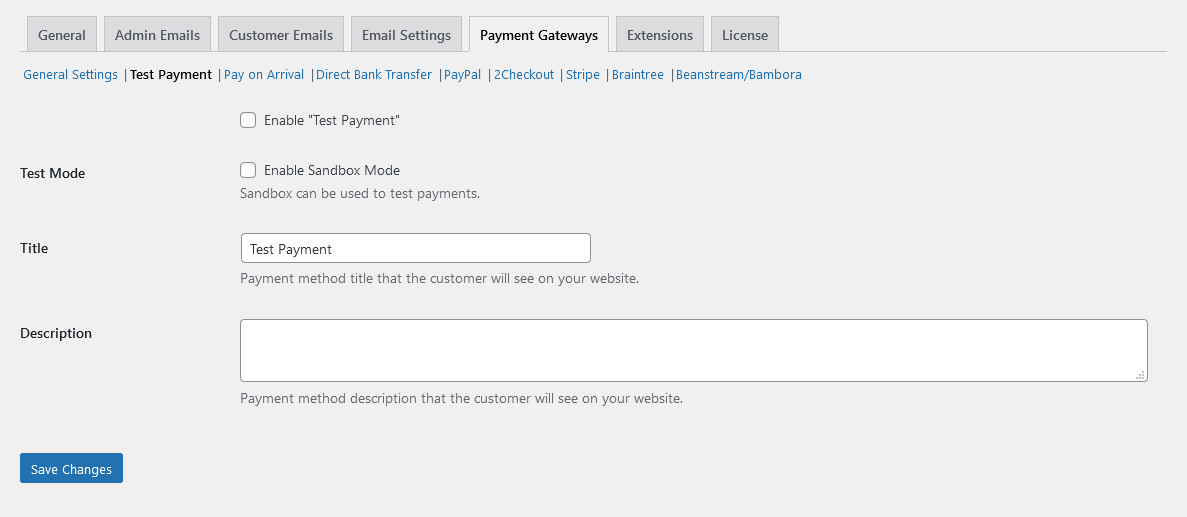
Test payment is mainly used during the website production to check that the booking and checkout process works correctly without having to enter any payment details. Simply enable test payment and enter an optional title and description to make test bookings (and click Save Changes when you’re done):
Pay on Arrival
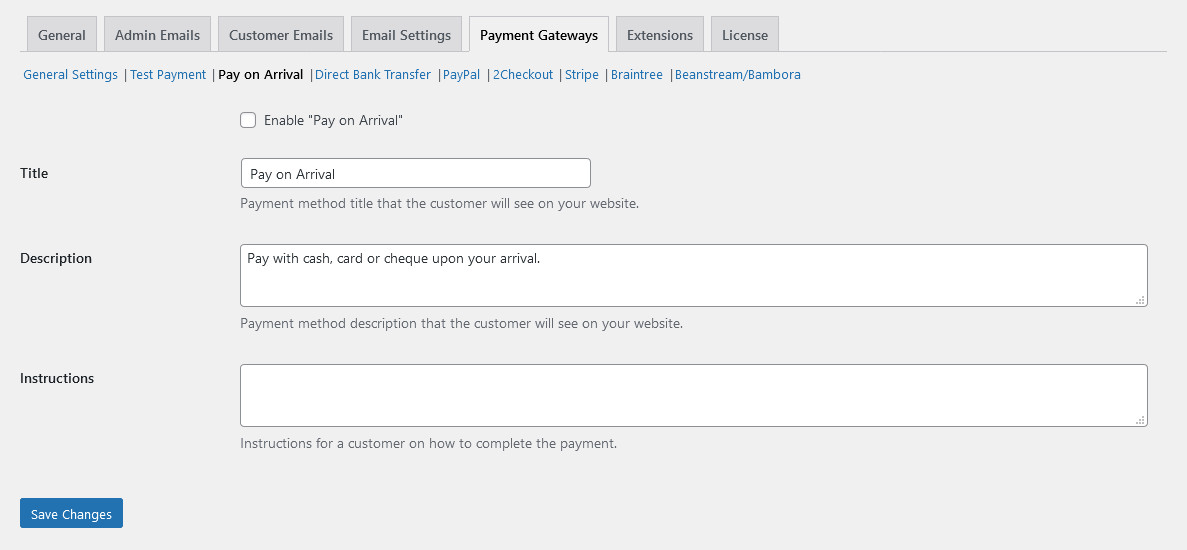
Pay on arrival allows your guests to pay in-person upon their arrival at your accommodation. Enable this payment setting and enter a description and optional payment instructions, then click Save Changes:
Direct Bank Transfer
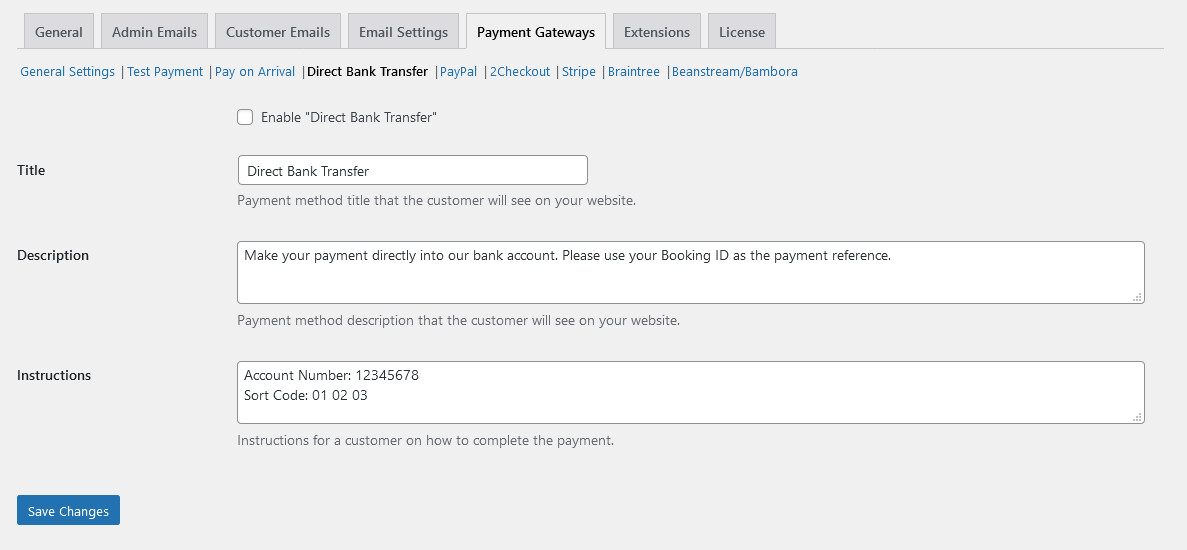
Using the direct bank transfer option allows your guests to send the payment via BACS, using the account details you provide to them in the instructions box. Make sure you have supplied your bank details before you enable this method and Save Changes:
PayPal
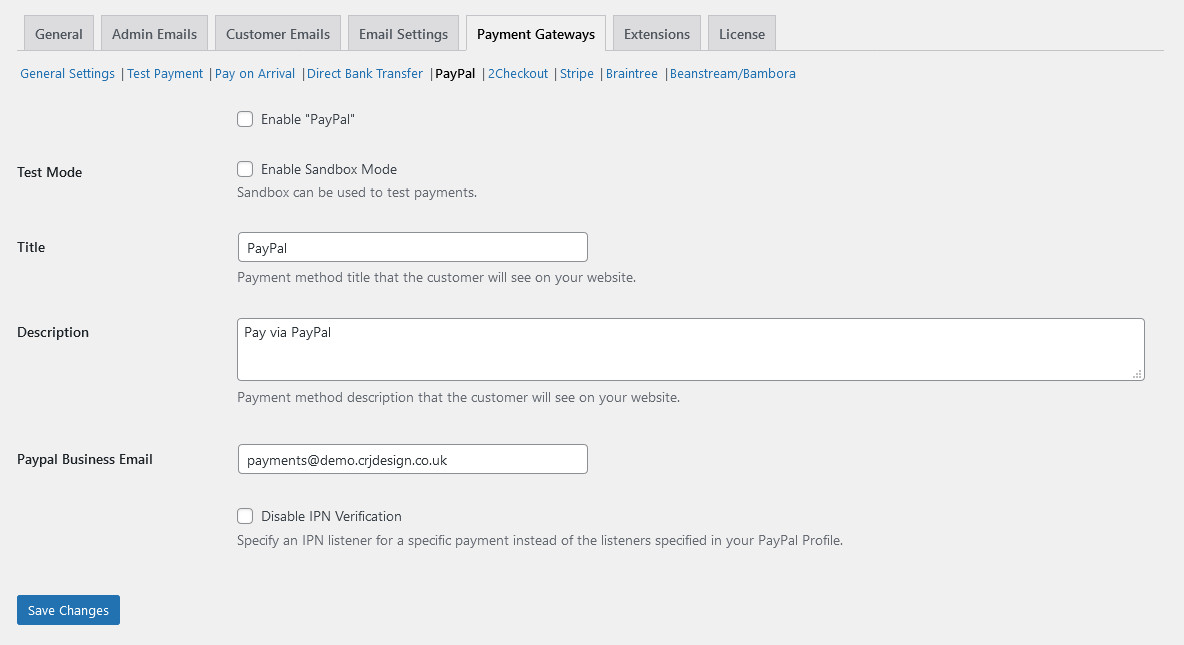
PayPal is a widely recognised online payment gateway. All you need to do to accept payment via PayPal is to enter your PayPal business email address into the email field, then enable this payment method and click Save Changes:
2Checkout
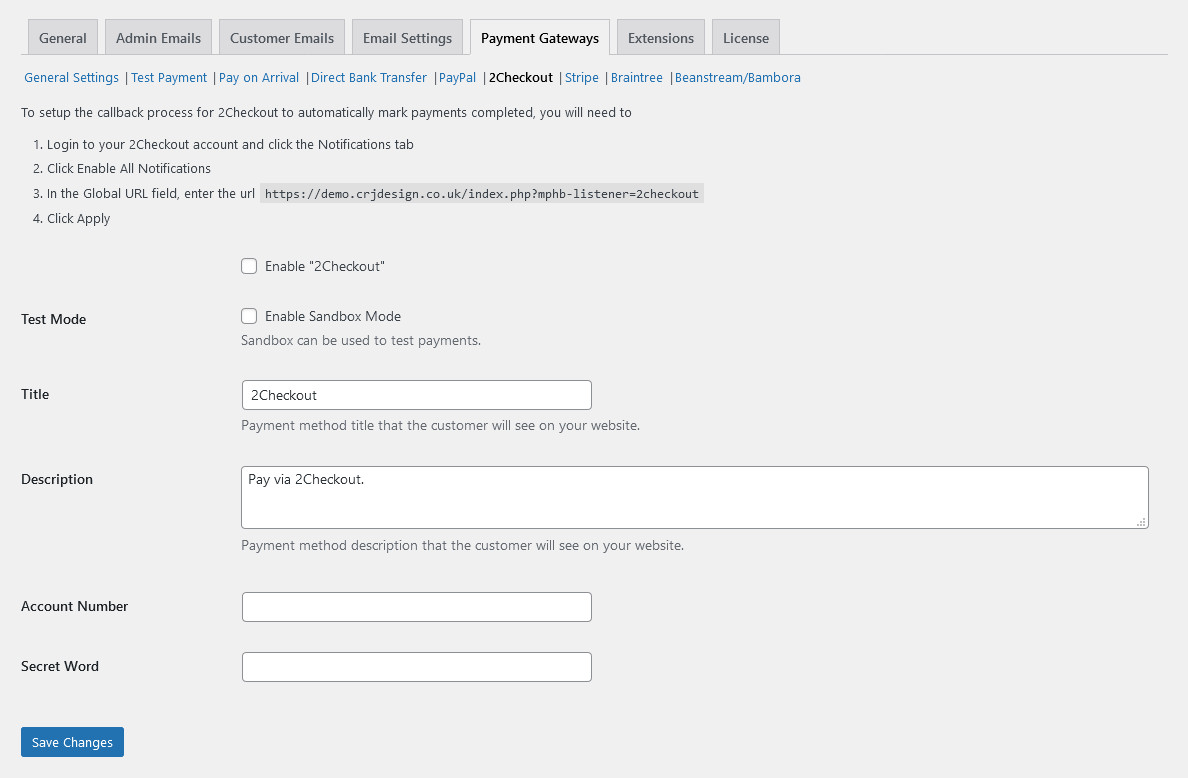
2Checkout is an online payment processor by Verifone. Enable this payment method and then enter your 2Checkout account number and secret word. Your secret word can be found in your 2Checkout account by going to Integrations > Webhooks & API. Make sure you follow the instructions at the top of the page to add your URL to your 2Checkout notification settings. Click Save Changes when you’re done:
Stripe
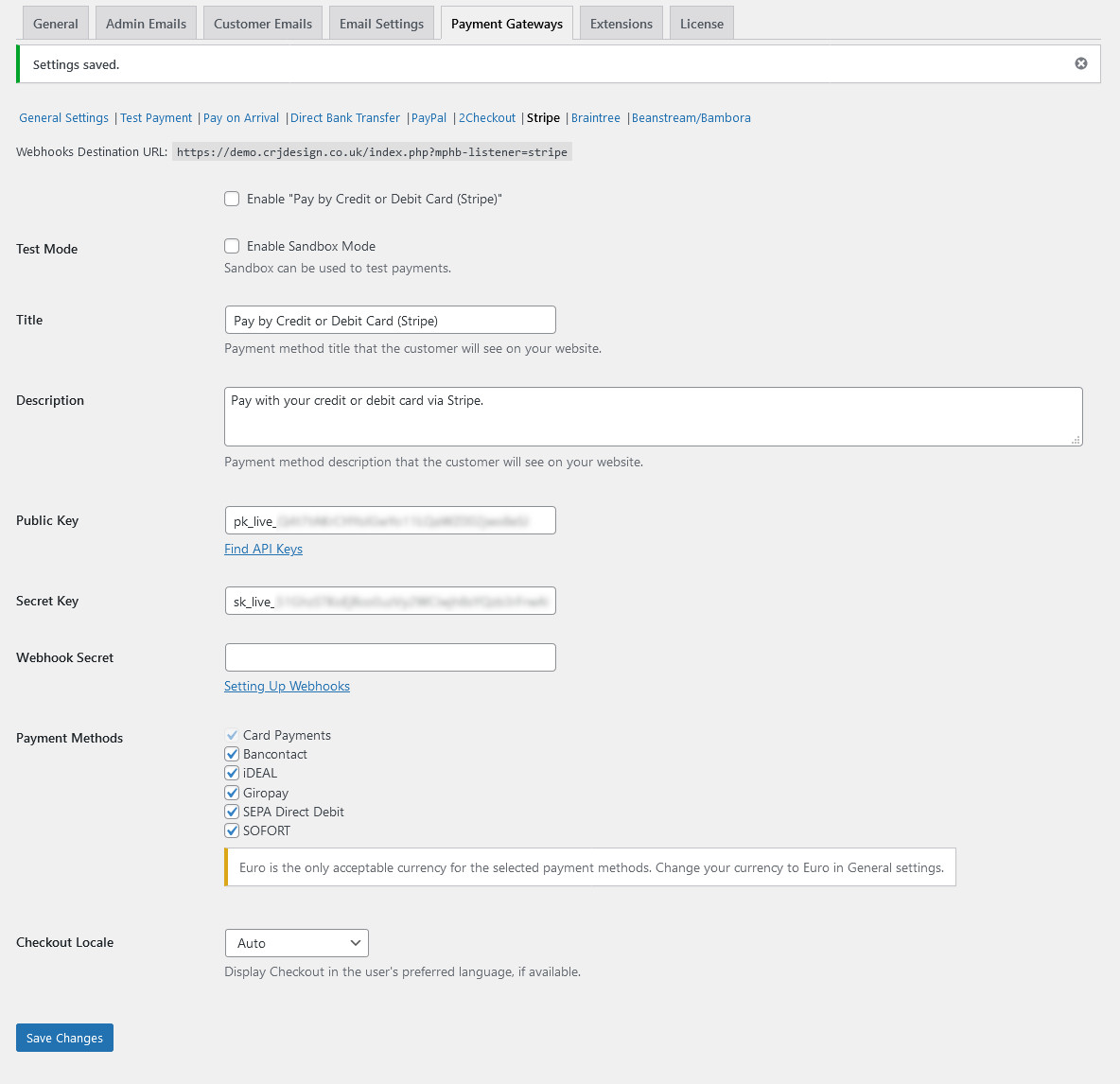
After enabling Stripe, you will need to enter your Public & Secret API keys, found in your Stripe account. Card payments will be enabled by default, but you can also choose to accept payment via Bancontact, iDEAL, Giropay, SEPA Direct Debit & SOFORT:
After you’ve clicked Save Changes, a Webhooks URL will be shown at the top of the screen. Add this to your Stripe Webhooks:
Braintree
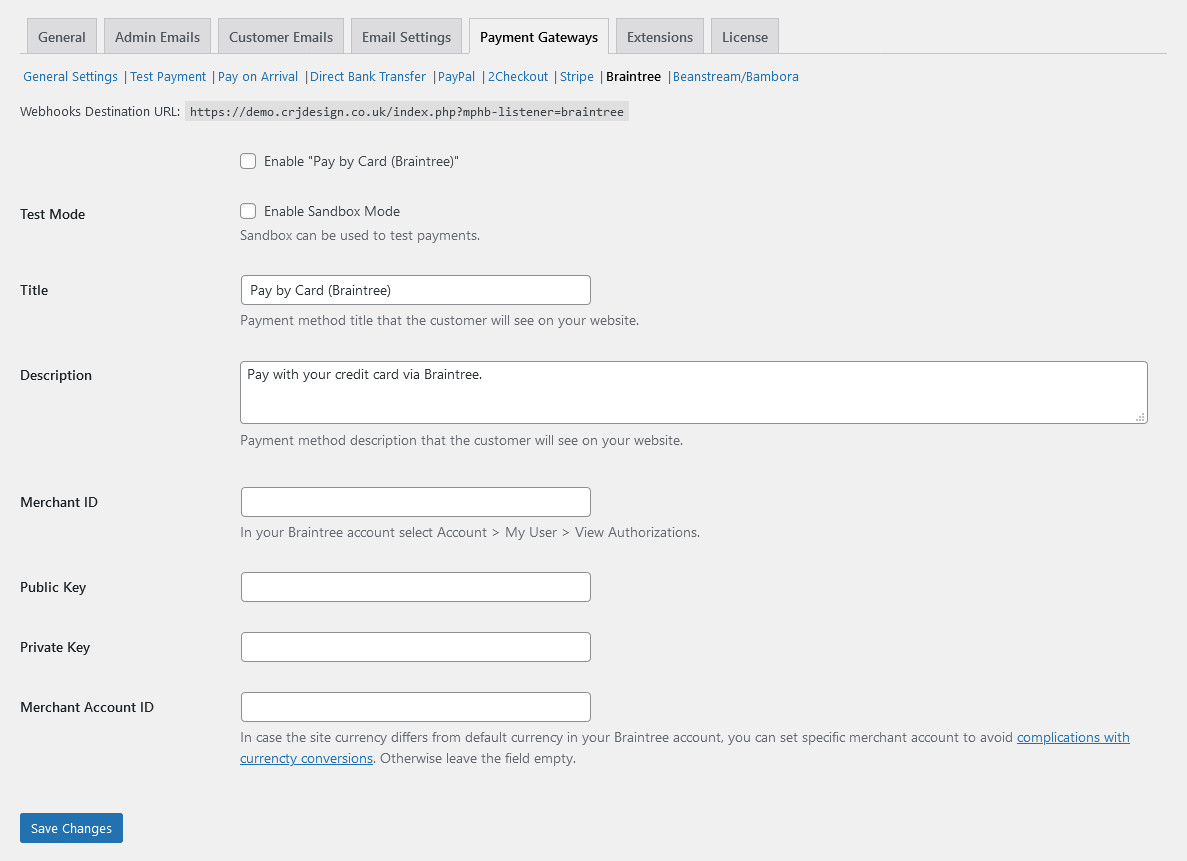
Braintree is a PayPal-owned online payment gateway. Enable this payment method to start using Braintree, then enter your Merchant ID, Public Key & Private Key. You can optionally enter a Merchant Account ID to avoid issues with currency conversions. Click Save Changes when you’re done. Don’t forget to add the Webhooks URL to your Braintree account:
Beanstream/Bambora
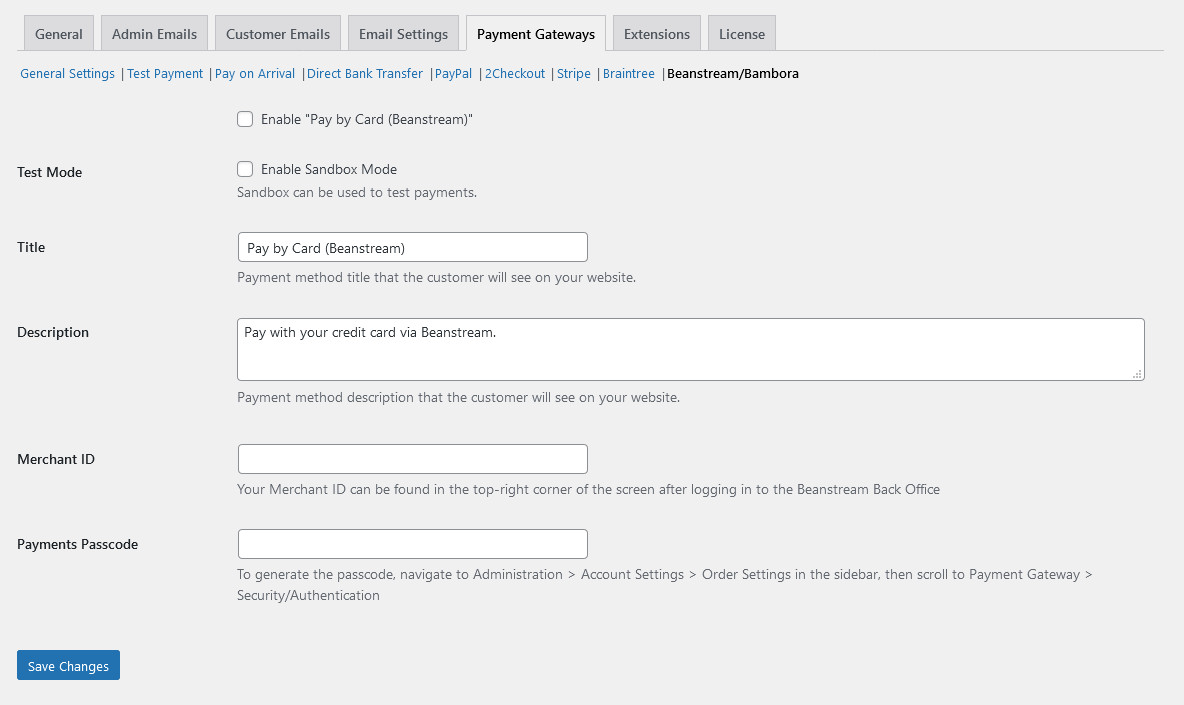
Beanstream/Bambora is an online payments processor. Enable this payment method, and then enter your Merchant ID and Payments Passcode. Click Save Changes when you’re done: