Home > How to connect your email account to an iPhone
How to connect your email account to an iPhone
Using the email configuration settings for your email address, you can connect your email account to your iPhone, enabling you to send and receive emails from your custom email address from within the iPhone Mail app. This means you won’t have to login to webmail every time you want to check your emails, and you can receive notifications of new emails.
The email configuration settings for email accounts hosted with CRJ Design are as follows (replace ‘yourdomain.co.uk’ with your domain name):
Username
[Your full email address, eg. info@yourdomain.co.uk]
Password
[The password for the email account]
Incoming IMAP Server (recommended)
imap.yourdomain.co.uk IMAP Port: 993
Incoming POP Server
pop3.yourdomain.co.uk POP Port: 995
Outgoing Server
smtp.yourdomain.co.uk SMTP Port: 465
IMAP, POP3, and SMTP require authentication.
Adding your email account to iPhone
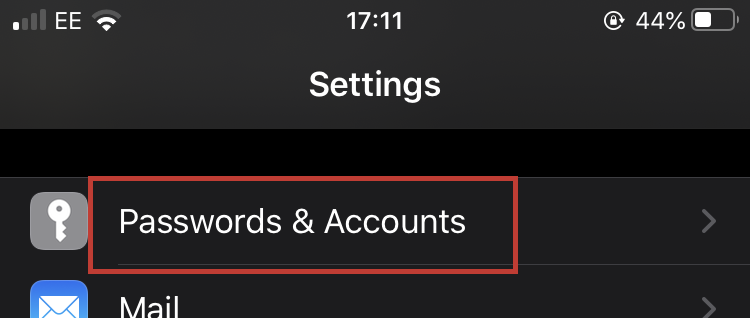
On your iPhone, open the Settings App and tap Passwords & Accounts:
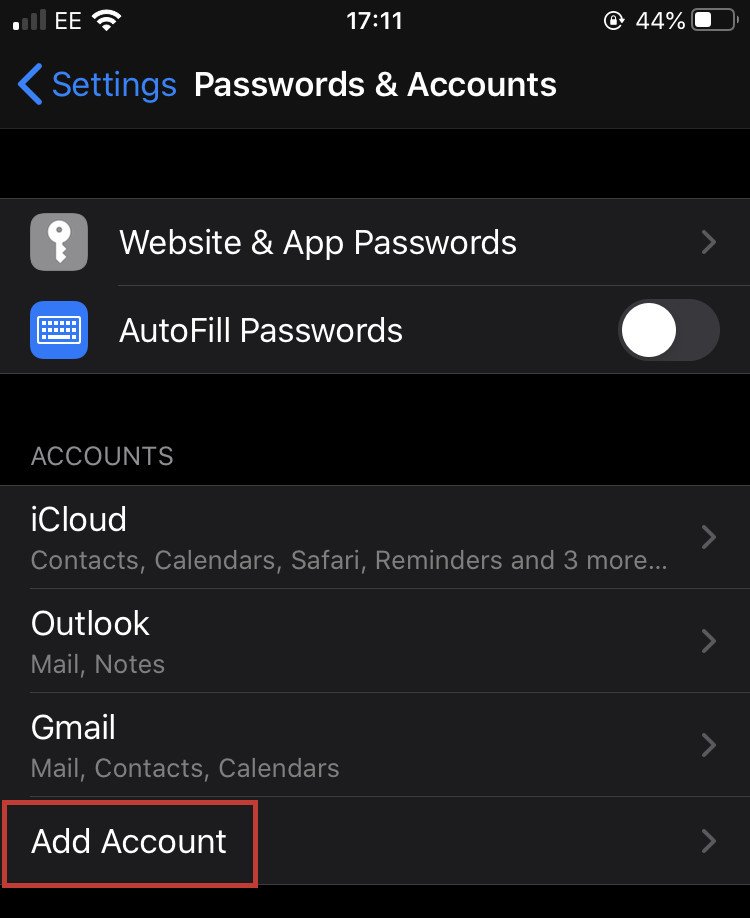
Underneath ‘Accounts’, tap Add Account:
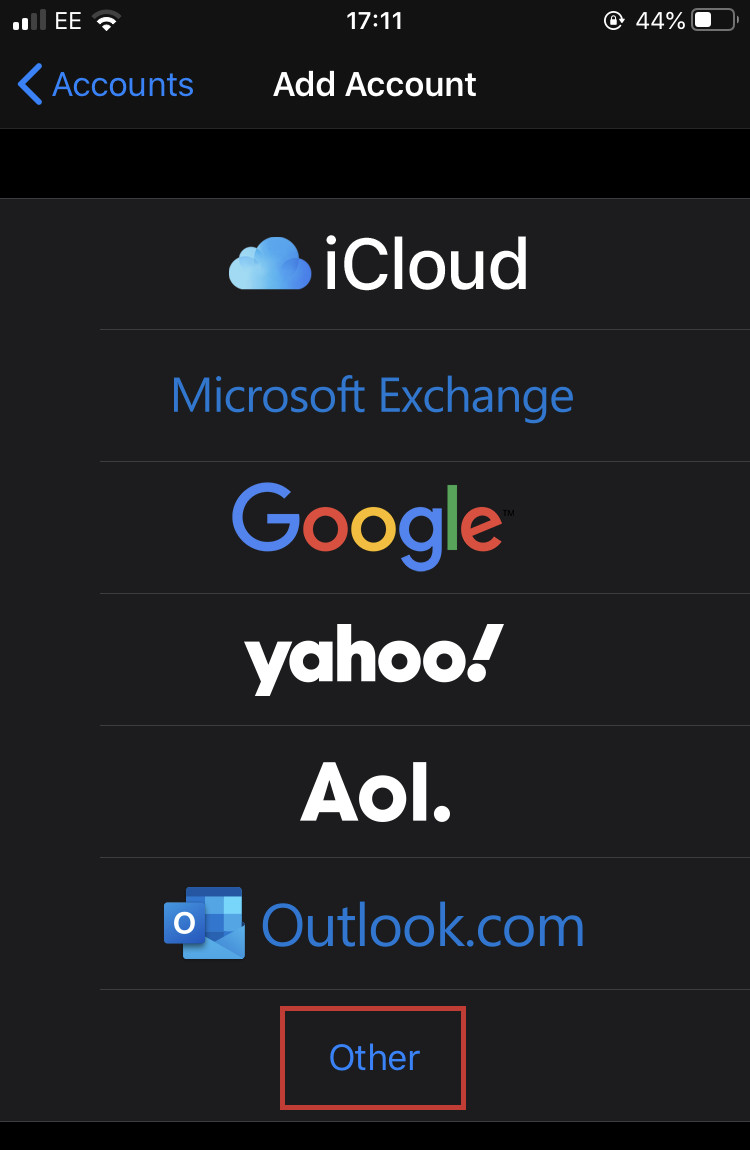
Tap Other from the options available:
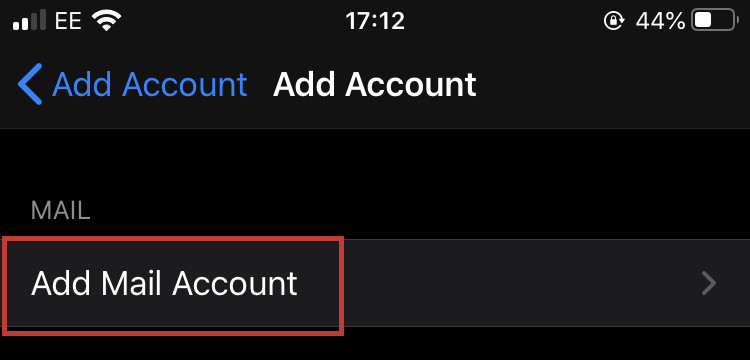
Tap Add Mail Account:
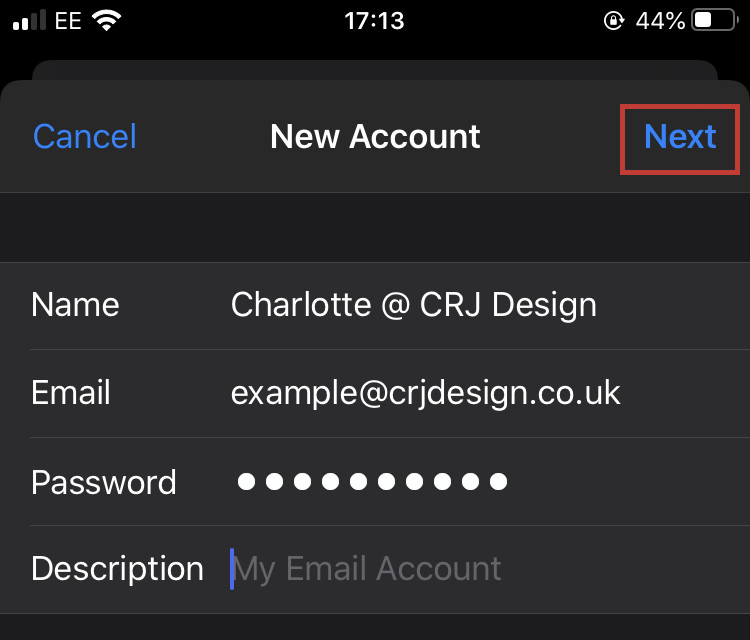
Enter a display name (we recommend using your name, your business name, or a combination of both, eg. Your Name @ Your Business), the email address, and the password for the account (as well as an optional description), and tap Next:
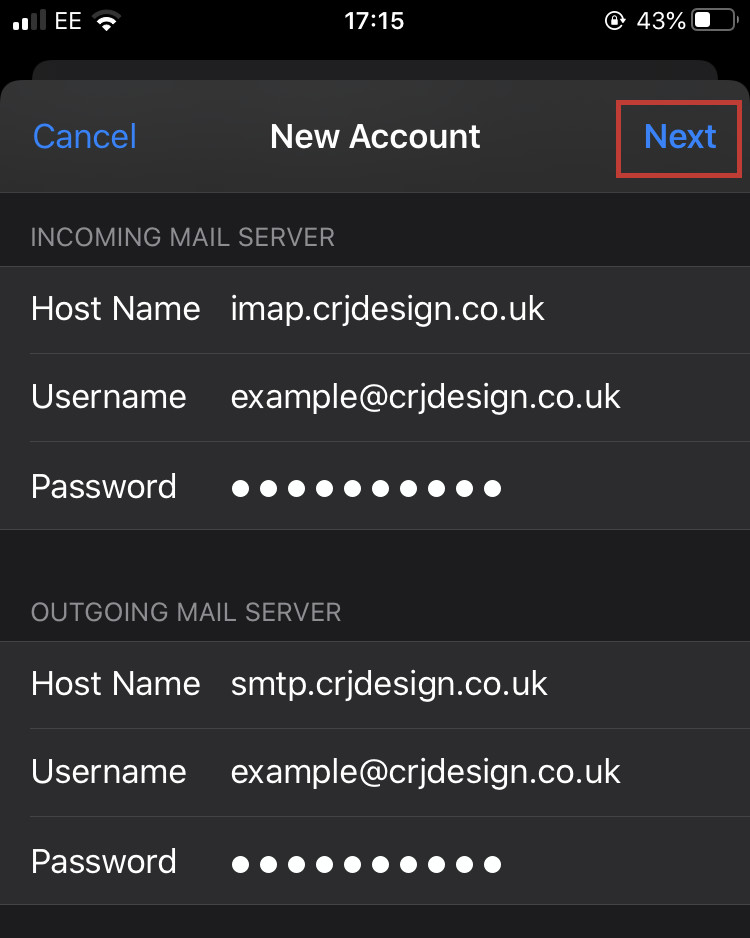
On the next screen, enter the settings for the mail server (we recommend you use IMAP) and click Next:
What's the difference between POP & IMAP?These are two different methods for downloading emails. POP will download the emails from the server and then delete them, so they will only be available from within your iPhone Mail app, and you won't be able to use webmail or connect any other devices to your email account. IMAP syncronises your email with Outlook, without deleting the original emails from your web hosting server. This is beneficial if you would like to connect to your custom email address from a variety of devices.
Incoming Mail Server Host Name: imap.yourdomain.co.uk (pop3.yourdomain.co.uk if you chose POP)
Username: Your full email address (eg. info@yourdomain.co.uk)
Password: The password for the email account
Outgoing Mail Server Host Name: smtp.yourdomain.co.uk
Username: Your full email address (eg. info@yourdomain.co.uk)
Password: The password for the email account
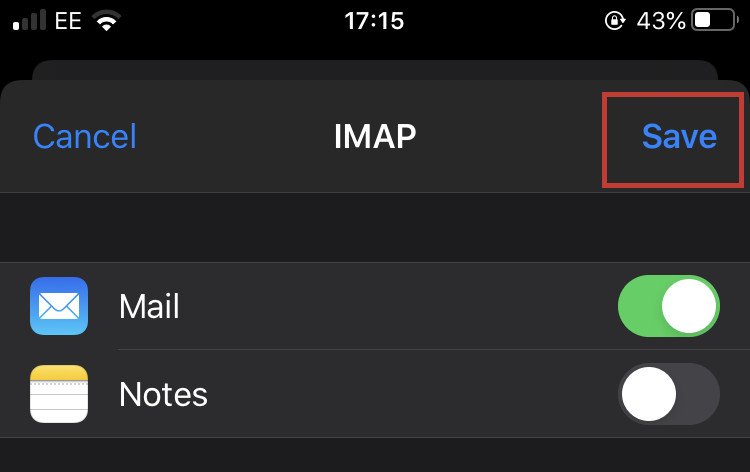
Finally, click Save:
Please NoteIf you receive an error message, double-check that your settings and password are correct. Ensure that you have entered the username and password for both the incoming and outgoing mail servers (it will say that the username and password is optional for the outgoing server, but for security reasons it is required to connect to the account).