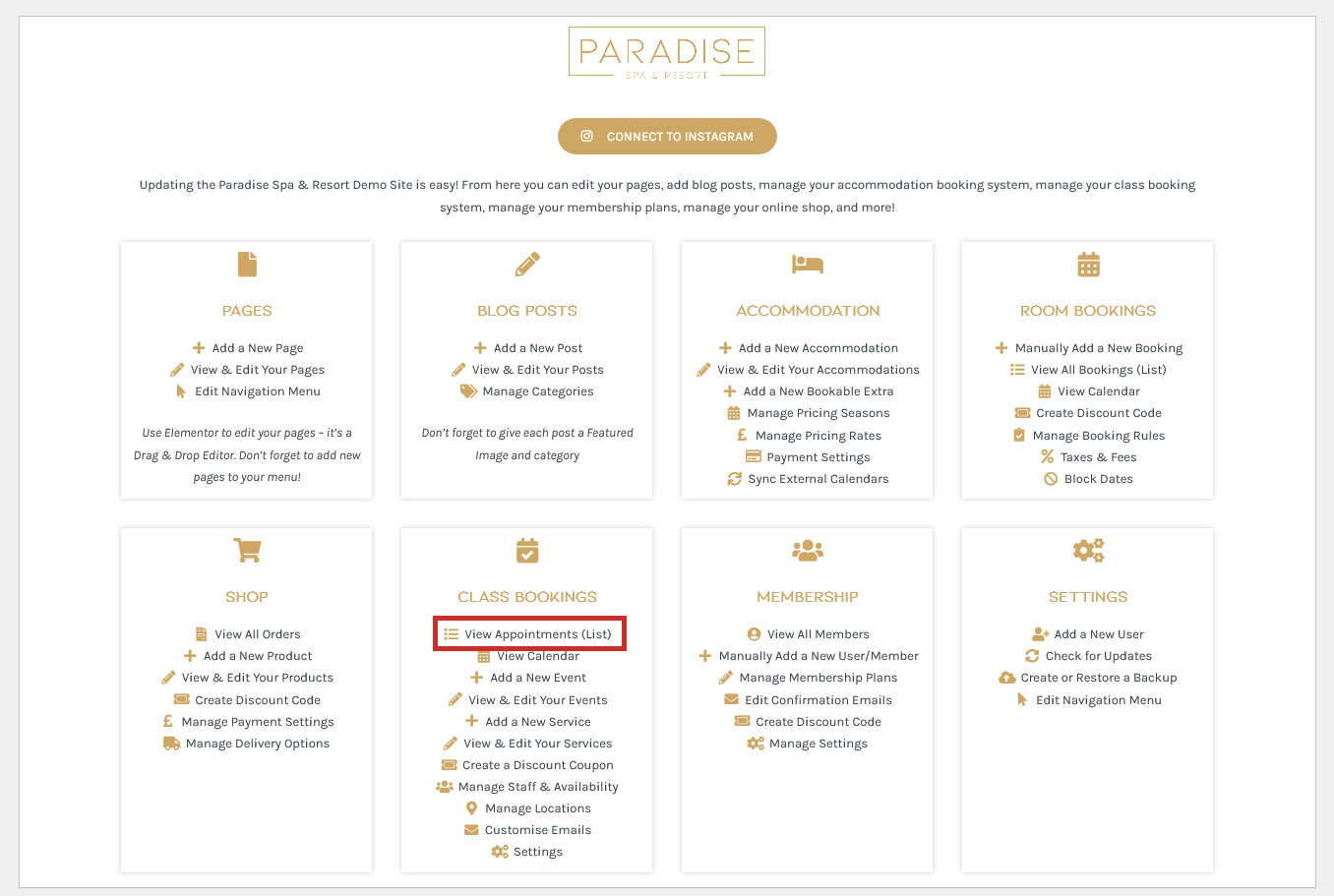
The easiest way to edit or cancel an appointment is in List View. In your dashboard, use the View Appointments (List) link in your dashboard under the ‘Bookings’ or similar heading:
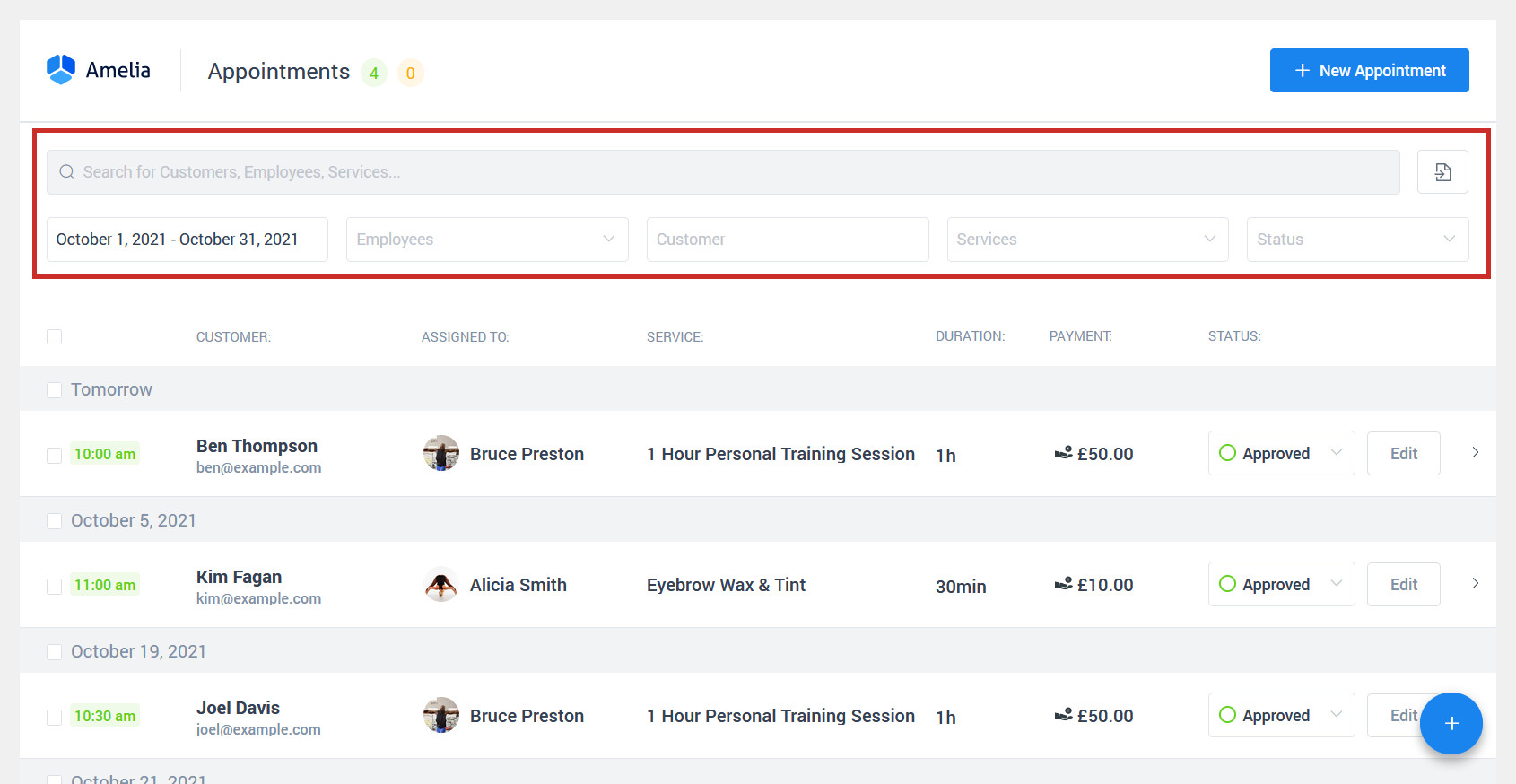
Find the appointment you wish to edit or cancel (you may need to adjust the date range and/or use the search bar or filters to help):
To cancel an appointment, change the status from Approved to Cancelled. This will notify the customer that their booking has been cancelled:
ImportantCancelling an appointment will not automatically issue the customer with a refund. If a refund is required, this must be manually issued via your payment processor (eg. PayPal, Stripe).
To edit the appointment, click the Edit button:
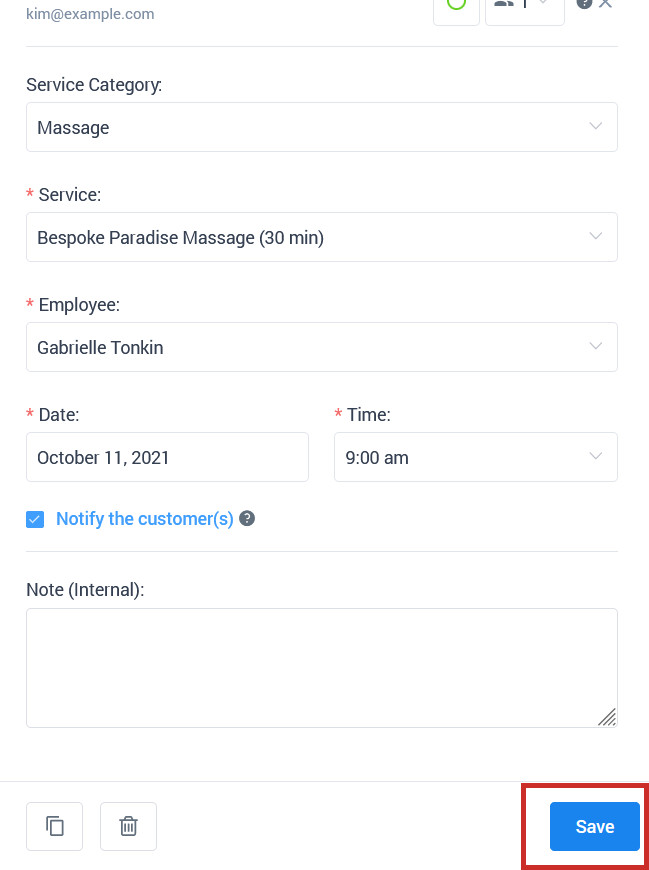
You can change the service, employee, date and/or time, and click Save. If you check ‘Notify the customer(s)’, they will receive an email about the changes to their booking: