Adding contact forms in Elementor

Elementor has a great built-in form widget, enabling you to create powerful contact forms. These can also be great for questionnaires and surveys. First, open the page in Elementor where you would like to add your contact form:
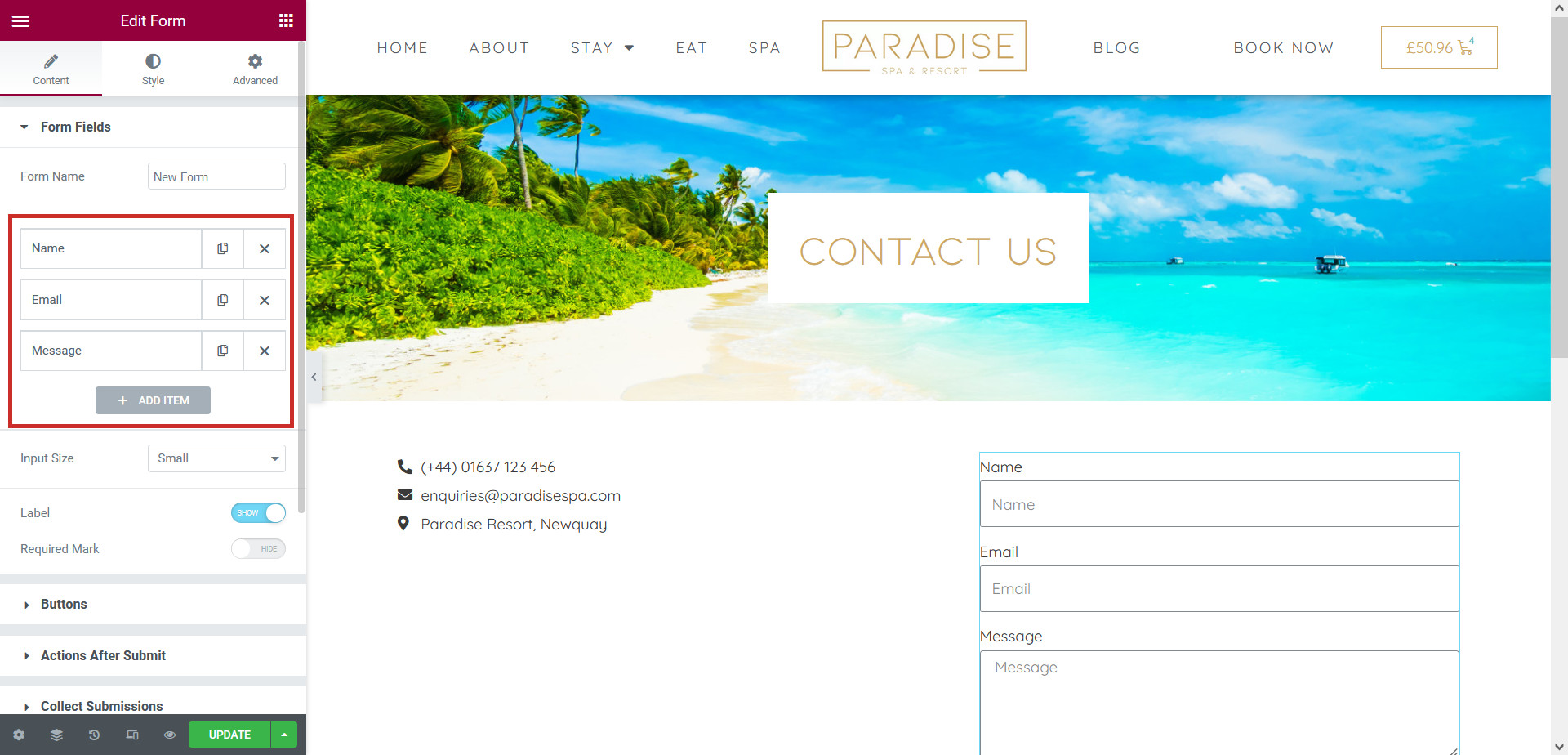
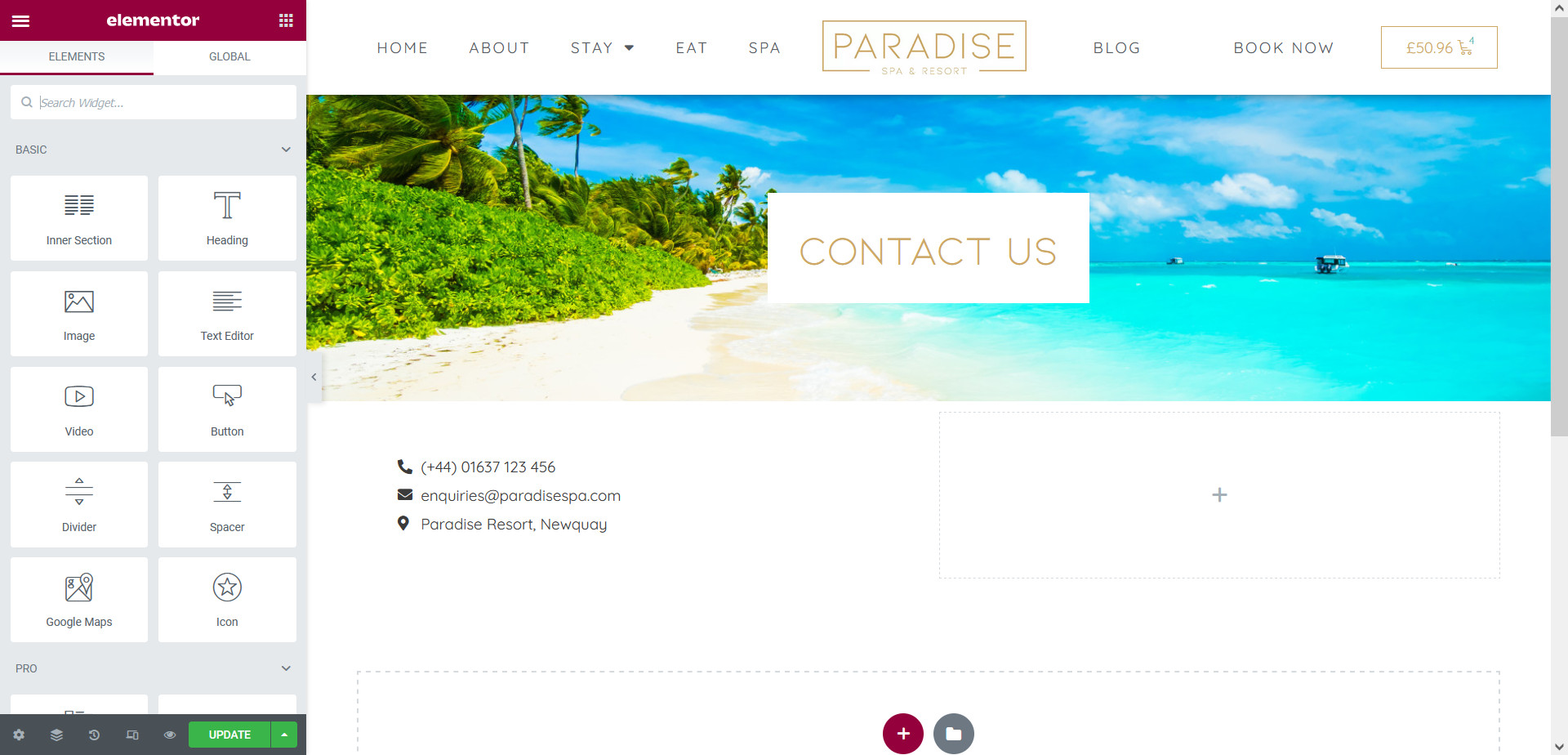
Drag and drop the Form widget into the page where you would like the form to appear:
By default, a basic form will be created with the fields ‘Name’, ‘Email’ and ‘Message’. You can edit or delete these fields, or add new ones, in the Elementor sidebar:
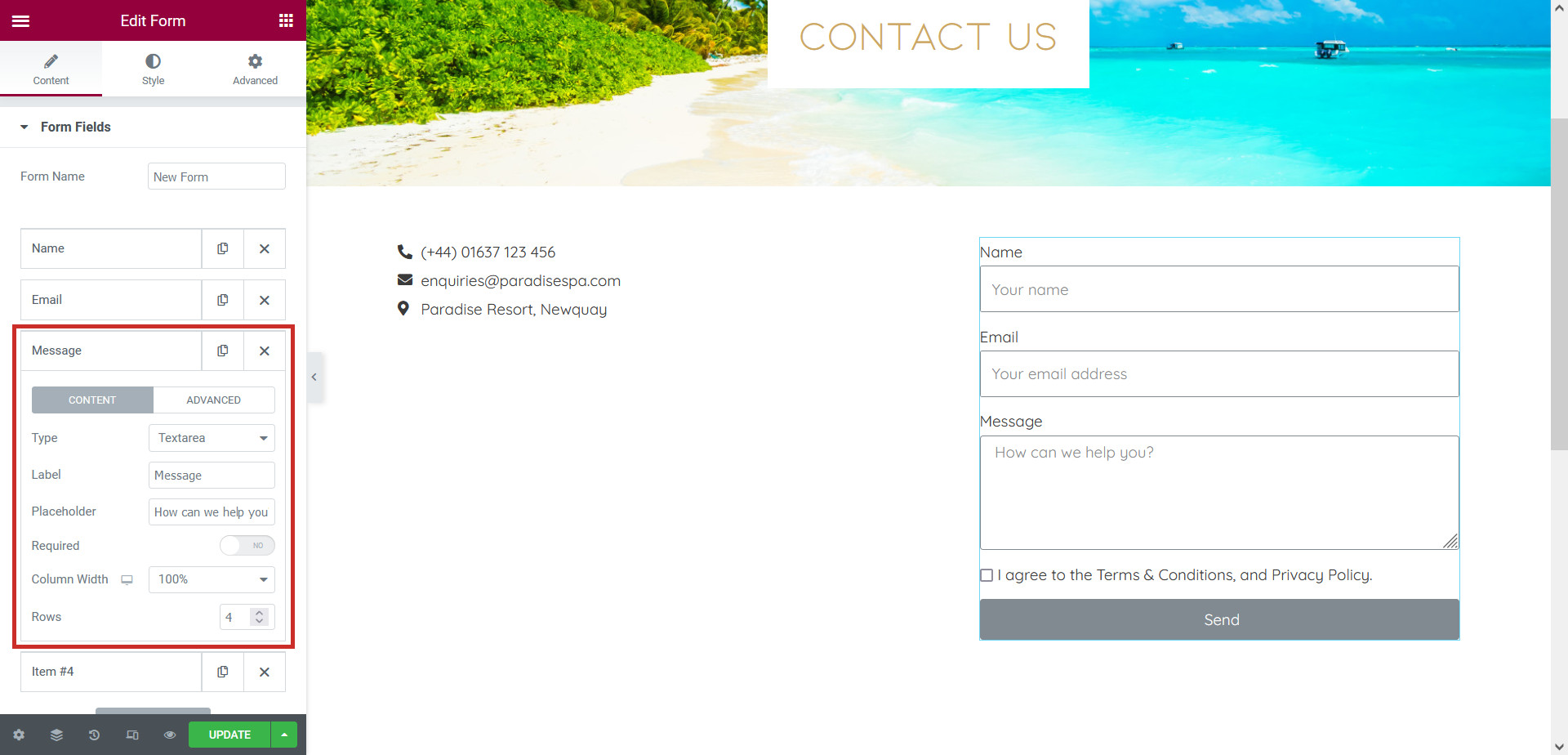
There are multiple field types available. Below is an example form with mutliple field types to help you create your own:
Build your form by adding fields. Select the field type (using the example above as a guide), enter a label, an optional placeholder, and choose whether or not the field is required or not:
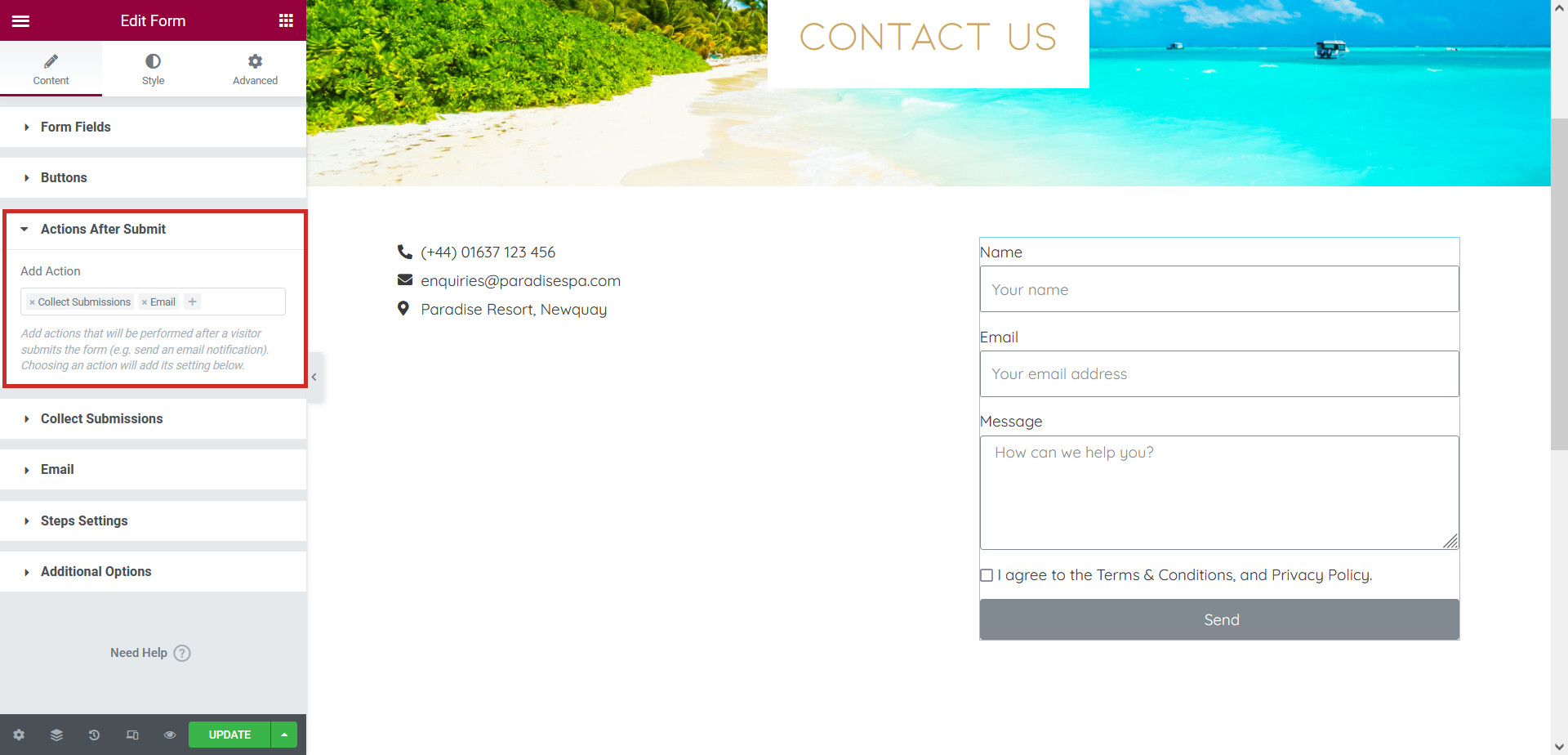
After you have built your form, click Actions After Submit tab to see what will happen when a user submits the form. By default, submissions will be collected, and the form will be sent via email to the website’s admin email address. You can remove these actions or add more, such as linking your form to Mailchimp, MailerLite, or Discord:
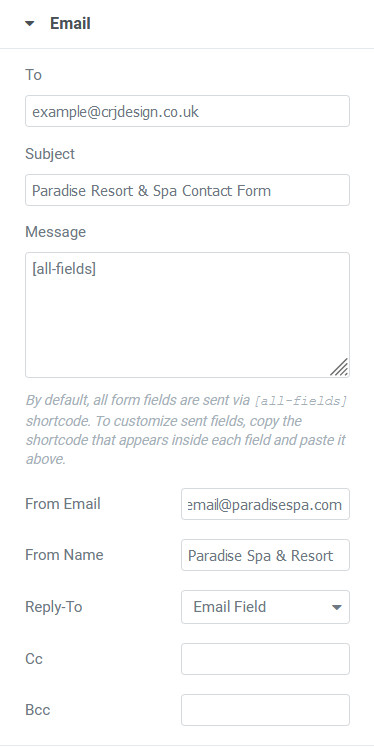
If you would like to receive form submissions via email, you must ensure that ‘Email’ is a selected action, and then edit the settings in the Email tab:
  • To: The email address where you would like to receive the form submissions (add multiple email addresses seperated with a comma)
  • Subject: The email subject when a form submission is sent
  • Message: [all-fields] will include all form fields in the email (recommended)
  • From Email: The email address used to send form submissions from (this doesn’t have to be a real email address, but ideally should include your website’s domain to prevent email deliverability issues)
  • Reply-To: Choose ‘Email Field’ to reply to the user’s email address when you respond to the form submission
  • Cc: An optional carbon copy email address to receive the form submission
  • Bcc: An optional blind carbon copy email address to receive the form submission

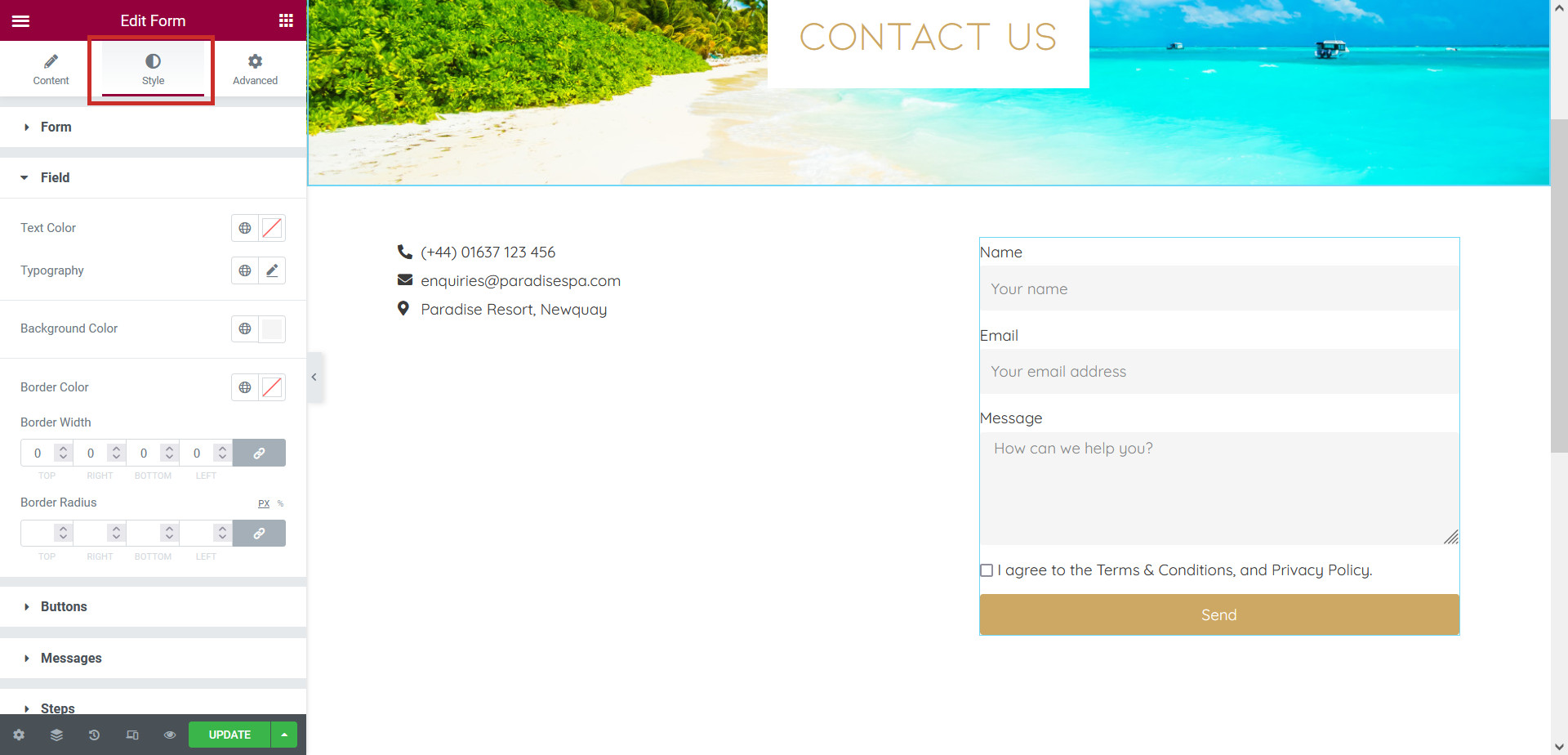
Finally, in the Style tab, you can edit the form’s styling, such as the button colour, field colour and border, font and more:

Click Update to save your changes. It’s a good idea to test your form to check that it’s working OK by exiting Elementor and filling the form in.